> ## Documentation Index
> Fetch the complete documentation index at: https://docs.box.com/llms.txt
> Use this file to discover all available pages before exploring further.
# Box Notes in Box for iOS
export const InlineImage = ({src, alt = "", height = "1em"}) => {
return  ;
};
Box Notes is available in the Box for iOS mobile application. Box Notes are web-based documents and do not require any additional software. You can use Box Notes to create, edit, and share ideas in real-time with your collaborators.
**Creating Box Notes**
To create a new note, open the Box for iPhone or Box for iPad application on your device and follow this procedure:
* Navigate to the folder where you'd like to create the new Box Note.
* Tap the **+** icon in the top right corner.
* Tap **Create New Box Note**. A new note will load immediately.
;
};
Box Notes is available in the Box for iOS mobile application. Box Notes are web-based documents and do not require any additional software. You can use Box Notes to create, edit, and share ideas in real-time with your collaborators.
**Creating Box Notes**
To create a new note, open the Box for iPhone or Box for iPad application on your device and follow this procedure:
* Navigate to the folder where you'd like to create the new Box Note.
* Tap the **+** icon in the top right corner.
* Tap **Create New Box Note**. A new note will load immediately.
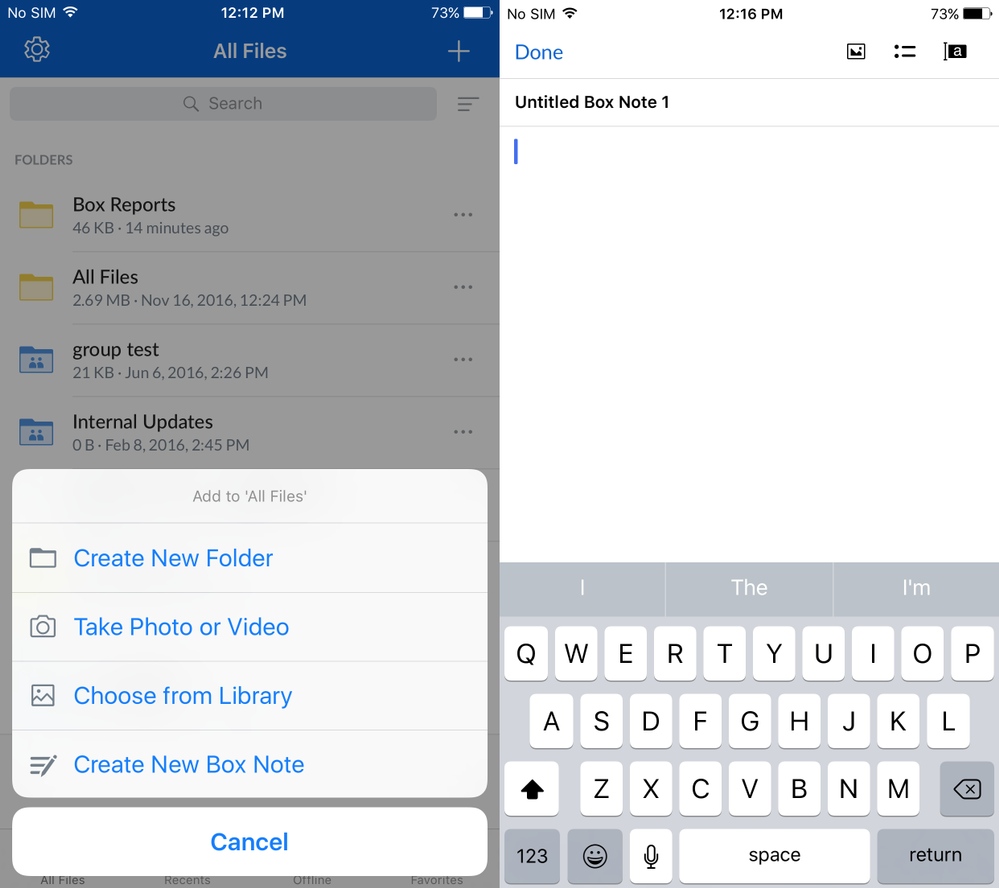 * Tap the title to edit and assign a new title for this note.
* Start typing in your new Box Note. You can add annotations to your Box Note by higlighting text and tapping the **Annotate** icon in the bottom menu. Tap highlighted text to view annotations left by collaborators.
* Tap **Done** to dismiss the keyboard.
**Editing Box Notes**
Like any other Box document, you can find your notes in the folder where you added the note. You can open and edit your Box Note, and all changes will be saved automatically.
While editing your Box Note, use the toolbar at the bottom to change text formatting (screenshot below). Apply changes to existing text by highlighting it before selecting a formatting option.
* Tap the title to edit and assign a new title for this note.
* Start typing in your new Box Note. You can add annotations to your Box Note by higlighting text and tapping the **Annotate** icon in the bottom menu. Tap highlighted text to view annotations left by collaborators.
* Tap **Done** to dismiss the keyboard.
**Editing Box Notes**
Like any other Box document, you can find your notes in the folder where you added the note. You can open and edit your Box Note, and all changes will be saved automatically.
While editing your Box Note, use the toolbar at the bottom to change text formatting (screenshot below). Apply changes to existing text by highlighting it before selecting a formatting option.
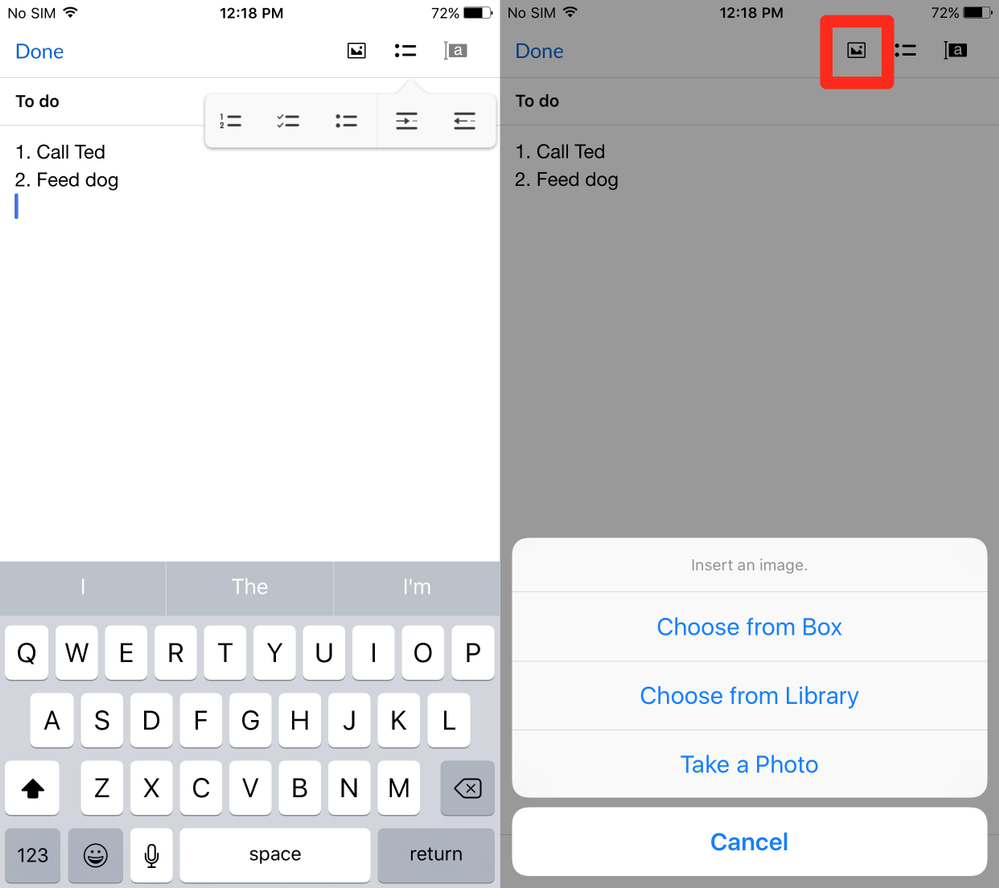 To add images to your box note, touch the **image** **icon** (screenshot above) in the upper right-hand corner and choose the image you would like to add. You can add images from Box, from your iOS library, or you can take a new photo and immediately add it to your Box Note.
**Sharing Box Notes**
Tap the Shared Link iconin the toolbar at the bottom of your device to generate a [shared link](/en/box-fundamentals/for-users/collaborating/using-shared-links/creating-shared-links) to the Box Note. Only collaborators with [access levels](/en/box-fundamentals/for-users/collaborating/collaborating-by-inviting-others/understanding-collaborator-permission-levels) of Editor or Co-owner can make changes to Box Notes. All other collaborators will only have view access. You can choose to send the shared link directly to collaborators via Email or Messages, or copy the link to the clipboard and paste it later.
To add images to your box note, touch the **image** **icon** (screenshot above) in the upper right-hand corner and choose the image you would like to add. You can add images from Box, from your iOS library, or you can take a new photo and immediately add it to your Box Note.
**Sharing Box Notes**
Tap the Shared Link iconin the toolbar at the bottom of your device to generate a [shared link](/en/box-fundamentals/for-users/collaborating/using-shared-links/creating-shared-links) to the Box Note. Only collaborators with [access levels](/en/box-fundamentals/for-users/collaborating/collaborating-by-inviting-others/understanding-collaborator-permission-levels) of Editor or Co-owner can make changes to Box Notes. All other collaborators will only have view access. You can choose to send the shared link directly to collaborators via Email or Messages, or copy the link to the clipboard and paste it later.