> ## Documentation Index
> Fetch the complete documentation index at: https://docs.box.com/llms.txt
> Use this file to discover all available pages before exploring further.
# Using Templates in Box Notes
Templates enable you to quickly create a Box Note using pre-populated content. You can choose from a set of default templates, or use custom templates that you or your team has created. This is useful when you need to create a Box Note using a standard format or structure such as meeting agendas, project plans, or calendars.
**Note**
Currently, this feature is not available to free Box accounts.
## **Creating a Note Using Templates**
You can create a new Box Note from an existing template either in a default Box Notes folder or in the folder in which you are currently active.
To create a new Box Note from a template in your default Box Notes folder:
1. In the Box Notes side navigation, next to the **New** button, click the arrow.
2. In the dropdown list that displays, click **Note from Template**. This creates the new note in your default Box Notes folder. Typically the label of this folder is **My Box Notes.**
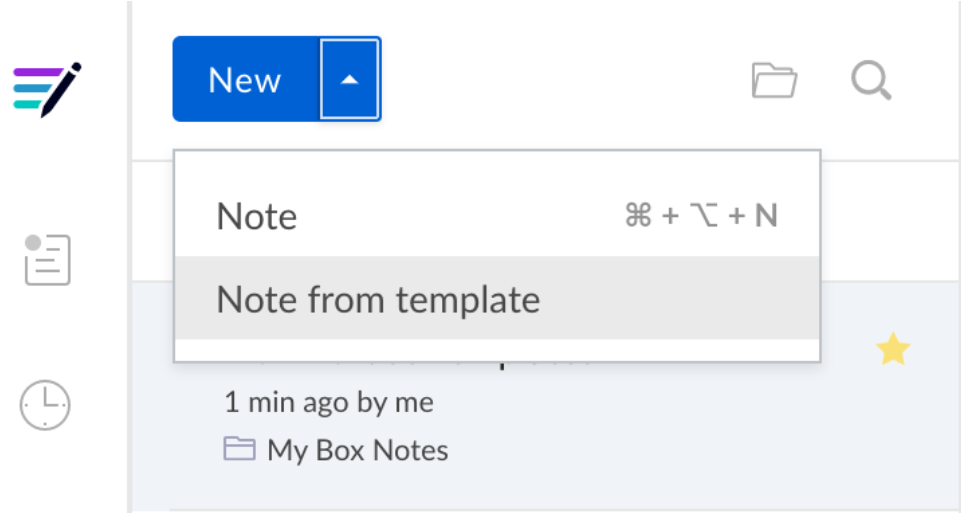 To create a new Box Note from a template in the folder in which you are currently active:
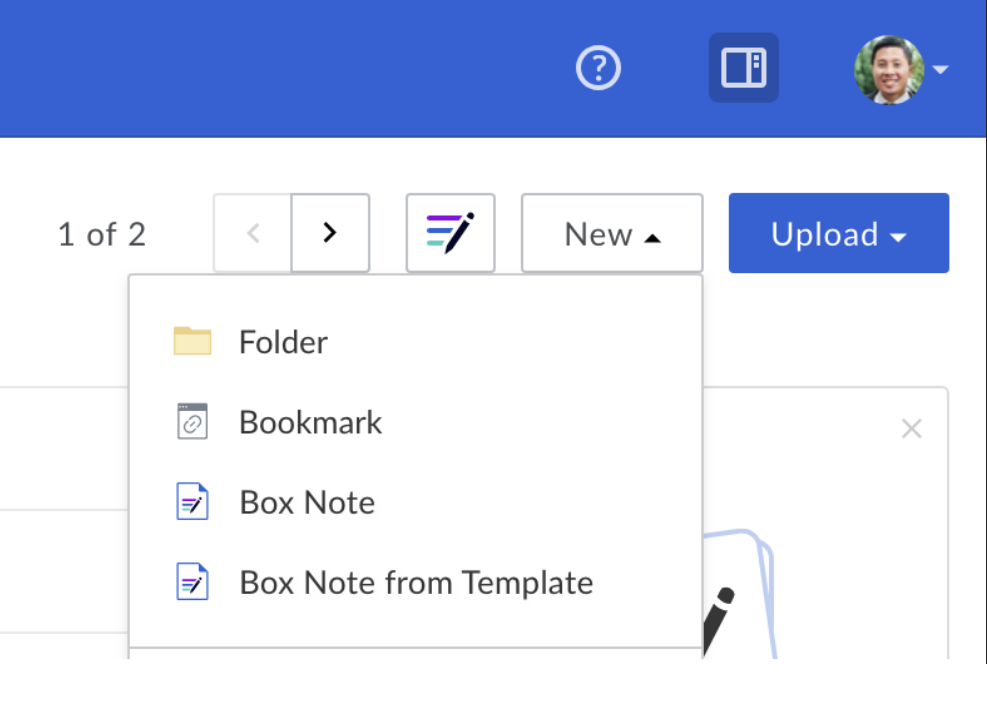
1. In the Box Web App, on the **Files** page, click **New**.
2. In the dropdown list that displays, click **Box Note from Template**. This creates the new note in your currently active folder.
To create a new Box Note from a template in the folder in which you are currently active:
1. In the Box Web App, on the **Files** page, click **New**.
2. In the dropdown list that displays, click **Box Note from Template**. This creates the new note in your currently active folder.
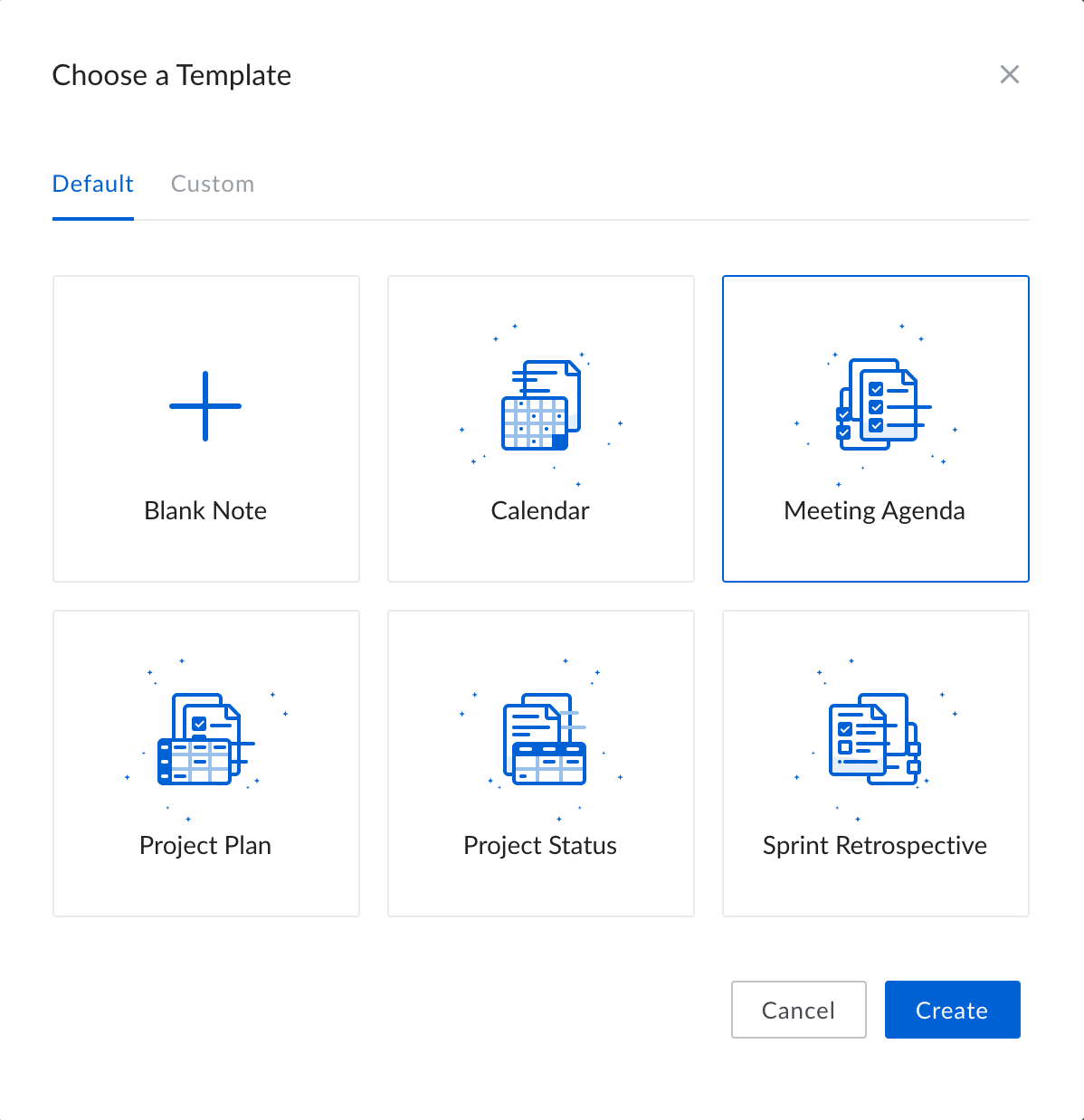
 **Default Templates** To use one of the default templates provided by Box:
1. Select a template under the **Default** tab.
2. Click **Create**. This creates a new note that uses template you selected.
**Default Templates** To use one of the default templates provided by Box:
1. Select a template under the **Default** tab.
2. Click **Create**. This creates a new note that uses template you selected.
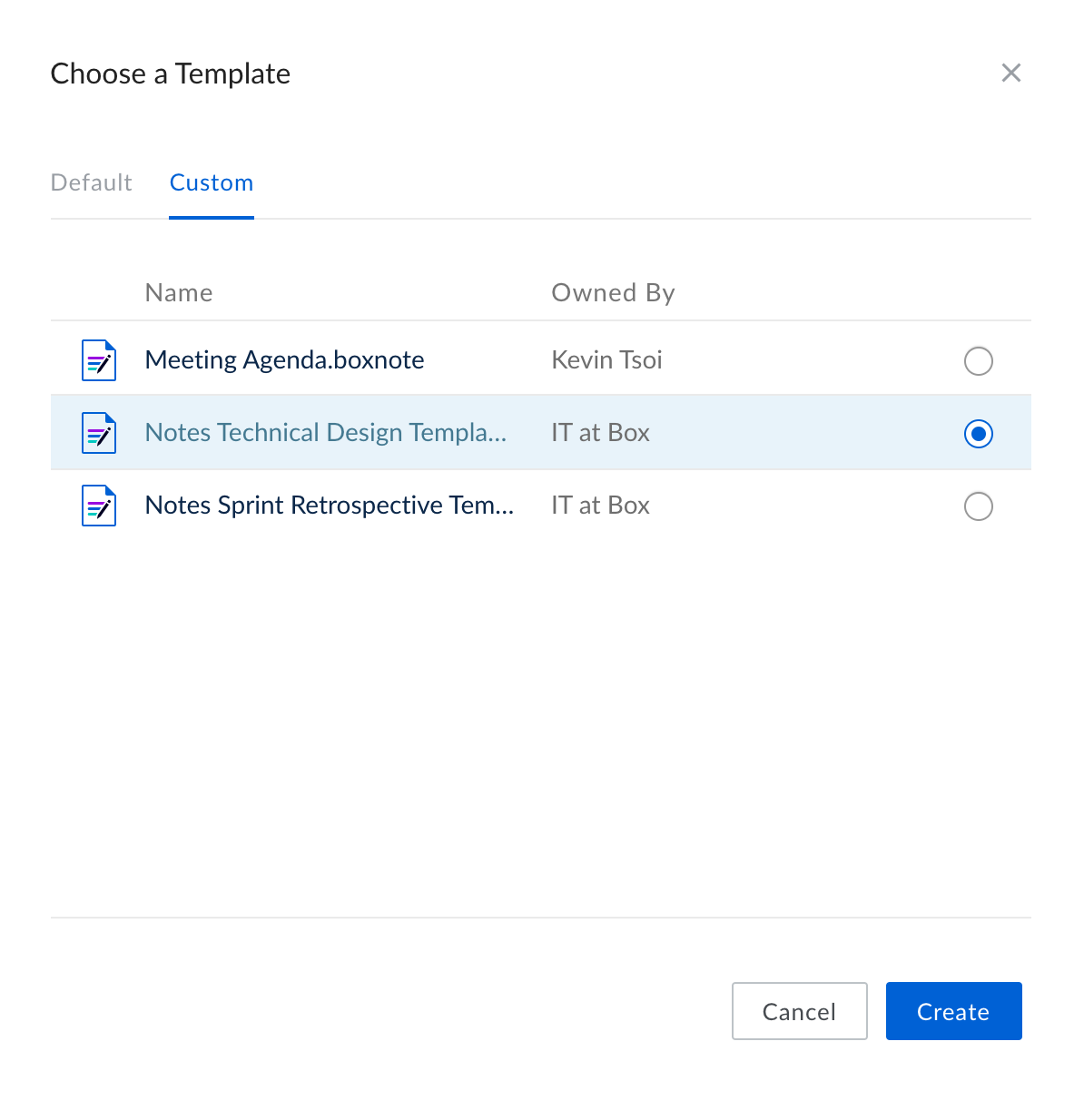
 **To use a custom template that you have created or in which you are a collaborator:**
* Open the **Custom** tab.
* Any custom templates accessible to you display in this list.
* Select a template from the list and click **Create**. A new note is created using the selected template.
**Note**
If you cannot find a template that you believe you should have access to, verify that you are a collaborator in the template itself or in the folder in which the template is located.
**To use a custom template that you have created or in which you are a collaborator:**
* Open the **Custom** tab.
* Any custom templates accessible to you display in this list.
* Select a template from the list and click **Create**. A new note is created using the selected template.
**Note**
If you cannot find a template that you believe you should have access to, verify that you are a collaborator in the template itself or in the folder in which the template is located.
 Alternatively, you can open the template that you want to use (just as with any Box Note), then, in the top right, click **Use this Template**.
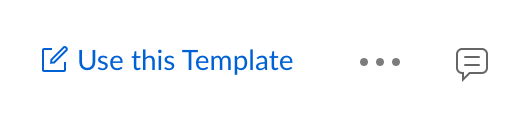 A new Box Note is created using the template you have opened.**To use a custom template to which you have received a shared link:** Templates sent via shared link do **not** display in the **Custom** tab of the Template Picker. You must click the shared link you were sent to open the template (just as with any Box Note). Then, in the top right, click **Use this Template**. A new Box Note is created using the template you have opened.
## Creating a Custom Template
To create a custom template:
* [Create a new Box Note](/en/box-notes/creating-and-editing-box-notes/creating-a-box-note).
* Fill this new note with the contents of your template.
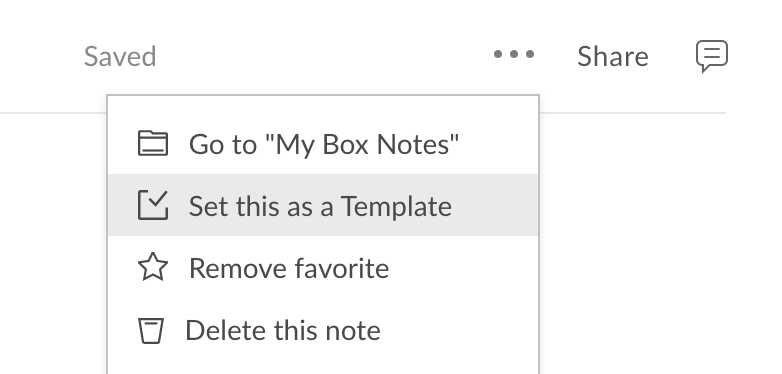
* Once you are satisfied with your template, open the **More Options** (**...**) menu in the upper right corner and select **Set this as a Template**. This note is now a template.
A new Box Note is created using the template you have opened.**To use a custom template to which you have received a shared link:** Templates sent via shared link do **not** display in the **Custom** tab of the Template Picker. You must click the shared link you were sent to open the template (just as with any Box Note). Then, in the top right, click **Use this Template**. A new Box Note is created using the template you have opened.
## Creating a Custom Template
To create a custom template:
* [Create a new Box Note](/en/box-notes/creating-and-editing-box-notes/creating-a-box-note).
* Fill this new note with the contents of your template.
* Once you are satisfied with your template, open the **More Options** (**...**) menu in the upper right corner and select **Set this as a Template**. This note is now a template.
 **Notes:**
* After you have set a Box Note as a template, that Box Note file **is** the template file. If you delete this file, no one can use the template. You may want to move the newly-created template into a specific **Templates** folder, to keep track of where your templates are stored.
* If you would like others in your organization to use this template, verify that they are collaborators [(with any access level)](/en/box-fundamentals/for-users/collaborating/collaborating-by-inviting-others/understanding-collaborator-permission-levels) in the template itself, or in the folder in which the template is stored. You can also send coworkers a shared link to the template. This enables them to use the template. However, templates sent to coworkers via shared link do not display in their **Custom Templates** list.
## Sharing a Custom Template
There are a few different ways that you can share a template with a coworker:
1. **Add Collaborators to the Folder Containing the Template**
* The best way to ensure a coworker has access to a template is to [add that coworker as a collaborator](/en/box-fundamentals/for-users/collaborating/collaborating-by-inviting-others/inviting-collaborators) in the folder containing the template. Collaborators [(with any access level)](/en/box-fundamentals/for-users/collaborating/collaborating-by-inviting-others/understanding-collaborator-permission-levels) in the folder containing a template can select the template from the **Custom** tab when creating a Box Note from a template.
2. Collaborators with the **Viewer Uploader, Editor, Co-Owner,** or **Owner** access level also can edit and disable the template.
* This method of sharing a template is useful if you want someone to have access to a template in the **Custom** tab, without giving them permission to edit the template. By inviting them into the folder, you have the most granular control over what permissions they have in relation to the template.
3. **Invite to Edit the Template Directly**
* To display a template in someone's **Custom** tab when creating a Box Note from a template -- and if you are satisfied with giving that person permission to edit the template -- you can add them as an **Editor** to the template itself (just as with any Box Note). To add someone as an Editor in the Template:
* In the upper-right corner, click **Share**.
* Select **Invite people to edit.**
* Enter the people you want to add as Editors. Note that they can edit and disable the template. If you do not want to assign these permissions to them, we recommend you add them as collaborators to the folder containing the template. In that way you have more granular control over their permissions.
* Once someone has been added as an Editor in a Template, the template displays in their **Custom** tab when creating a Box Note from a template.
4. **Send the Template via Shared Link**
* The simplest way to share a template with someone is to send them a shared link to that template. However, templates sent via shared link do **not** display in the **Custom** tab of the Template Picker. To use the template, people must click the shared link to open the template, and then, in the top right, click **Use this Template**. To send a template via shared link:
1. In the upper-right corner, click **Share**.
2. Click **Get Link.**
3. Choose who can access this link. You can choose between **People in your company, People in this folder,** and **People with the link**.
4. Choose what permission level to assign to people who follow the shared link. Click **Can View** if you give people with the link access to use the template but not edit or disable it. Click **Can Edit** to people with the link permission also to edit and disable the template.
5. When you are ready, copy the link provided and send it to whomever you want.
**Editing a Custom Template**
The creator of a template and collaborators with the **Viewer Uploader, Editor, Co-Owner,** or **Owner** access level can edit existing templates. **To edit a Template:**
1. Open the template you wish to edit.
2. Open the the **More Options** (**...**) menu and click **Edit this Template**.
**Notes:**
* After you have set a Box Note as a template, that Box Note file **is** the template file. If you delete this file, no one can use the template. You may want to move the newly-created template into a specific **Templates** folder, to keep track of where your templates are stored.
* If you would like others in your organization to use this template, verify that they are collaborators [(with any access level)](/en/box-fundamentals/for-users/collaborating/collaborating-by-inviting-others/understanding-collaborator-permission-levels) in the template itself, or in the folder in which the template is stored. You can also send coworkers a shared link to the template. This enables them to use the template. However, templates sent to coworkers via shared link do not display in their **Custom Templates** list.
## Sharing a Custom Template
There are a few different ways that you can share a template with a coworker:
1. **Add Collaborators to the Folder Containing the Template**
* The best way to ensure a coworker has access to a template is to [add that coworker as a collaborator](/en/box-fundamentals/for-users/collaborating/collaborating-by-inviting-others/inviting-collaborators) in the folder containing the template. Collaborators [(with any access level)](/en/box-fundamentals/for-users/collaborating/collaborating-by-inviting-others/understanding-collaborator-permission-levels) in the folder containing a template can select the template from the **Custom** tab when creating a Box Note from a template.
2. Collaborators with the **Viewer Uploader, Editor, Co-Owner,** or **Owner** access level also can edit and disable the template.
* This method of sharing a template is useful if you want someone to have access to a template in the **Custom** tab, without giving them permission to edit the template. By inviting them into the folder, you have the most granular control over what permissions they have in relation to the template.
3. **Invite to Edit the Template Directly**
* To display a template in someone's **Custom** tab when creating a Box Note from a template -- and if you are satisfied with giving that person permission to edit the template -- you can add them as an **Editor** to the template itself (just as with any Box Note). To add someone as an Editor in the Template:
* In the upper-right corner, click **Share**.
* Select **Invite people to edit.**
* Enter the people you want to add as Editors. Note that they can edit and disable the template. If you do not want to assign these permissions to them, we recommend you add them as collaborators to the folder containing the template. In that way you have more granular control over their permissions.
* Once someone has been added as an Editor in a Template, the template displays in their **Custom** tab when creating a Box Note from a template.
4. **Send the Template via Shared Link**
* The simplest way to share a template with someone is to send them a shared link to that template. However, templates sent via shared link do **not** display in the **Custom** tab of the Template Picker. To use the template, people must click the shared link to open the template, and then, in the top right, click **Use this Template**. To send a template via shared link:
1. In the upper-right corner, click **Share**.
2. Click **Get Link.**
3. Choose who can access this link. You can choose between **People in your company, People in this folder,** and **People with the link**.
4. Choose what permission level to assign to people who follow the shared link. Click **Can View** if you give people with the link access to use the template but not edit or disable it. Click **Can Edit** to people with the link permission also to edit and disable the template.
5. When you are ready, copy the link provided and send it to whomever you want.
**Editing a Custom Template**
The creator of a template and collaborators with the **Viewer Uploader, Editor, Co-Owner,** or **Owner** access level can edit existing templates. **To edit a Template:**
1. Open the template you wish to edit.
2. Open the the **More Options** (**...**) menu and click **Edit this Template**.
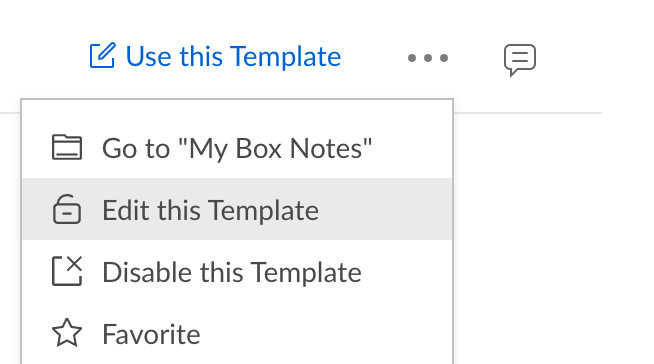 You can now edit the template just as with any Box Note. Your changes are saved automatically.
## **Disabling Specific Templates**
The creator of a template and collaborators with the **Viewer Uploader, Editor, Co-Owner,** or **Owner** access level can disable existing templates. **To disable a template:**
1. Open the template you wish to disable
2. Open the the **More Options** (**...**) menu and click **Disable this Template**.
You can now edit the template just as with any Box Note. Your changes are saved automatically.
## **Disabling Specific Templates**
The creator of a template and collaborators with the **Viewer Uploader, Editor, Co-Owner,** or **Owner** access level can disable existing templates. **To disable a template:**
1. Open the template you wish to disable
2. Open the the **More Options** (**...**) menu and click **Disable this Template**.
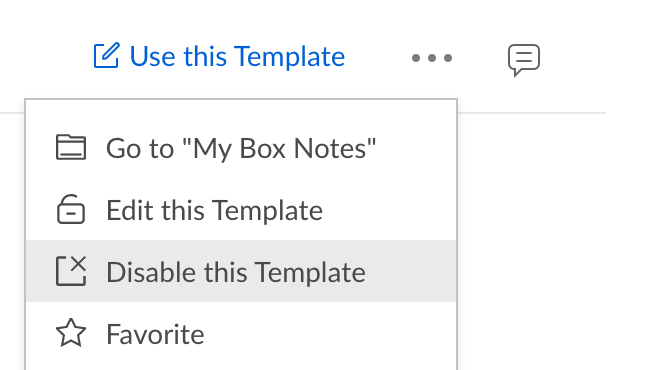 The template is converted back to a regular Box Note.
Alternatively, you can delete the template altogether. However, this means you must recreate the template from scratch should you wish to use it again in the future.
The template is converted back to a regular Box Note.
Alternatively, you can delete the template altogether. However, this means you must recreate the template from scratch should you wish to use it again in the future.