> ## Documentation Index
> Fetch the complete documentation index at: https://docs.box.com/llms.txt
> Use this file to discover all available pages before exploring further.
# Inserting Block Quotes
You can add block quotes to your Box Notes. When you add a block quote, Box displays a shaded vertical bar to the left of the text that you type or paste. You can also add images to block quotes.
## Web Application
On the web application, you can insert a block quote in one of two ways: using the contextual menu or a key combination.
**To insert a block quote using the contextual menu:**
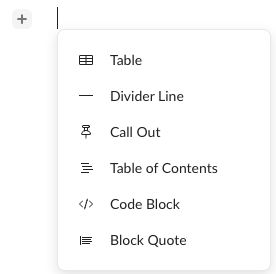
1. Click where you want to insert the block quote. Box displays **+** to the left of your cursor.
2. Click **+** and select **Block Quote**.
3. Type or paste the quoted text.
 **To insert a block quote using keyboard keys:**
1. Click where you want to insert the block quote.
2. On your keyboard, simultaneously press the **>** and **space** keys.
3. Type or paste the quoted text.
To exit a block quote, press **Enter** on a blank line, or click outside the block quote.
## Mobile Application
On your mobile device, you can insert a block quote by tapping the ">" and space keys at the same time.
**To insert a block quote using the keypad:**
1. Tap where you want to insert the block quote.
2. On your keypad, simultaneously tap the **>** and **space** keys.
3. Type or paste the quoted text.
To exit a block quote, tap **Enter** on a blank line, or tap outside the block quote.
**To insert a block quote using keyboard keys:**
1. Click where you want to insert the block quote.
2. On your keyboard, simultaneously press the **>** and **space** keys.
3. Type or paste the quoted text.
To exit a block quote, press **Enter** on a blank line, or click outside the block quote.
## Mobile Application
On your mobile device, you can insert a block quote by tapping the ">" and space keys at the same time.
**To insert a block quote using the keypad:**
1. Tap where you want to insert the block quote.
2. On your keypad, simultaneously tap the **>** and **space** keys.
3. Type or paste the quoted text.
To exit a block quote, tap **Enter** on a blank line, or tap outside the block quote.