> ## Documentation Index
> Fetch the complete documentation index at: https://docs.box.com/llms.txt
> Use this file to discover all available pages before exploring further.
# Adding a Divider Line in Box Notes
For calling out sections and separating content, you can add a divider line to your box notes. This line can helps your readers know where one section starts and stops, without adding additional headers.
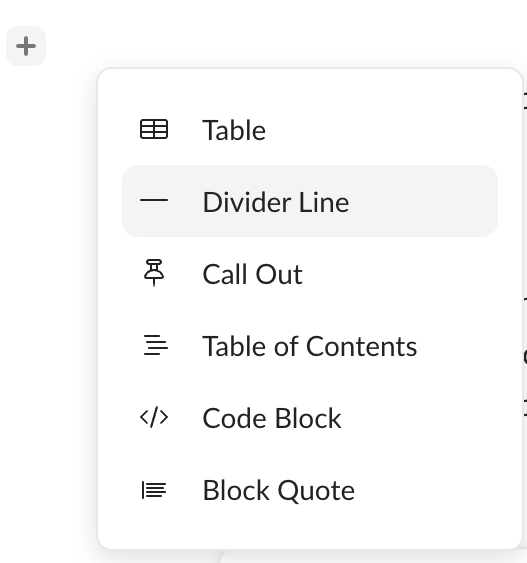
**To add a divider:**
1. Move your text cursor to the section you want to separate
2. Click on the “+” to the left of the text body
* To add a divider on keyboard, click “-“ 3 times.
3. Click Divider Line
 * To remove the line, click backspace or delete on your keyboard.
* To adjust the line, click and hold the line and move it up or down.
* To remove the line, click backspace or delete on your keyboard.
* To adjust the line, click and hold the line and move it up or down.