> ## Documentation Index
> Fetch the complete documentation index at: https://docs.box.com/llms.txt
> Use this file to discover all available pages before exploring further.
# Using the Box Task Center on Mobile
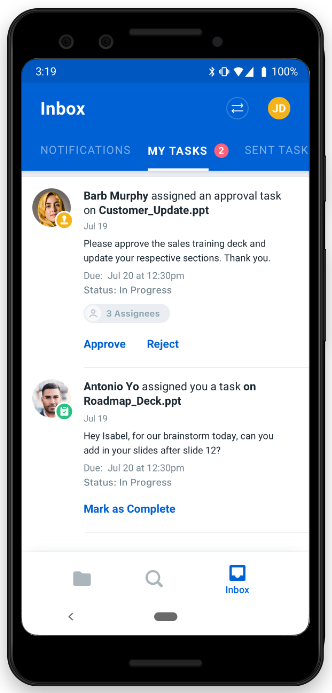
The Box Task Center on Mobile displays a summary of tasks assigned to you, a summary of tasks you assigned to other people, their due dates, and statuses. The Box Task Center also enables you to mark a task as completed, approved, or rejected.
With support on Android and iOS, the Box Task Center on Mobile enables you to review all your assigned tasks on the go, so you can quickly and efficiently review the status and due dates of the work you're involved in.
 **To see tasks assigned to you:**
1. In the footer bar, tap **Inbox**.
2. In the top of the Inbox window, a badge on **MY TASKS** displays how many unfinished tasks you have. Tap **MY TASKS**.
**To see the status of tasks you've assigned:**
1. In the footer bar, tap **Inbox**.
2. In the top of the Inbox window, tap **SENT TASKS**.
**To resolve a task:**
1. In the footer bar, tap **Inbox**.
2. In the top of the Inbox window, tap **MY TASKS**.
3. Below the task, tap
* **Mark as Complete**, or
* **Approve**, or
* **Reject**.
If you assigned a task to yourself, you can also resolve it through **SENT TASKS**.
Both **MY TASKS** and **SENT TASKS** show the 20 most recently assigned tasks.
**To see tasks assigned to you:**
1. In the footer bar, tap **Inbox**.
2. In the top of the Inbox window, a badge on **MY TASKS** displays how many unfinished tasks you have. Tap **MY TASKS**.
**To see the status of tasks you've assigned:**
1. In the footer bar, tap **Inbox**.
2. In the top of the Inbox window, tap **SENT TASKS**.
**To resolve a task:**
1. In the footer bar, tap **Inbox**.
2. In the top of the Inbox window, tap **MY TASKS**.
3. Below the task, tap
* **Mark as Complete**, or
* **Approve**, or
* **Reject**.
If you assigned a task to yourself, you can also resolve it through **SENT TASKS**.
Both **MY TASKS** and **SENT TASKS** show the 20 most recently assigned tasks.