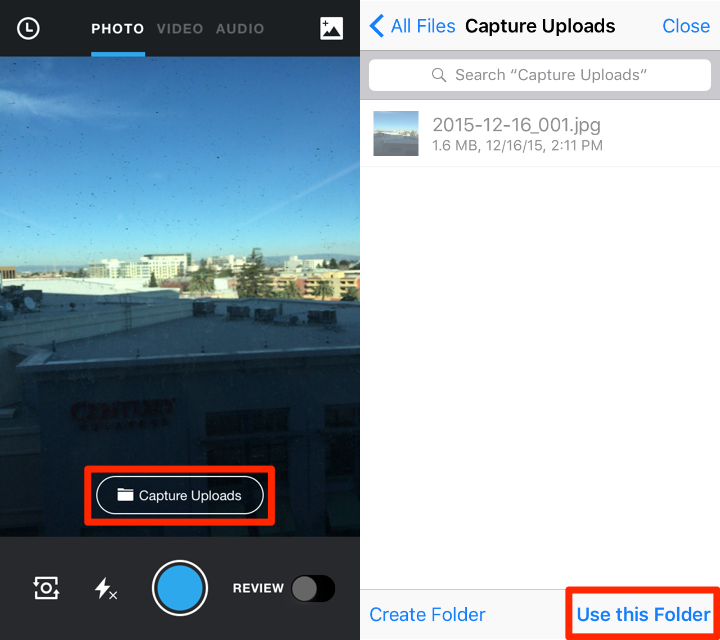
 * Tap the **circle** at the bottom of the screen to capture an image. If recording video or audio, tap the circle once to begin recording, and again to stop.
* You can also choose to import images or videos from your phone memory by tapping the **Gallery Icon** at the top right of the screen. If it is your first time performing this action, be sure to give Box Capture permission to access your gallery by tapping **Allow** when prompted. Tap an image or video to select it. You can select multiple images of videos and upload them all at once.
* When you capture photos and videos, Box Capture can also capture geolocation metadata. If this feature is enabled, all captured photos and videos will be tagged with metadata corresponding to where they were taken. You can toggle geolocation metadata on or off from the **settings** menu (see "Settings" below for more information).
**Note:** Box Capture's review setting is disabled by default for images, video, and audio, meaning your content will be uploaded to Box as soon as you capture it. To enable review, tap the **Review** slider at the bottom-right of the screen. See "[Review](#review)" below for more information.
* Tap the **circle** at the bottom of the screen to capture an image. If recording video or audio, tap the circle once to begin recording, and again to stop.
* You can also choose to import images or videos from your phone memory by tapping the **Gallery Icon** at the top right of the screen. If it is your first time performing this action, be sure to give Box Capture permission to access your gallery by tapping **Allow** when prompted. Tap an image or video to select it. You can select multiple images of videos and upload them all at once.
* When you capture photos and videos, Box Capture can also capture geolocation metadata. If this feature is enabled, all captured photos and videos will be tagged with metadata corresponding to where they were taken. You can toggle geolocation metadata on or off from the **settings** menu (see "Settings" below for more information).
**Note:** Box Capture's review setting is disabled by default for images, video, and audio, meaning your content will be uploaded to Box as soon as you capture it. To enable review, tap the **Review** slider at the bottom-right of the screen. See "[Review](#review)" below for more information.
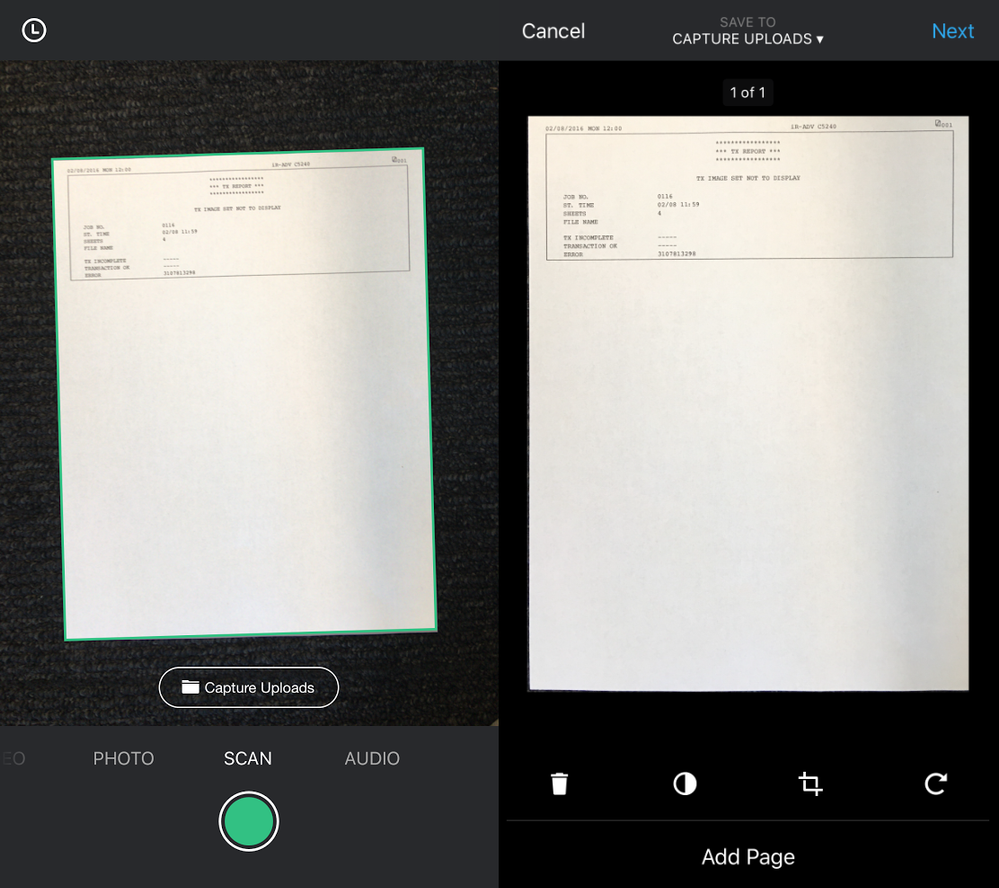 * Once your document is scanned, you will be taken to the Scan Sandbox screen. From here you can grayscale, manually crop, rotate, or delete your scan. You can also choose to take additional scans to create a multi-page document. When you are finished editing and adding pages, tap **Next.**
* **Review** is always enabled for document scans. Once you have finished editing your scanned pages, you will be taken to the review screen, where you can edit your document's name and add comments. For more info on the review screen, see "[Review](#review)" below.
**Note:**
Box also provides [document scanning](/en/box-mobile/how-to-guides-for-mobile/using-document-scanning) in the main Box Android app and main Box iOS app.
* Once your document is scanned, you will be taken to the Scan Sandbox screen. From here you can grayscale, manually crop, rotate, or delete your scan. You can also choose to take additional scans to create a multi-page document. When you are finished editing and adding pages, tap **Next.**
* **Review** is always enabled for document scans. Once you have finished editing your scanned pages, you will be taken to the review screen, where you can edit your document's name and add comments. For more info on the review screen, see "[Review](#review)" below.
**Note:**
Box also provides [document scanning](/en/box-mobile/how-to-guides-for-mobile/using-document-scanning) in the main Box Android app and main Box iOS app.
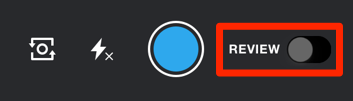 * Now once you capture anything, you can review it before uploading it to Box.
* Edit your image's name and add comments by tapping “**Add a comment...”** near the bottom of the screen. You can tag people in comments just like you can in Box by adding an "@" symbol in front of their name. Tap **Save** in the top right of the screen when you are done.
* Now once you capture anything, you can review it before uploading it to Box.
* Edit your image's name and add comments by tapping “**Add a comment...”** near the bottom of the screen. You can tag people in comments just like you can in Box by adding an "@" symbol in front of their name. Tap **Save** in the top right of the screen when you are done.
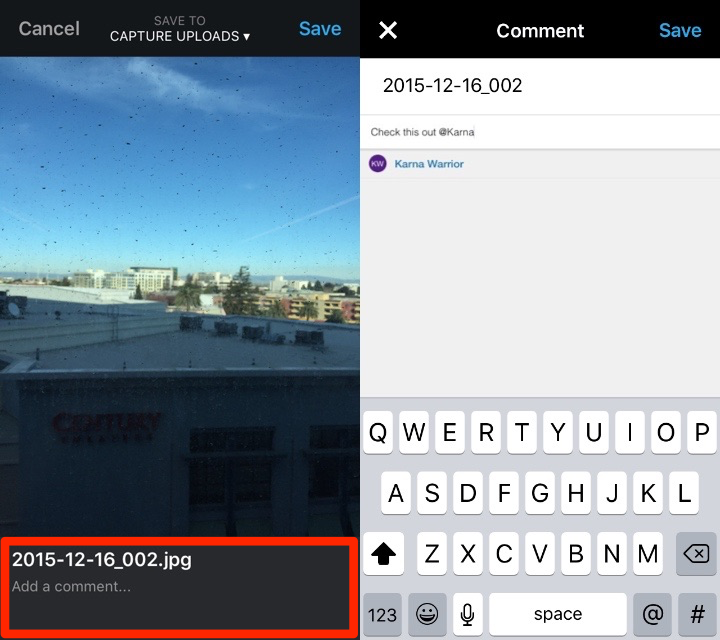 * Tap **Save to Folder** at the top of the screen to change where your content is saved. Navigate to the folder where you'd like to save your content and tap "**Use this Folder"** to select the folder you are currently in. You can choose any folder in your Box account.
* When you are finished reviewing, tap **Save** in the top right corner to save your image or video to Box.
# Managing Content
Tap the **Recents** icon in the top-left corner to view a gallery of all your captured content.
* Tap **Save to Folder** at the top of the screen to change where your content is saved. Navigate to the folder where you'd like to save your content and tap "**Use this Folder"** to select the folder you are currently in. You can choose any folder in your Box account.
* When you are finished reviewing, tap **Save** in the top right corner to save your image or video to Box.
# Managing Content
Tap the **Recents** icon in the top-left corner to view a gallery of all your captured content.
 * Press and hold an item to select it. After selecting one item, you can tap other items to select them as well. You can move or delete selected items.
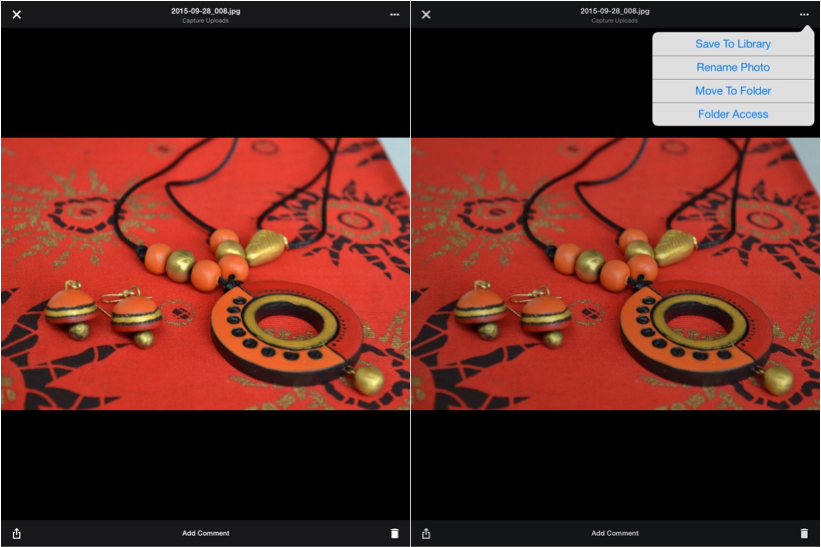
* Tap an item to view it individually. You can add comments, generate a shared link, or delete the item using the buttons at the bottom of the screen.
* While viewing an image or video, tap the **Ellipsis** in the top right corner to perform the following actions.
* Save the file to your device's camera roll
* Rename the file
* Move the file to another folder in Box
* Invite collaborators to the folder where your content is currently located (see "Adding Collaborators" below)
* Press and hold an item to select it. After selecting one item, you can tap other items to select them as well. You can move or delete selected items.
* Tap an item to view it individually. You can add comments, generate a shared link, or delete the item using the buttons at the bottom of the screen.
* While viewing an image or video, tap the **Ellipsis** in the top right corner to perform the following actions.
* Save the file to your device's camera roll
* Rename the file
* Move the file to another folder in Box
* Invite collaborators to the folder where your content is currently located (see "Adding Collaborators" below)
 # Adding Collaborators
After capturing images or video and uploading them to Box, you can invite and remove collaborators to the folder containing your captured content.
* From the **Recents** screen, tap on an image to view it individually. Make sure that the image you've selected is in the folder into which you would like to invite collaborators.
* Tap on the **Ellipses** in the top-right corner to open More Options, then tap **Folder Access**
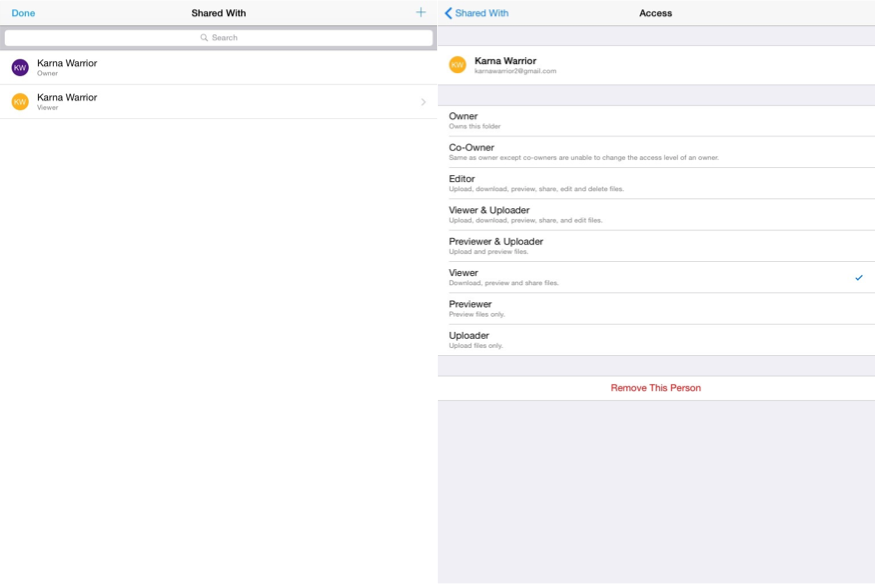
* Here, you can see a list of all the people your folder is currently shared with. Tap on a collaborator's name to change their access permissions, or remove them from the folder entirely.
# Adding Collaborators
After capturing images or video and uploading them to Box, you can invite and remove collaborators to the folder containing your captured content.
* From the **Recents** screen, tap on an image to view it individually. Make sure that the image you've selected is in the folder into which you would like to invite collaborators.
* Tap on the **Ellipses** in the top-right corner to open More Options, then tap **Folder Access**
* Here, you can see a list of all the people your folder is currently shared with. Tap on a collaborator's name to change their access permissions, or remove them from the folder entirely.
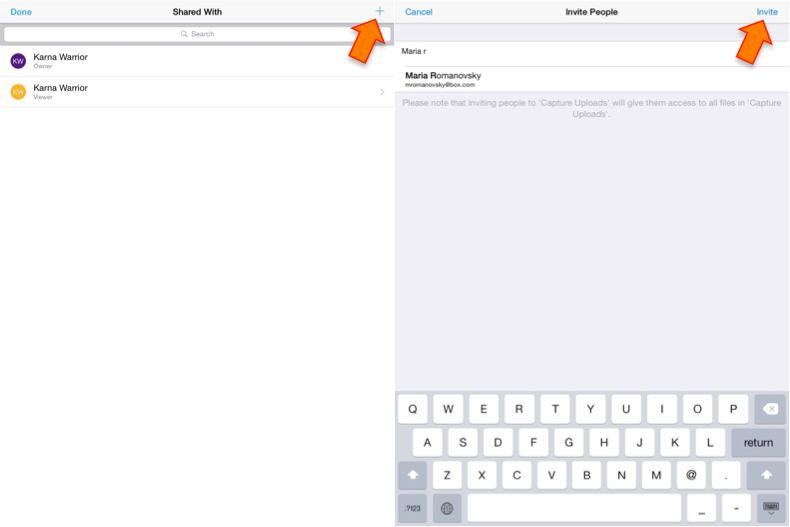
 * To add a collaborator to the folder, tap the **plus** in the top-right corner. On the next screen, enter the name or email of the collaborator you would like to add, then tap **Invite** in the top-right to add them to the folder.
 # Settings
To access your Box Capture app settings, navigate to the **Recents** screen, then tap the **Settings** icon in the top-left corner.
See the table below for more information on each option:
# Settings
To access your Box Capture app settings, navigate to the **Recents** screen, then tap the **Settings** icon in the top-left corner.
See the table below for more information on each option:
|
|
|
|
|
|
|
|
|
|
Metadata
|
|
|
|
|