> ## Documentation Index
> Fetch the complete documentation index at: https://docs.box.com/llms.txt
> Use this file to discover all available pages before exploring further.
# Manage Your Content with Box for iOS
export const InlineImage = ({src, alt = "", height = "1em"}) => {
return  ;
};
The Box for iOS mobile applications give you the power and simplicity of Box on your iPhone or iPad. Create, view, edit, and share content on the go, all from your mobile device.
**Note:**
Box for iOS does not support the editing of Google Docs, Google Sheets, or Google Slides files.
**Table of contents**
* [Adding Files and Folders](#adding-files-and-folders)
* [Copy, Move, or Delete Files and Folders](#copying-moving-or-deleting-files-and-folders)
* [Recents](#recents)
* [Saving Files for Offline Access](#saving-files-for-offline-access)
* [Box Notes](#box-notes)
* [Classification labels](#classification-labels)
;
};
The Box for iOS mobile applications give you the power and simplicity of Box on your iPhone or iPad. Create, view, edit, and share content on the go, all from your mobile device.
**Note:**
Box for iOS does not support the editing of Google Docs, Google Sheets, or Google Slides files.
**Table of contents**
* [Adding Files and Folders](#adding-files-and-folders)
* [Copy, Move, or Delete Files and Folders](#copying-moving-or-deleting-files-and-folders)
* [Recents](#recents)
* [Saving Files for Offline Access](#saving-files-for-offline-access)
* [Box Notes](#box-notes)
* [Classification labels](#classification-labels)
Adding files and folders
**To add files from your iOS device to Box:**
First, open the Box iOS app and navigate to the folder to which you want to add your files. You can stay on the **Files** screen if you want to add files, media, or folders there. Tap the plus icon. Choose the appropriate option from the menu:
* **Create New Folder** - Create a new folder within the folder you're currently viewing.
* **Upload File**
* **Capture Media**
* **Choose from Library**: Upload a photo or video from your device's media library. Selecting this option opens your media library within the Box app. You may have to grant Box permission to access your media library.
* **Create New Box Note**: Create a new Box Note in the folder you are viewing.
### Uploading files
Choose where to upload files from:
* Tap **Recents** to upload items from your recently accessed files.
* Tap **Shared** to upload items from your shared files.
* Tap **Browse** to upload items from your Apple files.
When you choose **Browse**, you can select a location from which you want to upload the files: **iCloud Drive** or **On My iPhone.**
You can also choose to upload files from your **Tags**.
**Note:**
On iPhones and iPads, when you attempt to upload to Box a file with a duplicate name, a "name conflict" error occurs and the file is not overwritten.
### Capturing media
Use your device’s camera to:
* Capture photos.
* Capture videos.
* Scan documents - Take a photo of a document, convert it to PDF format and add it to Box.
* Record Audio: Create audio recordings and upload them to Box.
#### Capturing photos
You can enable/disable an option to check every picture after you capture it:
1. Go to **Settings**.
2. Scroll to **Options → Continuous Capture**.
3. Tap **Camera Settings**.
4. Toggle the **Review photo after capture** .
To make multiple photo uploads faster, turn the **Review photo after capture** setting off. You can access this option directly from the capture mode - tap the cogwheel icon (settings) and follow the instructions from steps 2 to 4 above.
Copying, moving, or deleting files and folders
To copy, move, or delete multiple items from your Box account using the Box for iOS app on your device:
1. Navigate to the specific file/folder.
2. Select the items you want to move, copy, or delete by long pressing (pressing and holding) on a file/folder. Once you are in **Selection Mode** (after long pressing at least one file), tap other files to select them as well.
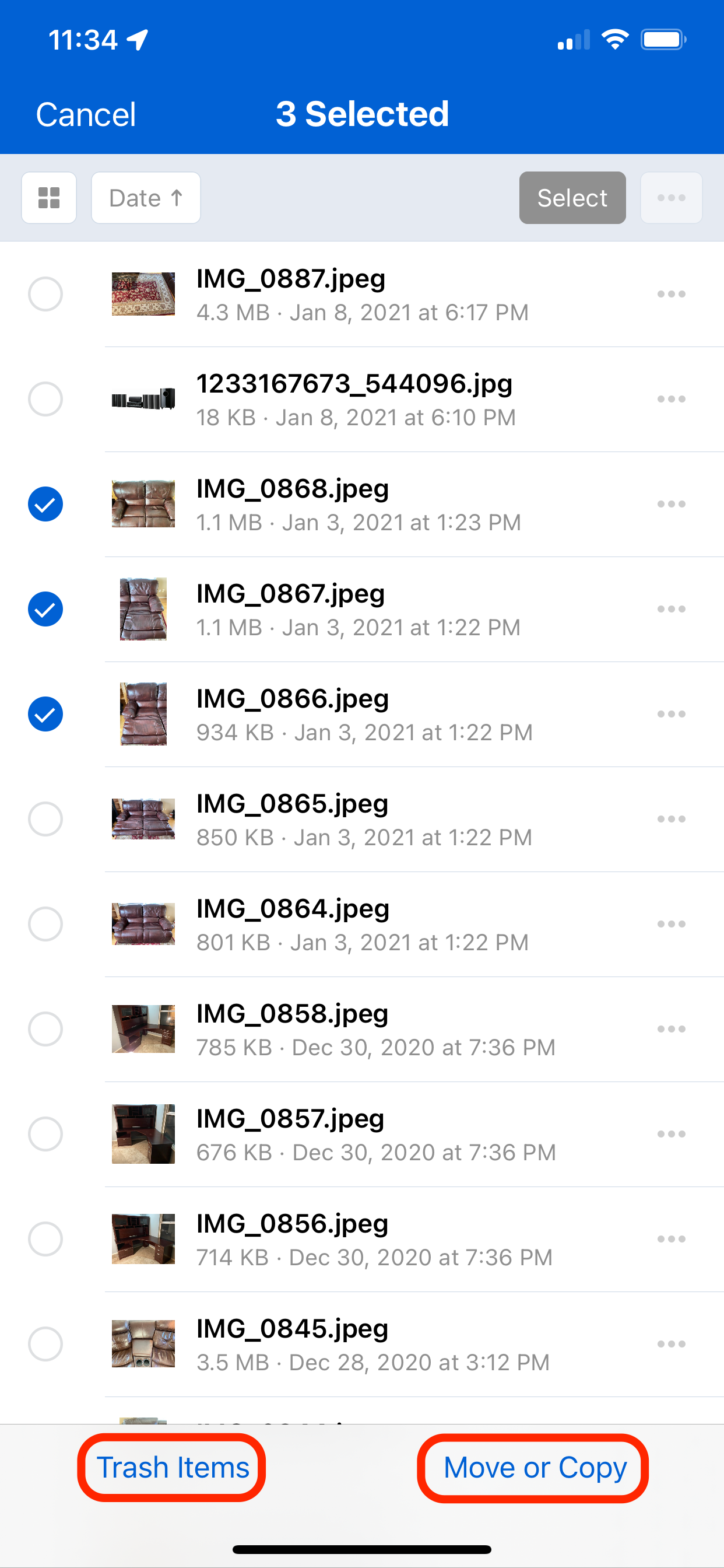 3. Tap:
* **Trash Items** to delete the selected items.
* **Move or Copy** to move or copy the selected items, and then select a destination folder.
3. Tap:
* **Trash Items** to delete the selected items.
* **Move or Copy** to move or copy the selected items, and then select a destination folder.
Recents
The **Recents** section provides quick access to your recently viewed files. This includes files accessed on other devices or in the Box Web application. The following files display in this section:
* Previewed files
* Files opened from a shared link
* The last 100 files that you viewed
To access the recently opened section, tap **Recents**:
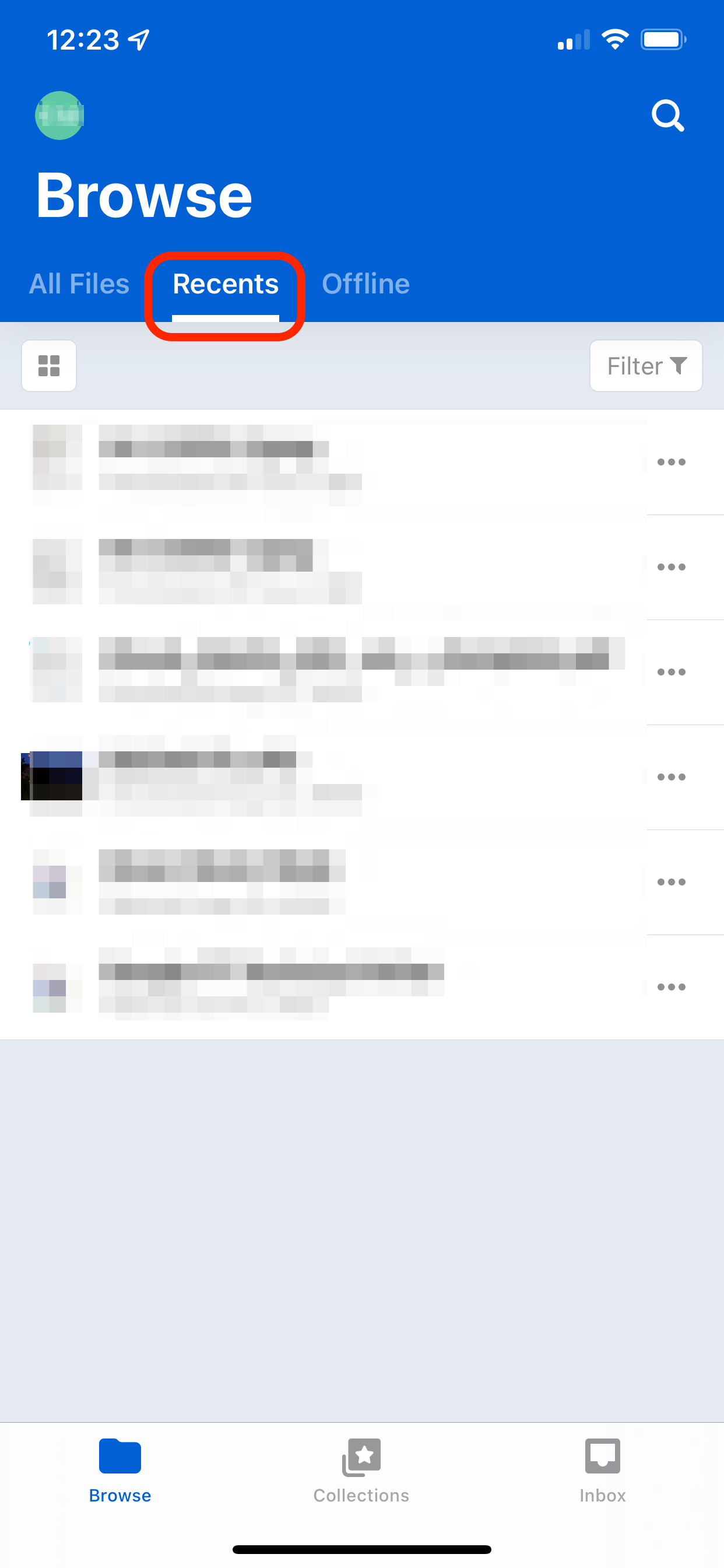 Tap to filter the **Recents** list by:
* Files
* Box Notes
* Files Shared With \[You]
Tap to filter the **Recents** list by:
* Files
* Box Notes
* Files Shared With \[You]
Saving files for offline access
You can save files and folders from Box to your iOS device, so you can access them when your phone is not connected to a network (data or WiFi).
To make a file available offline:
1. Tap the **ellipsis** (**...**) next to a file/folder's name in list view or at the bottom-left when previewing a file to open the **More Options** menu.
2. Tap **Make Available Offline**.
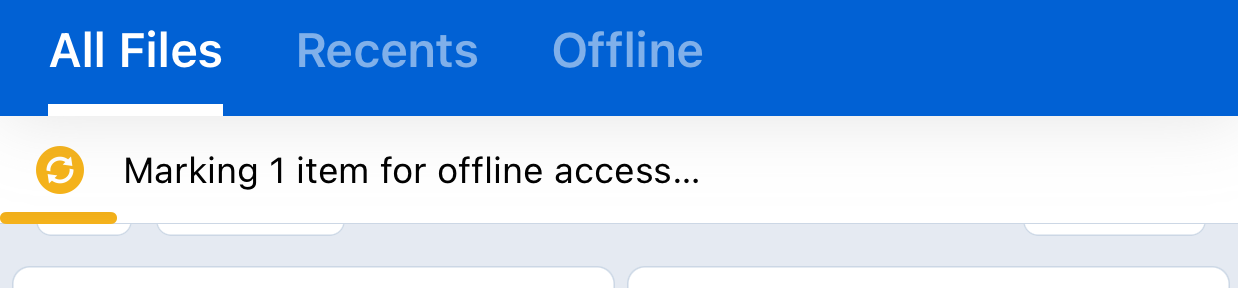
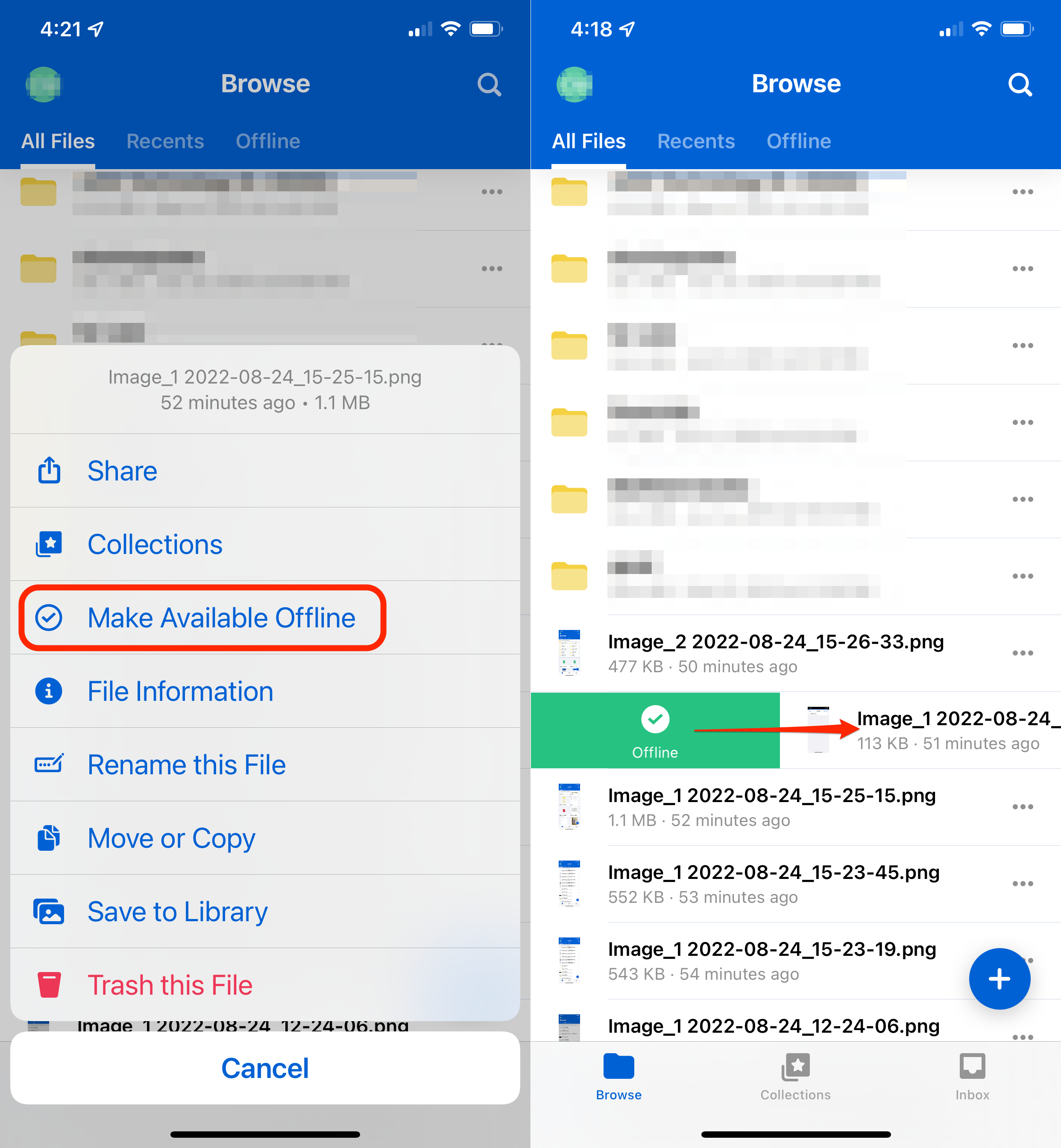 The file downloads for offline access. The**job manager** displays at the top of the screen as a file downloads, showing the progress of each download. To get more details about a specific job, tap **Job Manager.**
 There are several icons that indicate the offline status of a file or folder:
A yellow circle with curved arrows on a file icon means the file is being downloaded.
A red circle with curved arrow means that the file is being synchronized with the online version of the file.
A green circle with a check mark on a file icon means the file has been downloaded and is available for offline access.
See [Using the Status-and-Transfers Icon](/en/box-mobile/how-to-guides-for-mobile/using-the-status-and-transfers-icon) for details.
### Exceptions
* If you do not have sufficient storage space on your device, you will not be able to save the content for offline use.
* Box Notes cannot be saved for offline use.
* When offline, you cannot edit files in third-party applications that need internet access in order to run.
**Note**
Moving a file into a marked-for-offline folder:
When you make a folder available offline and then move a file into that folder, the file downloads when you next launch the app. To see the file listed as being available offline, go to the offline tab and tap to update the marked-for-offline folder.
## Downloading files
**To download a file:**
1. Preview the file.
2. At the bottom of the screen, tap the leftmost icon.
3. Tap **Open in...**.
4. Tap S**ave to Files**.
**To download an image:**
1. Preview the image.
2. At the top-right of the screen, tap the ellipsis (**...**).
3. Tap **Save to Photos**.
**Note**
If you lose network connection or leave the app, download resumes when your connection is restored or you access the app again.
There are several icons that indicate the offline status of a file or folder:
A yellow circle with curved arrows on a file icon means the file is being downloaded.
A red circle with curved arrow means that the file is being synchronized with the online version of the file.
A green circle with a check mark on a file icon means the file has been downloaded and is available for offline access.
See [Using the Status-and-Transfers Icon](/en/box-mobile/how-to-guides-for-mobile/using-the-status-and-transfers-icon) for details.
### Exceptions
* If you do not have sufficient storage space on your device, you will not be able to save the content for offline use.
* Box Notes cannot be saved for offline use.
* When offline, you cannot edit files in third-party applications that need internet access in order to run.
**Note**
Moving a file into a marked-for-offline folder:
When you make a folder available offline and then move a file into that folder, the file downloads when you next launch the app. To see the file listed as being available offline, go to the offline tab and tap to update the marked-for-offline folder.
## Downloading files
**To download a file:**
1. Preview the file.
2. At the bottom of the screen, tap the leftmost icon.
3. Tap **Open in...**.
4. Tap S**ave to Files**.
**To download an image:**
1. Preview the image.
2. At the top-right of the screen, tap the ellipsis (**...**).
3. Tap **Save to Photos**.
**Note**
If you lose network connection or leave the app, download resumes when your connection is restored or you access the app again.
Box Notes
Create and edit Box Notes directly from the Box for iOS app. See [Box Notes in Box for iOS](/en/box-notes/installing-and-deploying-box-notes-apps/box-notes-in-box-for-ios) for more information.
## Image preview
When you tap an image, you can see:
* Image name,
* Name of the folder containing the image,
* Number of items in the folder - **1 of \[x]**,
* Options - tap the image to show or hide them:
* Share,
* Add link,
* Annotate,
* Comment,
* Add to favorites,
* Context menu.
The menu options are:
* **Folder Gallery View**
* **Make Available Offline**
* **File Information**
* **Rename this File**
* **Move or Copy**
* **View Containing Folder**
* **Print**
* **Copy to Clipboard**
* **Delete**
* **Save to photos**
Depending on your permissions level and Admin Settings some options can be unavailable.
**Note**
If the image is in an unknown folder and you accessed it from a shared link, you can only see the image name. There is also no **Folder Gallery View** option in the context menu.
When you swipe through the images in preview, it can take a few seconds to load, especially if the image is high quality. If the image can’t load, an error message appears: **Preview unavailable. Something went wrong while loading the file. Please refresh this page and try again.**
You can keep swiping to the previous or next image.
## Video preview
When you open a video, you can see:
* Video name,
* Watermark, if applied. This feature is in Beta for Enterprise Plus accounts and higher, and for accounts that use Shield.
* Name of the folder containing the video,
* Options - tap the image to show or hide them:
* Share,
* Copy link,
* Comment,
* Add to collection,
* Context menu,
* Settings:
* Playback Speed
* 0.5x
* 0.75x
* 1.0x
* 1,25x
* 1,5x
* 2x
* Sound slider
The menu options are:
* **Folder Gallery View**
* **Make Available Offline**
* **File Information**
* **Rename this File**
* **Move or Copy**
* **View Containing Folder**
* **Print**
* **Copy to Clipboard**
* **Delete**
Depending on your permissions level and Admin Settings some options can be unavailable.
**Note**
If the video is in an unknown folder and you accessed it from a shared link, you can only see the video name. There is also no Folder Gallery View option in the context menu. When you swipe through the videos in preview, it can take a few seconds to load, especially if the video is high quality.
If the video can’t load, an error message appears:\
**Preview unavailable. Something went wrong while loading the file. Please refresh this page and try again.**\
You can keep swiping to the previous or next video.
Classification labels
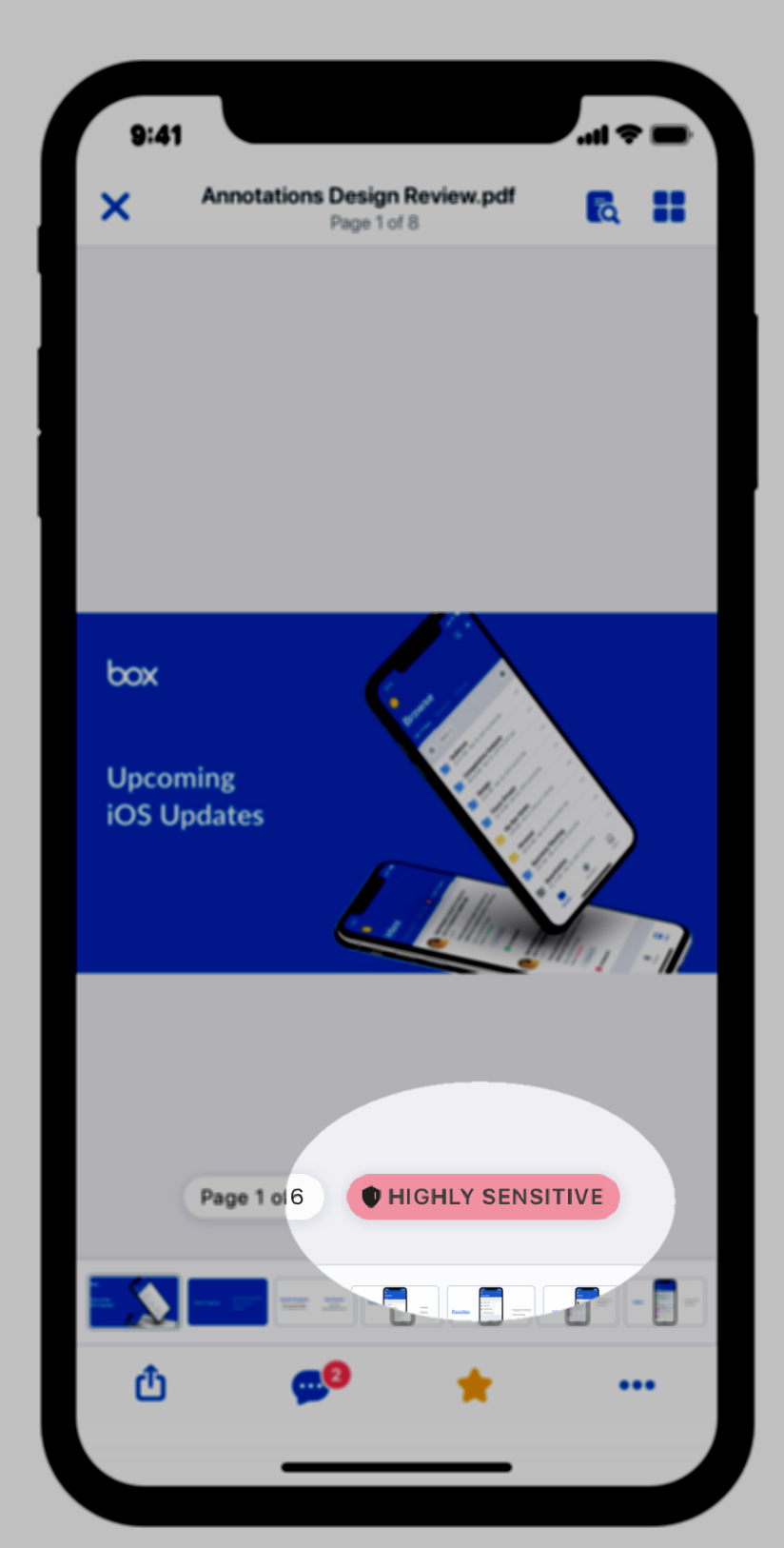
If your enterprise uses Box Shield and you view or preview a file, Box displays a label showing the content's security classification.
 Finally, you can [view files that have been annotated](/en/box-mobile/box-for-ios/viewing-annotated-files-with-box-for-ios), and view comments and notifications associated with those annotations. This accelerates the review and decision-making process by unifying feedback across desktop, Web, and mobile Box apps.