> ## Documentation Index
> Fetch the complete documentation index at: https://docs.box.com/llms.txt
> Use this file to discover all available pages before exploring further.
# Using Collections for Android
When you're on the go, Box Collections for Android enables you to create and name private collections of content in your Box account, where you can organize files and folders that you own or share. And although the content may be shared, your collections are not shared and are visible only to you.
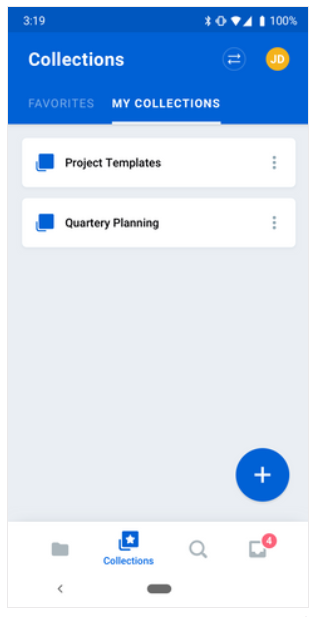 Using Box Collections you can
* intuitively organize your Box content into logical groupings of your choice,
* name these groupings to provide clear and meaningful context, and
* quickly find the content you need right now.
**To create a collection:**
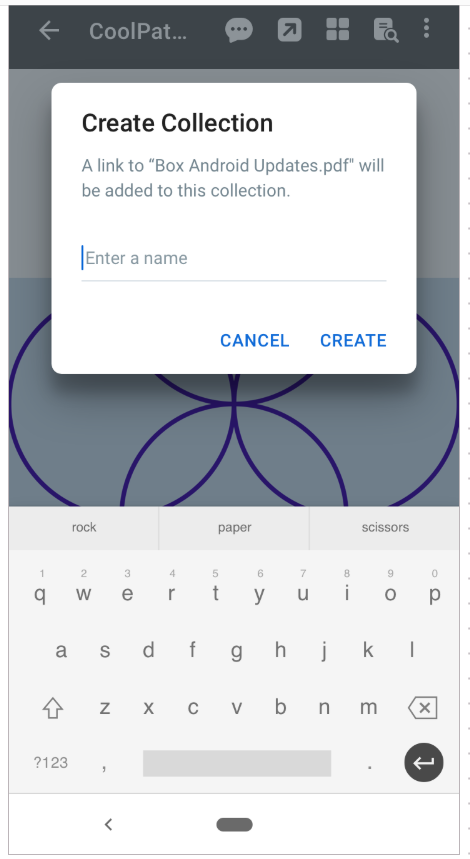
1. In the bottom-right of the screen, tap **+**. Box displays the **Create Collection** dialog screen.
2. In the text field, type the name of the collection.
3. Tap**CREATE**.
Using Box Collections you can
* intuitively organize your Box content into logical groupings of your choice,
* name these groupings to provide clear and meaningful context, and
* quickly find the content you need right now.
**To create a collection:**
1. In the bottom-right of the screen, tap **+**. Box displays the **Create Collection** dialog screen.
2. In the text field, type the name of the collection.
3. Tap**CREATE**.
 **Note**
* After you add files and folders to a collection, the name of the collection appears next to the names of these files and folders throughout your Box account.
* Your **Favorites** category is now a collection.
Box lists all your collections in the **My Collections** tab.
**To view a collection:** tap the name of a collection. Box displays the names of the folders and files in the collection.
**To add a new item to a collection:**
1. Tap the item you want to add. Box displays the preview screen.
2. In the preview screen, tab the ellipsis (**...**) button and select **Add to Collection**.
3. Tap the name of the collection to which you want to add the item.
4. Tap **DONE**.
**Note**
* After you add files and folders to a collection, the name of the collection appears next to the names of these files and folders throughout your Box account.
* Your **Favorites** category is now a collection.
Box lists all your collections in the **My Collections** tab.
**To view a collection:** tap the name of a collection. Box displays the names of the folders and files in the collection.
**To add a new item to a collection:**
1. Tap the item you want to add. Box displays the preview screen.
2. In the preview screen, tab the ellipsis (**...**) button and select **Add to Collection**.
3. Tap the name of the collection to which you want to add the item.
4. Tap **DONE**.