> ## Documentation Index
> Fetch the complete documentation index at: https://docs.box.com/llms.txt
> Use this file to discover all available pages before exploring further.
# Adding Content to Box Hubs
As a Hub editor, you can easily add files, folders, and hyperlinks to the Hub. You can only add files or folders owned by your enterprise.
* When you add content to the Hub, the file or folder name is not changed.
* Any new content you add is displayed at the top of the Hub by default.
* You can add the same file, folder, or hyperlink to multiple Hubs.
**Note**:\
In folder settings, you can set up folder restrictions to only allow admins, owners, and co-owners to invite collaborators. An admin can also check the **Collab Restrictions** field in the Admin Console.
## Adding content
You can add files and folders to the Hub in three different ways: from a newly created Hub, from the **Files** list, or from the file you are viewing.
**Important**
* You can only add files and folders which you are an owner, co-owner, or editor of.
* Granting a user access to a Hub automatically gives them **Viewer** permissions to all files and folders in that Hub. This does not apply to external or Box links embedded in the Hub using **Link Preview** or **Links Cards**.
### From newly created Hub
After you create your Hub, a **Files & Folders - Choose files or folders from Box** picker appears under the description.
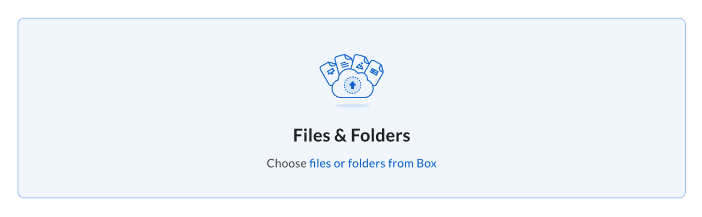 Click the **files or folders from Box** hyperlink in the picker. A pop-up window **Add Files to \[your Hub name]** appears where you can select one or more files or folders.
### From the "Files" list
1. Go to the **Files** view in Box app.
2. Select one or more files or folders.
3. Open the **More Options** menu.
4. Click the **Add to Hub** option.
5. Select your Hub in the pop-up window. If you don't see it on the list, use the search bar.
6. Choose a specific section or block in the selected Hub.
### From the file
1. Open the file you wish to add to your Hub.
2. Open the **More Options** menu.
3. Click the **Add to Hub** option.
4. Select your Hub in the pop-up window
You can now view your content in the Hub, move it inside a section, or drag and drop it to another section.
**Note:**\
When you click on the name of internal content in a Hub, it navigates to the preview of the file. There you can open, download, and share it.
## Adding hyperlinks
To add a hyperlink, you can:
* Copy and paste it.
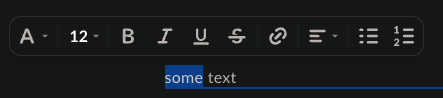
* Highlight text in the Hub and paste the link.
* Highlight text in the Hub and:
* Click the **Link** icon in the toolbar.
* Paste your link.
* Click **Apply**.
* Type in the link and press **Space** or **Enter** on your keyboard.
Click the **files or folders from Box** hyperlink in the picker. A pop-up window **Add Files to \[your Hub name]** appears where you can select one or more files or folders.
### From the "Files" list
1. Go to the **Files** view in Box app.
2. Select one or more files or folders.
3. Open the **More Options** menu.
4. Click the **Add to Hub** option.
5. Select your Hub in the pop-up window. If you don't see it on the list, use the search bar.
6. Choose a specific section or block in the selected Hub.
### From the file
1. Open the file you wish to add to your Hub.
2. Open the **More Options** menu.
3. Click the **Add to Hub** option.
4. Select your Hub in the pop-up window
You can now view your content in the Hub, move it inside a section, or drag and drop it to another section.
**Note:**\
When you click on the name of internal content in a Hub, it navigates to the preview of the file. There you can open, download, and share it.
## Adding hyperlinks
To add a hyperlink, you can:
* Copy and paste it.
* Highlight text in the Hub and paste the link.
* Highlight text in the Hub and:
* Click the **Link** icon in the toolbar.
* Paste your link.
* Click **Apply**.
* Type in the link and press **Space** or **Enter** on your keyboard.
 To change any link you previously added to your Hub to a hyperlink, go to the **Edit** mode, position your cursor at the end of the link and press **Space** or **Enter** on the keyboard.
To display Box content or external URLs as customizable navigation tiles instead of inline hyperlinks, use the **Link Cards** block. For more information, see [Working with the Box Hubs Builder](/en/box-hubs/using-box-hubs/working-with-the-box-hubs-builder#link-cards).
## Displaying content preview
In Hubs, document preview displays in an overlay and appears on top of the Hub. There are two exceptions: Box Notes and Box Canvas files open in a new tab.
## Configuring restrictions
You can decide which roles can add folders to Hubs by configuring the folder restrictions.
### Folder settings
1. Open the folder you want to edit.
2. Click **Folder settings** and go to **Collaboration → Invitation Restrictions.**
3. Click the checkbox **Only folder owners and co-owners can send collaborator invites and add this folder to a Hub**.
* When this is configured, only the owner or co-owner of the folder and its content can add them to the Hub.
To change any link you previously added to your Hub to a hyperlink, go to the **Edit** mode, position your cursor at the end of the link and press **Space** or **Enter** on the keyboard.
To display Box content or external URLs as customizable navigation tiles instead of inline hyperlinks, use the **Link Cards** block. For more information, see [Working with the Box Hubs Builder](/en/box-hubs/using-box-hubs/working-with-the-box-hubs-builder#link-cards).
## Displaying content preview
In Hubs, document preview displays in an overlay and appears on top of the Hub. There are two exceptions: Box Notes and Box Canvas files open in a new tab.
## Configuring restrictions
You can decide which roles can add folders to Hubs by configuring the folder restrictions.
### Folder settings
1. Open the folder you want to edit.
2. Click **Folder settings** and go to **Collaboration → Invitation Restrictions.**
3. Click the checkbox **Only folder owners and co-owners can send collaborator invites and add this folder to a Hub**.
* When this is configured, only the owner or co-owner of the folder and its content can add them to the Hub.