> ## Documentation Index
> Fetch the complete documentation index at: https://docs.box.com/llms.txt
> Use this file to discover all available pages before exploring further.
# Hubs Admin Management
As a Box admin or co-admin you can manage and access all Hubs from your enterprise within the Admin Console.
## Managing Hubs in your enterprise
Open the **Admin Console**, go to **Content** → **Hubs** tab, where you can see a table with all Hubs in your organization, with the following columns:
* **Hub Name**
* **Created By**
* **Number of Views**
* **Last Viewed**
* **Date Updated**
* **Co-Owners**
* **Collaborators**
**Note**:\
When you hover over a name in the **Created By** column, the name and email address of the creator appear in an info box. If there is an icon next to the creator's name, hover over the icon to see more information.
From the list view you can:
* Manage shared links.
* Search for Hubs by name or Hub ID in the search bar.
* Delete a Hub.
* Filter and sort specific fields.
* Change Hub settings.
* Set permissions for Co-Admins. The available options are:
* **View Hubs for your company**
* **Manage, share, and delete Hubs for your company**
To sort the listed Hubs, click on the column name, for example **Hub Name**.
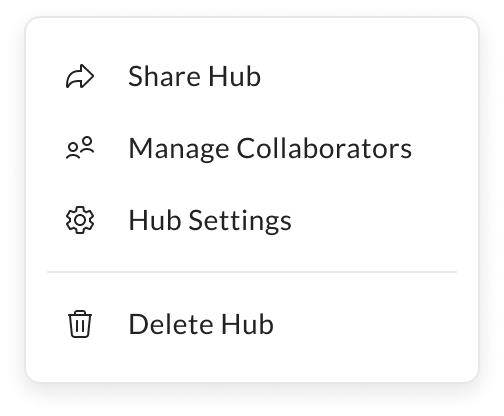
Click the ellipsis **(...)** next to a Hub to open the context menu with the following options:
* [**Share Hub**](/en/box-hubs/using-box-hubs/sharing-a-hub) **-** opens the standard sharing modal.
* **Manage Collaborators -** click **Share → Shared with**. You can add collaborators in the new modal.
* [**Hub Settings**](/en/box-hubs/using-box-hubs/creating-and-deleting-a-hub#co-owner-settings-on-a-hub-level) - opens specific Hubs’ settings.
* [**Delete Hub**](/en/box-hubs/using-box-hubs/creating-and-deleting-a-hub#deleting-a-hub) - opens the standard deleting modal.
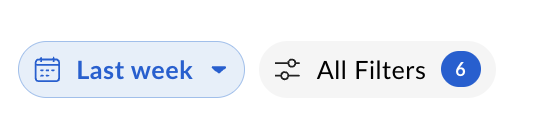
 You can also filter the listed Hubs by using quick filters: click **Number of Views** or **Date Updated** button, or choose other filtering parameters after clicking the **Filters** button.
 **Note**:\
You can also access Hub settings by going to the **Hubs** tab on the **Content and Sharing** page in Admin console. Review any pop-up messages and save the changes you made. As a Hub admin or co-admin with managing permissions here you can manage the specific Hub settings that are locked from your Hub co-owners.
**Note**:\
You can also access Hub settings by going to the **Hubs** tab on the **Content and Sharing** page in Admin console. Review any pop-up messages and save the changes you made. As a Hub admin or co-admin with managing permissions here you can manage the specific Hub settings that are locked from your Hub co-owners.