> ## Documentation Index
> Fetch the complete documentation index at: https://docs.box.com/llms.txt
> Use this file to discover all available pages before exploring further.
# About Box Hubs
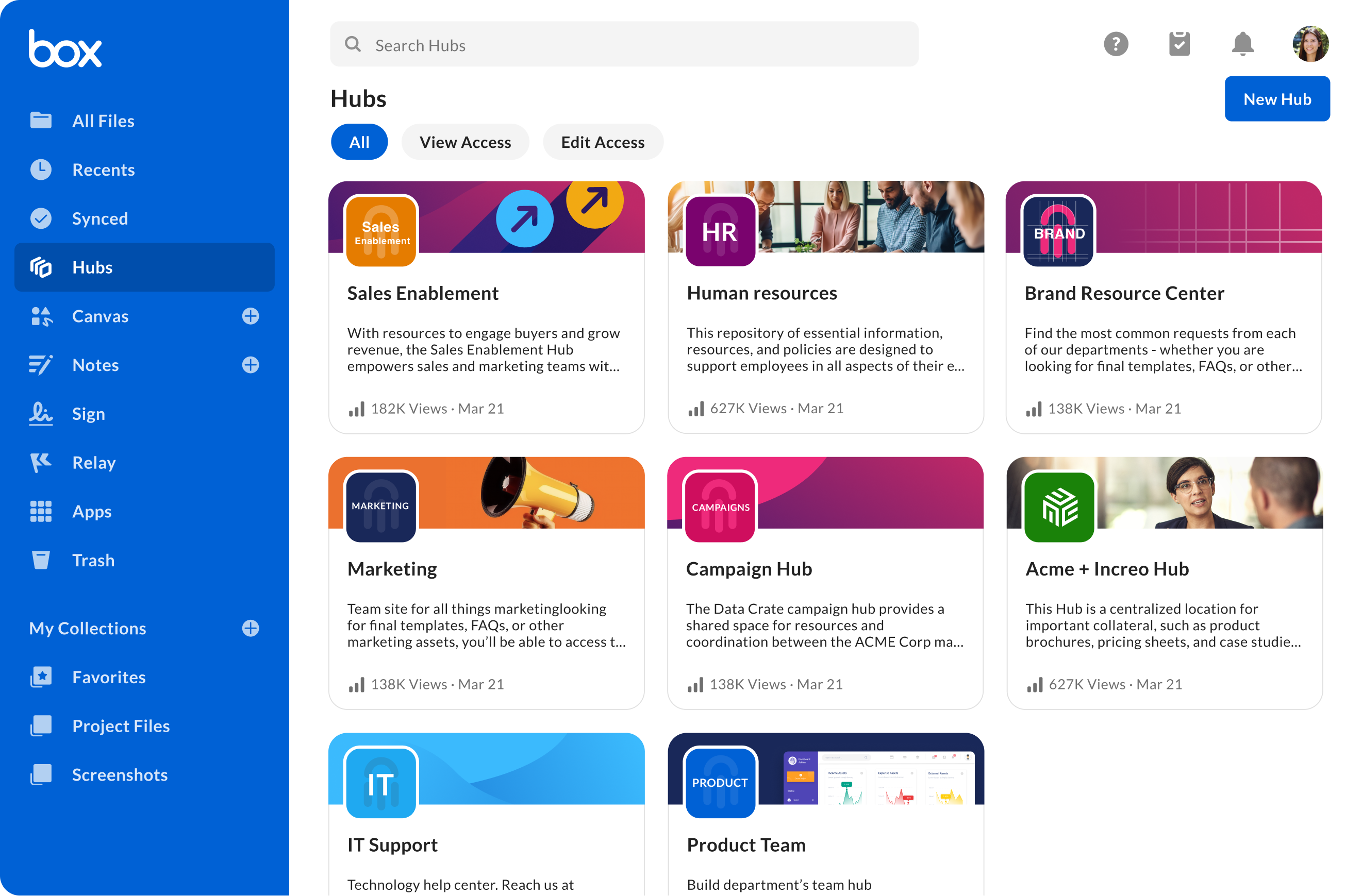
Box Hubs are an easy to use content portal that allows you to curate, organize, view, and share content both internally and externally.
**Important**\
As of now, users need a Box account (any plan) to view or collaborate on a Box Hub. However, Box Hubs can be viewed anonymously if shared through an open shared link. For more information, see [Creating Shared Links](/en/box-fundamentals/for-users/collaborating/using-shared-links/creating-shared-links).
With Box Hubs, you can:
* Bring your content together in a single, easily configurable site (no coding or admin rights needed)
* Add any content stored in Box to a hub, including individual files and folders
* Share Box Hubs with both internal and external collaborators
* Track engagement, usage, and performance of your content on a hub and file-level with built-in insights
* Ask questions across multiple, curated documents using Box AI and get instant answers
**Note**:\
Box Hubs is available to Enterprise plans and above. Box AI for Hubs is available to Enterprise Plus and Enterprise Advanced plans.
 **Note**:\
You can only add files or folders owned by your enterprise to your hub.
# Use cases
Use Box Hubs to create team, department, or organization-wide content sites.
For example:
* An employee onboarding resource page
* Project knowledge base
* Team site with contact lists, organization charts, meeting recordings
* Company asset library
* Sales enablement sites
There are three most common use cases:
* **Workspaces** - A secure home base for projects and teamwork with all the resources and insights users need to get the work done
* **Content playlists** - Published “content playlists” with curated items that users can skim or scroll through, often similar file types needed for a specific project or use case
* **Content libraries** - Libraries can house multiple types of documents for a broad subject matter. Users can use filters to find the content
**Info**\
You can set the Box Hubs gallery as your Box start page. To do so, click your profile picture and go to **Account Settings > Account > General Options.** Choose **Hubs** from the dropdown list in **Home Page**.
## Restrictions
As an admin, you can restrict external collaborations for the whole enterprise. See **Notes on collaboration restrictions** section in [Choose Essential Admin Settings](/en/box-fundamentals/for-admins/getting-started/choose-essential-admin-settings) for more information.
**Note**:\
You can only add files or folders owned by your enterprise to your hub.
# Use cases
Use Box Hubs to create team, department, or organization-wide content sites.
For example:
* An employee onboarding resource page
* Project knowledge base
* Team site with contact lists, organization charts, meeting recordings
* Company asset library
* Sales enablement sites
There are three most common use cases:
* **Workspaces** - A secure home base for projects and teamwork with all the resources and insights users need to get the work done
* **Content playlists** - Published “content playlists” with curated items that users can skim or scroll through, often similar file types needed for a specific project or use case
* **Content libraries** - Libraries can house multiple types of documents for a broad subject matter. Users can use filters to find the content
**Info**\
You can set the Box Hubs gallery as your Box start page. To do so, click your profile picture and go to **Account Settings > Account > General Options.** Choose **Hubs** from the dropdown list in **Home Page**.
## Restrictions
As an admin, you can restrict external collaborations for the whole enterprise. See **Notes on collaboration restrictions** section in [Choose Essential Admin Settings](/en/box-fundamentals/for-admins/getting-started/choose-essential-admin-settings) for more information.