> ## Documentation Index
> Fetch the complete documentation index at: https://docs.box.com/llms.txt
> Use this file to discover all available pages before exploring further.
# Using Security Classifications with Box Governance
**Important**
The ability to [create](/en/box-governance/legacy-governance/creating-a-security-policy), [edit](/en/box-governance/legacy-governance/editing-an-existing-security-policy), and [delete](/en/box-governance/legacy-governance/deleting-a-security-policy) content security policies and shared link policies was sunset on February 6, 2026. From that date until May 2026, these features remain available only to GxP controlled-release customers. In May 2026, they will be disabled for all customers.
Security Classification will continue to be available.
Since October 2020, security features (Classification, Shared Link Restriction policy, and Content Security) in Box Governance are no longer available to new Box Governance customers. These features remain available to existing customers who purchased Box Governance prior to October 2020. Please note, however, that if customers with access to these Box Governance legacy features purchase [Box Shield](/en/box-shield) or start a [Box Shield Trial](/en/box-shield/using-box-shield/testing-shield-in-trial-mode), any active Shared Link Restriction policies in Box Governance will be removed. Customers will have the ability to create an access policy with [Shared Link Restriction](/en/box-shield/shield-smart-access-policies/security-control-types#shared-link-restriction) in Box Shield that offers superior functionality to the legacy Shared Link Restriction policy feature in Box Governance.
If you're an admin, Box enables you to create, modify, and delete security classifications for content in your organization's Box deployment. With security classification, you can [classify files](/en/box-fundamentals/for-users/collaborating/sharing-content-using-box/using-security-classification) based on their sensitivity and [enforce access policies](/en/box-shield/shield-smart-access-policies/about-smart-access) associated with that sensitivity level. Classification helps you identify sensitive information and encourage smarter behavior when people handle that content.
## Creating a classification
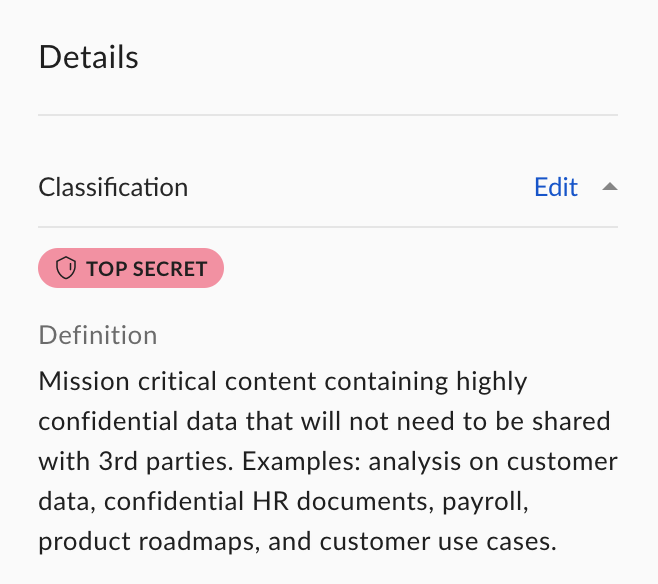
After you create a classification, Box enables you to
* display this classification under **Details** in the right-hand sidebar and next to the file's name in Preview when users select or preview content, and
* display an advisory message describing the classification in further detail when people select or preview content.
 **To create a new classification:**
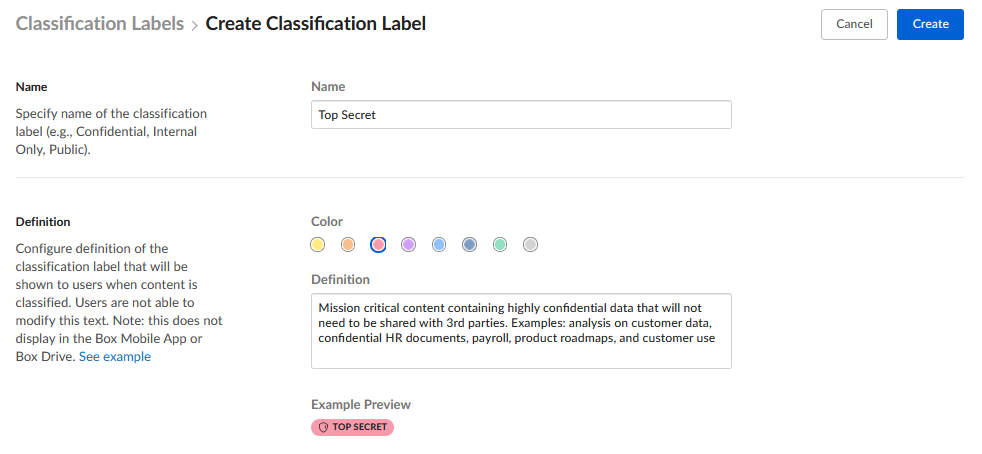
1. In the Admin Console's left sidebar, click **Classification**.
2. In the top-right corner, click **Create New**.
3. Under **Name**, type the name of your security classification. The classification name must be unique, and can have a maximum of 40 characters.
4. Under **Definition**
* Select a background color for the classification label. The same color can be used for multiple classification labels.
* Type the message you want Box to display when people select or preview content bearing this classification.
5. In the top-right corner, click **Create**.
**To create a new classification:**
1. In the Admin Console's left sidebar, click **Classification**.
2. In the top-right corner, click **Create New**.
3. Under **Name**, type the name of your security classification. The classification name must be unique, and can have a maximum of 40 characters.
4. Under **Definition**
* Select a background color for the classification label. The same color can be used for multiple classification labels.
* Type the message you want Box to display when people select or preview content bearing this classification.
5. In the top-right corner, click **Create**.
 ## Modifying a classification
Box also enables you to specify which user roles are permitted to modify classifications. This permission applies to all classifications you define.
**Note**
External users cannot modify classifications on files or folders.
**To select which type of collaborator can modify classifications:**
1. In the Admin Console's left sidebar, click **Classification**.
2. In the top-right corner, click **Settings**.
3. Select the collaborator type permitted to modify classifications. You can select
* **Owner**, or
* **Owner and Co-owner**, or
* **Owner, Co-owner, and Editor**, or
* **Owner, Co-owner, Editor, and Viewer Uploader**.
4. In the bottom-right corner, click **Save**.
**To modify a classification:**
1. In the Admin Console's left sidebar, click **Classification**.
2. Click the name of the classification you want to edit.
3. Edit the classification's name, description, and color as you wish.
4. In the top-right corner, click **Save**.
When you change a classification label's color, Box updates the color in all labels bearing that classification.
**IMPORTANT**
Do not edit classification templates via the Metadata API.
## Deleting a classification
**To delete a classification:**
1. In the Admin Console's left sidebar, click **Classification**.
2. Click the name of the classification you want to delete.
3. In the top-right corner, click **Delete**.
**IMPORTANT**
Deleting a classification is permanent. Box removes the classification from all files and folders to which it is applied. This operation can not be undone.
## Searching for classified content
Although Box cannot run a report to display all classified content, you can use Box's search functionality to achieve the same result. An administrator or co-administrator with Files and Folders privilege of at least View users's content can search for content bearing a specific classification.
## Modifying a classification
Box also enables you to specify which user roles are permitted to modify classifications. This permission applies to all classifications you define.
**Note**
External users cannot modify classifications on files or folders.
**To select which type of collaborator can modify classifications:**
1. In the Admin Console's left sidebar, click **Classification**.
2. In the top-right corner, click **Settings**.
3. Select the collaborator type permitted to modify classifications. You can select
* **Owner**, or
* **Owner and Co-owner**, or
* **Owner, Co-owner, and Editor**, or
* **Owner, Co-owner, Editor, and Viewer Uploader**.
4. In the bottom-right corner, click **Save**.
**To modify a classification:**
1. In the Admin Console's left sidebar, click **Classification**.
2. Click the name of the classification you want to edit.
3. Edit the classification's name, description, and color as you wish.
4. In the top-right corner, click **Save**.
When you change a classification label's color, Box updates the color in all labels bearing that classification.
**IMPORTANT**
Do not edit classification templates via the Metadata API.
## Deleting a classification
**To delete a classification:**
1. In the Admin Console's left sidebar, click **Classification**.
2. Click the name of the classification you want to delete.
3. In the top-right corner, click **Delete**.
**IMPORTANT**
Deleting a classification is permanent. Box removes the classification from all files and folders to which it is applied. This operation can not be undone.
## Searching for classified content
Although Box cannot run a report to display all classified content, you can use Box's search functionality to achieve the same result. An administrator or co-administrator with Files and Folders privilege of at least View users's content can search for content bearing a specific classification.
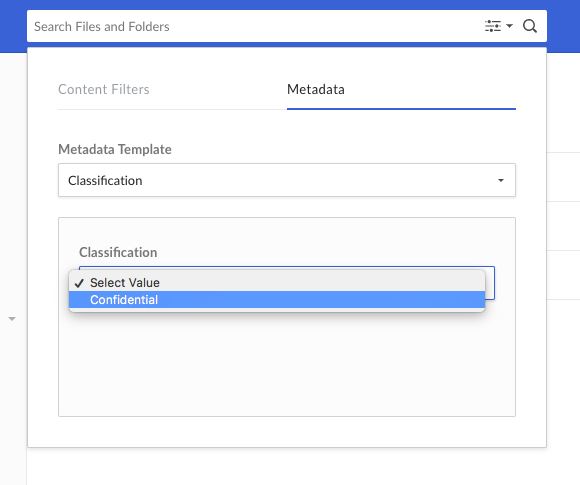 **To search for all content bearing a given classification:**
1. In the top of your Box window, in the **Search Files and Folders** field click the Search Options icon.
2. Select the **Metadata** tab
3. Under **Metadata Template**, click **Select a Template** and select **Classification**.
4. Under **Classification**, click **Select Value** and select the classification label.
5. To launch the search, do one of the following:
* in the top of your Box window, in the **Search Files and Folders** field click the search icon (magnification glass), or
* on your keyboard press Enter .
## FAQ
**Who can administrate security classification?**
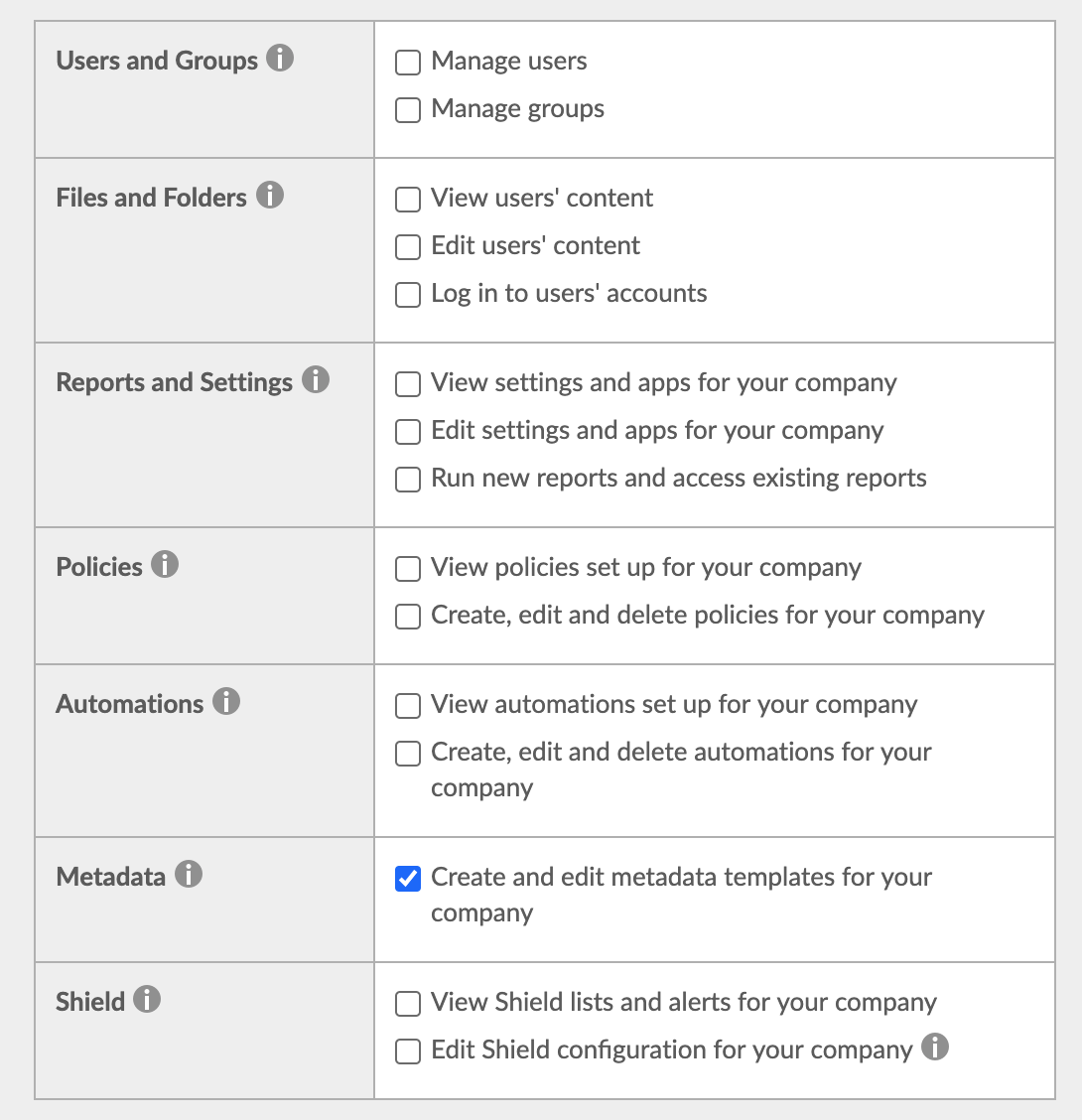
To create and edit classifications, you must be the admin or have co-admin privilege to at least Create and Edit Metadata.
**To search for all content bearing a given classification:**
1. In the top of your Box window, in the **Search Files and Folders** field click the Search Options icon.
2. Select the **Metadata** tab
3. Under **Metadata Template**, click **Select a Template** and select **Classification**.
4. Under **Classification**, click **Select Value** and select the classification label.
5. To launch the search, do one of the following:
* in the top of your Box window, in the **Search Files and Folders** field click the search icon (magnification glass), or
* on your keyboard press Enter .
## FAQ
**Who can administrate security classification?**
To create and edit classifications, you must be the admin or have co-admin privilege to at least Create and Edit Metadata.
 **What user roles can modify a security classification label that was previously applied (machine or manual) to a file or a folder?**
All your internal users of roles you specified in Classification Settings can apply, modify, and delete classification labels.
**Can I use classification and another metadata template at the same time for one document?**
Yes, a file can have multiple metadata templates and a classification at the same time.
**Is there a limit to the number of classifications admin/co-admin can create?**
Yes, Box supports 25 different classifications.
**Is there a limit to how many classification labels a file or folder can have at one time?**
Yes, a file or folder can have only one classification label at a time.
**Is the message in Definition required?**
Yes, both the Classification Name and the Classification Definition are required.
**How can I prevent classified files from being accessed via a less restrictive folder-level shared link?**
There are three ways to restrict classified files from being accessed via a folder-level shared link:
* **Restrict Shared Links**: By [restricting shared links](/en/box-admin-tools/how-to-guides-for-admins/shared-links-settings-for-your-enterprise) to 'Files Only', files in your enterprise follow the designated shared link settings (in compliance with any Security Classification applied at the individual file-level). Shared links for folders can still be enabled, but are accessible only by invited collaborators in the folder.
* Define **Shared Link Restriction** in [Box Shield's Smart Access](/en/box-shield/shield-smart-access-policies/about-smart-access) feature. Note that Shield license is required.
* **Integrate with CASB Partner**: Integrate with a CASB Partner to further prevent sensitive files from being shared via a folder-level shared link.
**What user roles can modify a security classification label that was previously applied (machine or manual) to a file or a folder?**
All your internal users of roles you specified in Classification Settings can apply, modify, and delete classification labels.
**Can I use classification and another metadata template at the same time for one document?**
Yes, a file can have multiple metadata templates and a classification at the same time.
**Is there a limit to the number of classifications admin/co-admin can create?**
Yes, Box supports 25 different classifications.
**Is there a limit to how many classification labels a file or folder can have at one time?**
Yes, a file or folder can have only one classification label at a time.
**Is the message in Definition required?**
Yes, both the Classification Name and the Classification Definition are required.
**How can I prevent classified files from being accessed via a less restrictive folder-level shared link?**
There are three ways to restrict classified files from being accessed via a folder-level shared link:
* **Restrict Shared Links**: By [restricting shared links](/en/box-admin-tools/how-to-guides-for-admins/shared-links-settings-for-your-enterprise) to 'Files Only', files in your enterprise follow the designated shared link settings (in compliance with any Security Classification applied at the individual file-level). Shared links for folders can still be enabled, but are accessible only by invited collaborators in the folder.
* Define **Shared Link Restriction** in [Box Shield's Smart Access](/en/box-shield/shield-smart-access-policies/about-smart-access) feature. Note that Shield license is required.
* **Integrate with CASB Partner**: Integrate with a CASB Partner to further prevent sensitive files from being shared via a folder-level shared link.