> ## Documentation Index
> Fetch the complete documentation index at: https://docs.box.com/llms.txt
> Use this file to discover all available pages before exploring further.
# Language and Time Zones
You can change your time zone or language in Box via Account Settings.
 ## Changing the Time Zone
* Sign into your Box account
* Click your initials in the top-right corner to open the **Account Menu**.
* Click **Account Settings**.
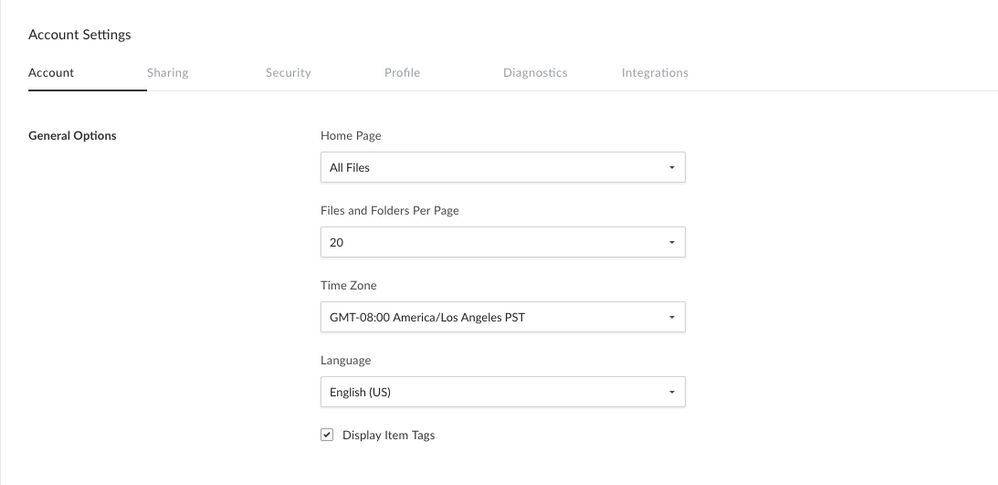
* The **Account** tab should open by default. Locate the **General Options** section.
* Select your preferred timezone from the pulldown menu under **Time Zone**.
* Be sure to click **Save Changes** in the top right to save your settings.
## Changing the Language
* Sign into your Box account
* Click your initials in the top-right corner to open the **Account Menu**.
* Click **Account Settings**.
* The **Account** tab should open by default. Locate the **General Options** section.
* Select your preferred language from the pulldown menu under **Language**.
* Be sure to click **Save Changes** in the top right to save your settings.
**Note:** Account administrators can change the default language and time zone settings for their enterprise from the Admin Console. Simply open your Enterprise Settings, and navigate to the User Settings tab.
## Supported Languages
Refer to [list of supported languages for Box products](https://support.box.com/hc/en-us/articles/360044192413).
## Changing the Time Zone
* Sign into your Box account
* Click your initials in the top-right corner to open the **Account Menu**.
* Click **Account Settings**.
* The **Account** tab should open by default. Locate the **General Options** section.
* Select your preferred timezone from the pulldown menu under **Time Zone**.
* Be sure to click **Save Changes** in the top right to save your settings.
## Changing the Language
* Sign into your Box account
* Click your initials in the top-right corner to open the **Account Menu**.
* Click **Account Settings**.
* The **Account** tab should open by default. Locate the **General Options** section.
* Select your preferred language from the pulldown menu under **Language**.
* Be sure to click **Save Changes** in the top right to save your settings.
**Note:** Account administrators can change the default language and time zone settings for their enterprise from the Admin Console. Simply open your Enterprise Settings, and navigate to the User Settings tab.
## Supported Languages
Refer to [list of supported languages for Box products](https://support.box.com/hc/en-us/articles/360044192413).