> ## Documentation Index
> Fetch the complete documentation index at: https://docs.box.com/llms.txt
> Use this file to discover all available pages before exploring further.
# Enrolling in 2FA for External Collaboration
If you want to use Box to collaborate on content shared by an enterprise, and you're not a member of that enterprise, you may need to enroll in two-factor authentication (2FA).
Two-factor authentication asks you to provide two independent credentials to access an enterprise's shared content through Box.
* If you're enrolled in your Box account’s 2FA or are using an SSO provider to access your Box account, you can access the shared content.
* If you have access to shared content from an enterprise that requires 2FA, you need to enroll in 2FA from your Box account to access that shared content.
* If you're directly logging in to your Box account without an SSO provider, and have not enrolled in 2FA, you cannot access shared content from an enterprise that requires 2FA.
## Enrolling in 2FA
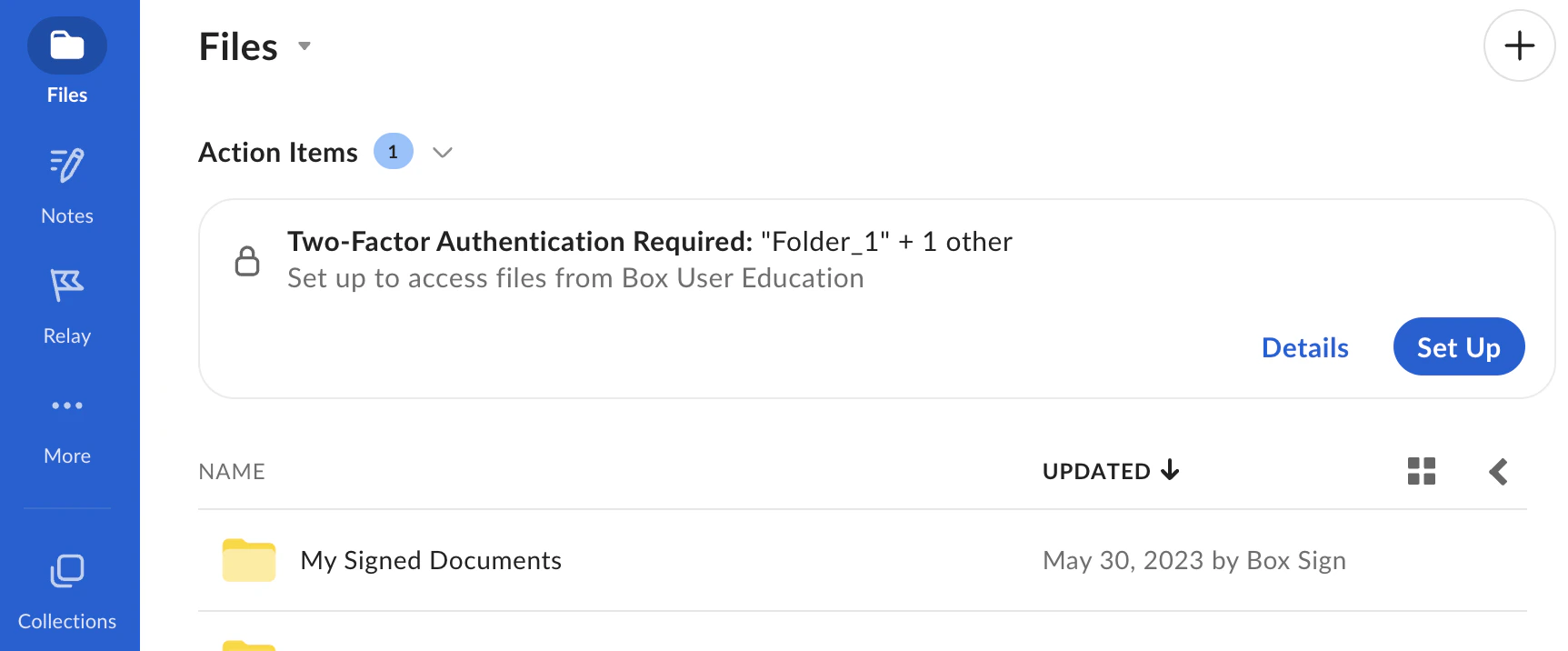
In the pending invitations panel on the **Files** page, Box displays the titles of shared content blocked by 2FA. Box also displays the titles of any newly-shared content from that enterprise. To gain access to shared content, you need to enroll in 2FA.
 ### Details about content blocked by 2FA:
1. In the pending invitations panel under **ACTION REQUIRED**, hover on the blocked file or folder.
2. Click the ellipsis, (**…**) and select **View Details**. Box displays the **Pending Invitations: Two-Factor Authentication Required** window.
### Enroll in 2FA through the pending invitations panel:
1. In the pending invitations panel under **ACTION REQUIRED**, hover on the blocked file or folder, and click **Set Up**. Box displays the **Set up 2-Step Verification** window.
2. Select either:
* **Authentication app** to use two-factor authentication with a supported app on your phone.
* **Security key** to use two-factor authentication via a physical device.
* **SMS Text Message** to use two-factor authentication via text message.
* **Email** to use two-factor authentication via email.
**Note:**
The administrators of the enterprise may require that external collaborators use a TOTP (time-based one-time password) authenticator app or security key, in which case the SMS Text Message and Email options will not be available.
3. Click **Next**, and then follow the directions on the screen to complete two-factor enrollment.
See [Multi-Factor Authentication Set Up for Your Account](/en/box-fundamentals/for-users/user-login-and-settings/multi-factor-authentication-set-up-for-your-account) for additional details.
### Enroll in 2FA via the mobile app:
MFA is now available to use via the Box mobile app on iOS and Android:
1. Sign in to your account by entering your **Email Address** and **Password**.
2. When requiring access to 2FA-protected content, **Set Up 2-Step Verification** will display.
3. Select a sign-in option:
* **Authentication App** (recommended) to use two-factor authentication with a supported app on your phone.
* **SMS Text Message** to use two-factor authentication via text message.
* **Email** to use two-factor authentication via email.
**Note:**
The administrators of the enterprise may require that external collaborators use a TOTP (time-based one-time password) authenticator app, in which case the SMS Text Message option will not be available.
4. Select **Next** and follow the directions on the screen to complete the 2FA enrollment.
See [Multi-Factor Authentication Set Up for Your Account](/en/box-fundamentals/for-users/user-login-and-settings/multi-factor-authentication-set-up-for-your-account) for additional details.
### Enroll in 2FA through your Account Settings page:
1. Log in to your Box account.
2. In the top-right corner of your Box window, click your account icon and select **Account Settings**.
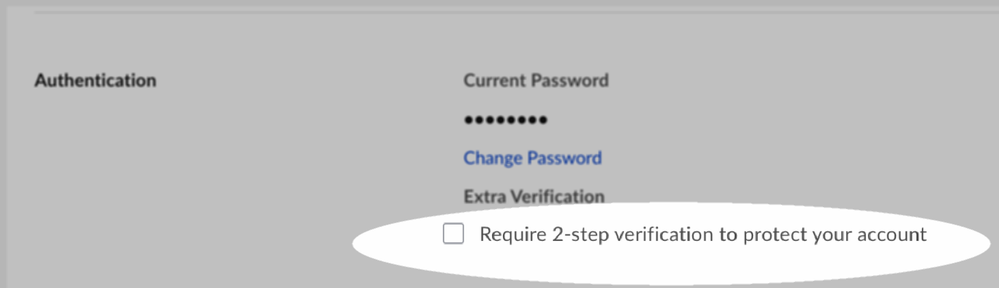
3. In the **Authentication** panel, check **Require 2-step verification to protect your account**.
4. In the top-right corner of the Box window, click **Save Changes**.
### Details about content blocked by 2FA:
1. In the pending invitations panel under **ACTION REQUIRED**, hover on the blocked file or folder.
2. Click the ellipsis, (**…**) and select **View Details**. Box displays the **Pending Invitations: Two-Factor Authentication Required** window.
### Enroll in 2FA through the pending invitations panel:
1. In the pending invitations panel under **ACTION REQUIRED**, hover on the blocked file or folder, and click **Set Up**. Box displays the **Set up 2-Step Verification** window.
2. Select either:
* **Authentication app** to use two-factor authentication with a supported app on your phone.
* **Security key** to use two-factor authentication via a physical device.
* **SMS Text Message** to use two-factor authentication via text message.
* **Email** to use two-factor authentication via email.
**Note:**
The administrators of the enterprise may require that external collaborators use a TOTP (time-based one-time password) authenticator app or security key, in which case the SMS Text Message and Email options will not be available.
3. Click **Next**, and then follow the directions on the screen to complete two-factor enrollment.
See [Multi-Factor Authentication Set Up for Your Account](/en/box-fundamentals/for-users/user-login-and-settings/multi-factor-authentication-set-up-for-your-account) for additional details.
### Enroll in 2FA via the mobile app:
MFA is now available to use via the Box mobile app on iOS and Android:
1. Sign in to your account by entering your **Email Address** and **Password**.
2. When requiring access to 2FA-protected content, **Set Up 2-Step Verification** will display.
3. Select a sign-in option:
* **Authentication App** (recommended) to use two-factor authentication with a supported app on your phone.
* **SMS Text Message** to use two-factor authentication via text message.
* **Email** to use two-factor authentication via email.
**Note:**
The administrators of the enterprise may require that external collaborators use a TOTP (time-based one-time password) authenticator app, in which case the SMS Text Message option will not be available.
4. Select **Next** and follow the directions on the screen to complete the 2FA enrollment.
See [Multi-Factor Authentication Set Up for Your Account](/en/box-fundamentals/for-users/user-login-and-settings/multi-factor-authentication-set-up-for-your-account) for additional details.
### Enroll in 2FA through your Account Settings page:
1. Log in to your Box account.
2. In the top-right corner of your Box window, click your account icon and select **Account Settings**.
3. In the **Authentication** panel, check **Require 2-step verification to protect your account**.
4. In the top-right corner of the Box window, click **Save Changes**.
 ### Remove yourself from collaboration:
1. In the pending invitations panel under **ACTION REQUIRED**, hover on the blocked file or folder.
2. Click the ellipsis, (**…**), and then select **Decline**.
### Remove yourself from collaboration:
1. In the pending invitations panel under **ACTION REQUIRED**, hover on the blocked file or folder.
2. Click the ellipsis, (**…**), and then select **Decline**.