> ## Documentation Index
> Fetch the complete documentation index at: https://docs.box.com/llms.txt
> Use this file to discover all available pages before exploring further.
# Upload to Box With the File Browser
While browsing all files and folders in Box, uploading a new file or folder is straightforward:
1. In the **Files** section, click **New +** button in the upper-right corner.
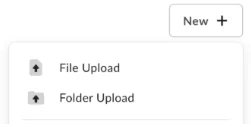 2. Select **File Upload** or **Folder Upload**, depending on what you'd like to upload.
3. Select the file(s) or folder you'd like to upload.
4. You can select multiple files for upload by holding the **Command** or **Control** key (Mac or Windows, respectively) while selecting files. However, you can only select one folder at a time for upload.
5. Click **Open** or **Upload**.
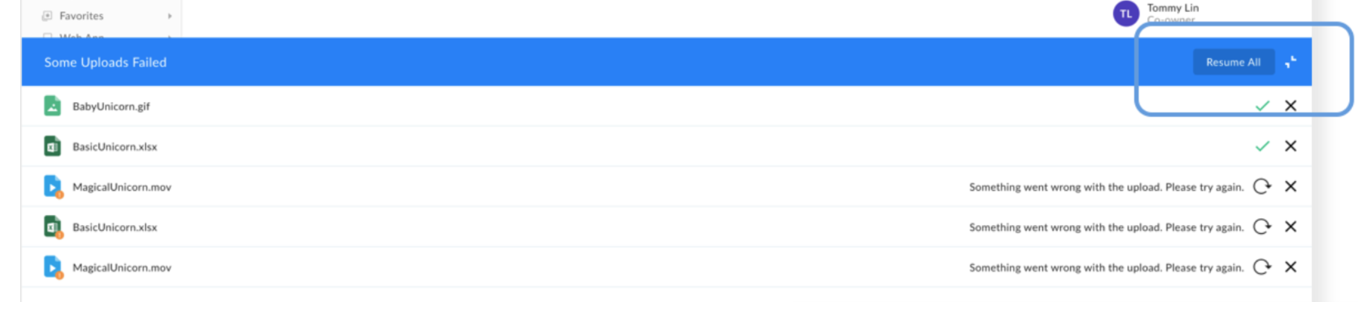
If your session is interrupted, Box allows you to later resume uploads of files that are over 100 MB in size using the Uploads Manager. The Uploads Manager appears at the bottom of the screen when you start uploading files or folders.
**To resume an interrupted upload:**
* In the Uploads Manager header click **Resume All**,\
or
* In the Uploads Manager click **Resume**.
2. Select **File Upload** or **Folder Upload**, depending on what you'd like to upload.
3. Select the file(s) or folder you'd like to upload.
4. You can select multiple files for upload by holding the **Command** or **Control** key (Mac or Windows, respectively) while selecting files. However, you can only select one folder at a time for upload.
5. Click **Open** or **Upload**.
If your session is interrupted, Box allows you to later resume uploads of files that are over 100 MB in size using the Uploads Manager. The Uploads Manager appears at the bottom of the screen when you start uploading files or folders.
**To resume an interrupted upload:**
* In the Uploads Manager header click **Resume All**,\
or
* In the Uploads Manager click **Resume**.
 **Note**:
If you are having trouble uploading files, here are some possible issues and solutions:
* [Troubleshooting Uploads to Box](https://support.box.com/hc/en-us/articles/360044196773-Troubleshooting-Uploads-to-Box)
* [The upload button is greyed out and not working](https://support.box.com/hc/en-us/articles/360044192993-New-and-Upload-Buttons-are-Greyed-Out-and-Not-Working)
**Note**:
If you are having trouble uploading files, here are some possible issues and solutions:
* [Troubleshooting Uploads to Box](https://support.box.com/hc/en-us/articles/360044196773-Troubleshooting-Uploads-to-Box)
* [The upload button is greyed out and not working](https://support.box.com/hc/en-us/articles/360044192993-New-and-Upload-Buttons-are-Greyed-Out-and-Not-Working)