> ## Documentation Index
> Fetch the complete documentation index at: https://docs.box.com/llms.txt
> Use this file to discover all available pages before exploring further.
# Previewing 3D Files
export const InlineImage = ({src, alt = "", height = "1em"}) => {
return  ;
};
You can view your 3D files in any Box application without downloading them to your device.
**Note:** 3D Preview is only available to **Business Plus** level Box accounts and above. Free or personal users can preview 3D files if the files are owned by a Business level account or higher.
Box Preview supports the following 3D filetypes:
* obj
* stl
* fbx
* 3ds
* dae
* ply
## Creating a Box3D Package
In order to preview a 3D file in Box, you must first create a Box3D package. This package should include any reference files necessary to properly view your 3D model (e.g. textures). Follow these instructions to create a Box3D package:
* Before you begin, make sure that all necessary reference files are located in the same folder as the model file (or a subfolder). If the files are not in a single folder, Box will be unable to find the necessary reference files.
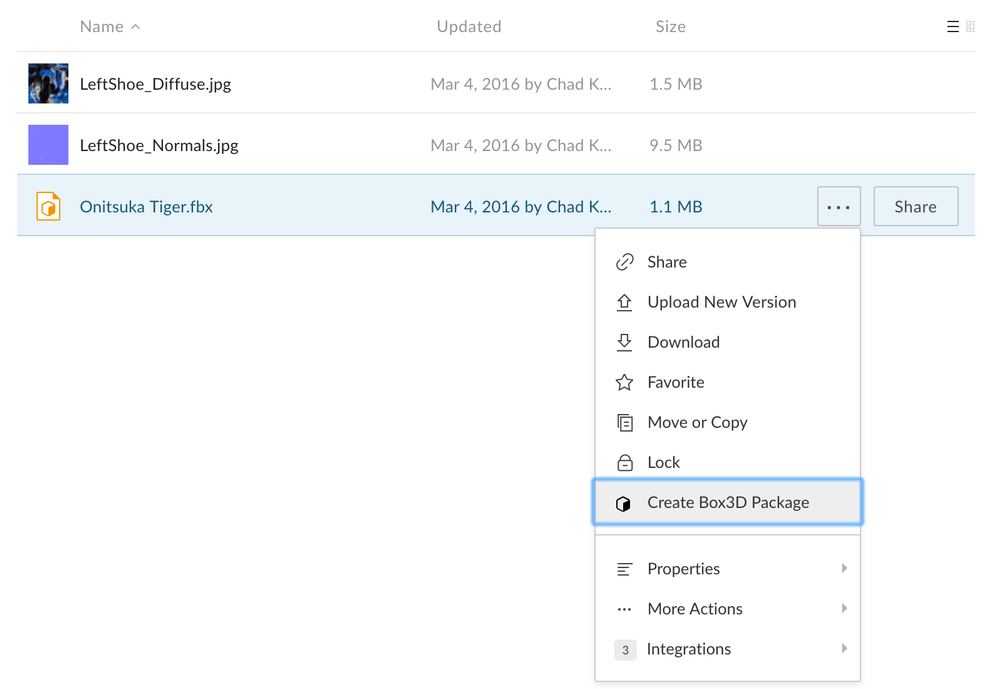
* **Right-click** on the model file (this file should be one of the file types listed above) or click the the **ellipses** (**...**) to open the **More Options** menu.
* Click **Create Box3D Package**.
;
};
You can view your 3D files in any Box application without downloading them to your device.
**Note:** 3D Preview is only available to **Business Plus** level Box accounts and above. Free or personal users can preview 3D files if the files are owned by a Business level account or higher.
Box Preview supports the following 3D filetypes:
* obj
* stl
* fbx
* 3ds
* dae
* ply
## Creating a Box3D Package
In order to preview a 3D file in Box, you must first create a Box3D package. This package should include any reference files necessary to properly view your 3D model (e.g. textures). Follow these instructions to create a Box3D package:
* Before you begin, make sure that all necessary reference files are located in the same folder as the model file (or a subfolder). If the files are not in a single folder, Box will be unable to find the necessary reference files.
* **Right-click** on the model file (this file should be one of the file types listed above) or click the the **ellipses** (**...**) to open the **More Options** menu.
* Click **Create Box3D Package**.
 * A pop-up will appear listing all the files to be packaged. The model file will appear at the top of the list in bold, and any reference files will be listed below. If there are no reference files, only the model file will be packaged.
* Name your Box3D package. By default, the Box3D package will take the name of the model file.
* Click **Create**. The Box3D package will be created in the same folder. It will appear as a file with the extension **'.box3d'**. It may take a few moments for the file to be created, depending on the size of reference files.
* **Click** on the created Box3D package to preview your 3D file.
## 3D Preview Controls
Once you've opened a 3D file in Box Preview, use the following controls to manipulate your 3D model or scene:
### Mouse Controls:
* **Left click and drag**: Orbit the camera around a pivot point
* **Right click and drag**: Pan camera
* **Mouse Wheel/Scroll**: Zoom camera in and out
* **Double click on model**: Focus camera on point
* **Double click off of a model or anywhere in the scene**: Center camera on model
### 3D Preview Menu Bar:
* A pop-up will appear listing all the files to be packaged. The model file will appear at the top of the list in bold, and any reference files will be listed below. If there are no reference files, only the model file will be packaged.
* Name your Box3D package. By default, the Box3D package will take the name of the model file.
* Click **Create**. The Box3D package will be created in the same folder. It will appear as a file with the extension **'.box3d'**. It may take a few moments for the file to be created, depending on the size of reference files.
* **Click** on the created Box3D package to preview your 3D file.
## 3D Preview Controls
Once you've opened a 3D file in Box Preview, use the following controls to manipulate your 3D model or scene:
### Mouse Controls:
* **Left click and drag**: Orbit the camera around a pivot point
* **Right click and drag**: Pan camera
* **Mouse Wheel/Scroll**: Zoom camera in and out
* **Double click on model**: Focus camera on point
* **Double click off of a model or anywhere in the scene**: Center camera on model
### 3D Preview Menu Bar:
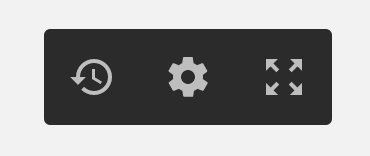 Click the **Restore Button** to revert the model or scene to its initial position.
Click the **Settings Button** to modify more advanced settings of your 3D model.
You can change the **Render Mode,** the **Camera Projection** method, and the **Render Quality**. You can also **Rotate** your model along a specific axis.
Click the **Fullscreen Button** to view your 3D file in fullscreen.
Click the **Restore Button** to revert the model or scene to its initial position.
Click the **Settings Button** to modify more advanced settings of your 3D model.
You can change the **Render Mode,** the **Camera Projection** method, and the **Render Quality**. You can also **Rotate** your model along a specific axis.
Click the **Fullscreen Button** to view your 3D file in fullscreen.