> ## Documentation Index
> Fetch the complete documentation index at: https://docs.box.com/llms.txt
> Use this file to discover all available pages before exploring further.
# Delete Files or Folders
There are several ways to delete files and folders individually or en masse.
## Deleting a file or folder
To **delete** a file or a folder:
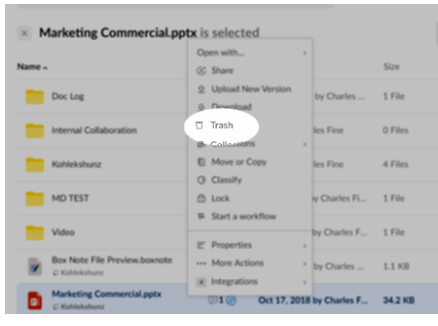
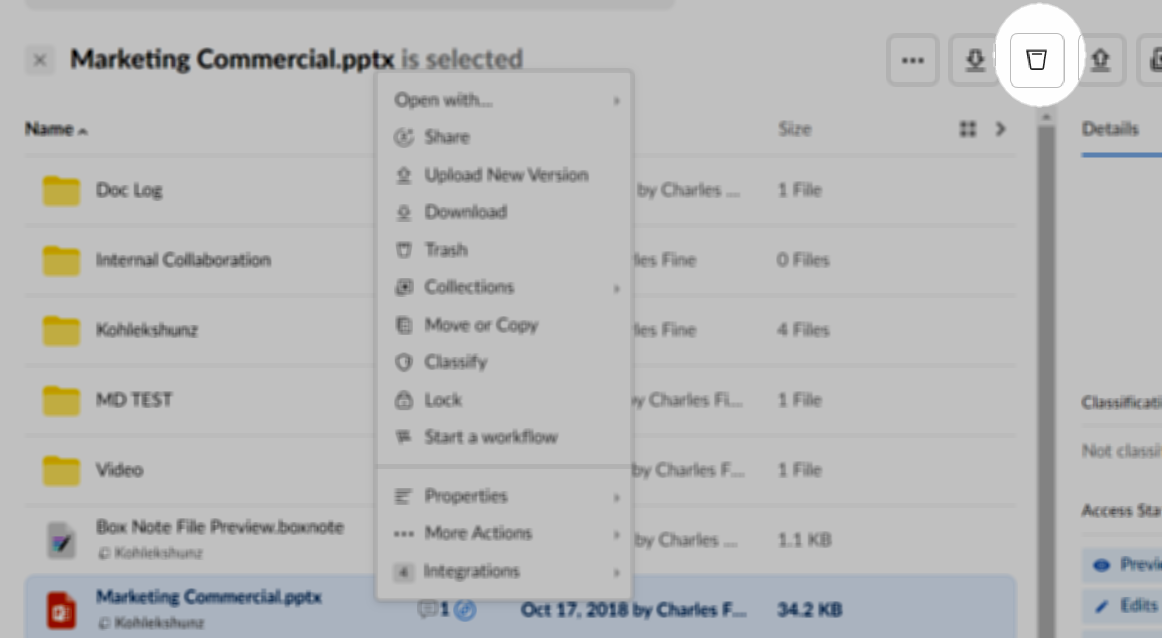
* Right-click or click the ellipsis (**...**) on a file/folder and then click **Trash**. Alternatively, you can click next to the file/folder name to select it, then in the upper-right click the trash icon.
* Box moves the item to your **Trash** folder and displays a confirmation message. You can undo the delete action by clicking **Undo** in the confirmation message.
 ## Deleting multiple items
To delete multiple files and/or folders:
1. Select the items you'd like to delete by **pressing and holding the Shift or Command key** and **clicking** next to each file/folder name. Press **Shift** to select everything between the first and last item. Press **Command** to select multiple items individually. Selected items are highlighted.
2. When you have selected all items, scroll to the top of the file display and in the upper-right click the trash icon.
## Deleting multiple items
To delete multiple files and/or folders:
1. Select the items you'd like to delete by **pressing and holding the Shift or Command key** and **clicking** next to each file/folder name. Press **Shift** to select everything between the first and last item. Press **Command** to select multiple items individually. Selected items are highlighted.
2. When you have selected all items, scroll to the top of the file display and in the upper-right click the trash icon.
 ## Automatically deleting a file
**To set a date to automatically delete a file:**
1. In your Box account, hover on the file.
2. Click the ellipsis (**...**) and select **More Actions**.
3. Click **Set Expiration**.
4. In the **Set Auto-Expiration** window, check **Auto-delete this item on a selected date**.
5. In the date field, type a date or click the calendar icon and select a date.
6. Click **Save**.
## Automatically deleting or un-sharing a folder
**To set a date to automatically delete or un-share a folder:**
1. In your Box account, hover on the folder.
2. Click the ellipsis (**...**) and select **Settings**.
3. Scroll down to **Automated Actions**.
4. Check the option you want.
5. In the date field, type a date or click the calendar icon and select a date.
6. Scroll to the top of the page and click **Save Changes**.
**Note**
If you delete an item inadvertently, Box does not immediately remove it. Instead it remains in your trash for 30 days, during which time you can recover it. (Administrators of Business and Enterprise accounts can shorten or lengthen this 30-day period.)
[More information on managing trash](/en/box-fundamentals/for-users/staying-organized/managing-files-and-folders/managing-trash) in Box.
## Automatically deleting a file
**To set a date to automatically delete a file:**
1. In your Box account, hover on the file.
2. Click the ellipsis (**...**) and select **More Actions**.
3. Click **Set Expiration**.
4. In the **Set Auto-Expiration** window, check **Auto-delete this item on a selected date**.
5. In the date field, type a date or click the calendar icon and select a date.
6. Click **Save**.
## Automatically deleting or un-sharing a folder
**To set a date to automatically delete or un-share a folder:**
1. In your Box account, hover on the folder.
2. Click the ellipsis (**...**) and select **Settings**.
3. Scroll down to **Automated Actions**.
4. Check the option you want.
5. In the date field, type a date or click the calendar icon and select a date.
6. Scroll to the top of the page and click **Save Changes**.
**Note**
If you delete an item inadvertently, Box does not immediately remove it. Instead it remains in your trash for 30 days, during which time you can recover it. (Administrators of Business and Enterprise accounts can shorten or lengthen this 30-day period.)
[More information on managing trash](/en/box-fundamentals/for-users/staying-organized/managing-files-and-folders/managing-trash) in Box.