> ## Documentation Index
> Fetch the complete documentation index at: https://docs.box.com/llms.txt
> Use this file to discover all available pages before exploring further.
# Create New Files And Folders
In your Box account, you can organize your files in folders just as you would on your computer.
To **create** a new file or folder:
* Click the **New** button in the upper-right corner of the page.
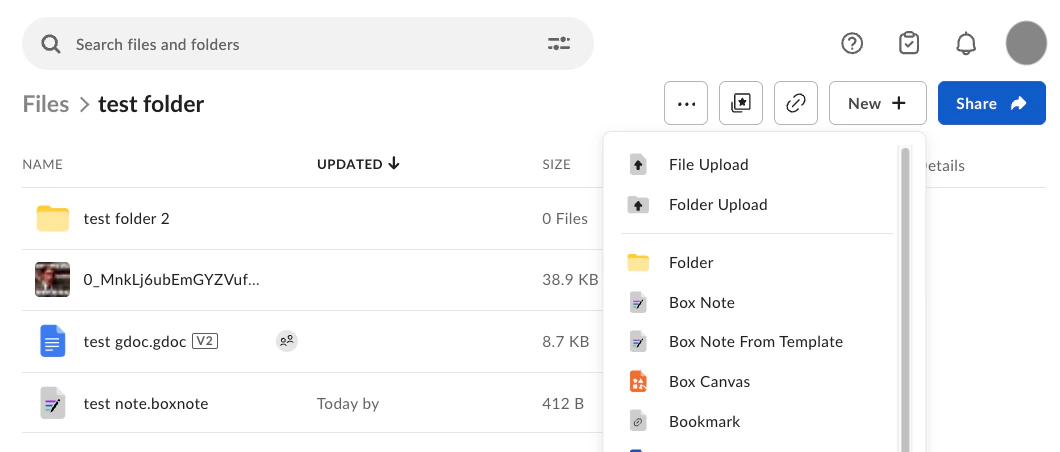 * Choose what you would like to create. You can create a new **Folder**, **Bookmark** (to any URL), **Box Note**, **Microsoft Office file**, or **Google document**. The options shown here may differ based on the settings you or your account admin have enabled.
* A pop-up window will appear prompting you to enter the name of your new file or folder. If you are creating a new folder, you'll also be prompted to invite '[collaborators](/en/box-fundamentals/for-users/collaborating/collaborating-by-inviting-others/inviting-collaborators)' to the folder. If you do not invite any collaborators, the folder will remain private.
* Click 'Create' to complete the process.
**Note:**
Folder paths have a limit of 255 characters so keep folder and files names as concise as possible to avoid running up against this limit.
* Choose what you would like to create. You can create a new **Folder**, **Bookmark** (to any URL), **Box Note**, **Microsoft Office file**, or **Google document**. The options shown here may differ based on the settings you or your account admin have enabled.
* A pop-up window will appear prompting you to enter the name of your new file or folder. If you are creating a new folder, you'll also be prompted to invite '[collaborators](/en/box-fundamentals/for-users/collaborating/collaborating-by-inviting-others/inviting-collaborators)' to the folder. If you do not invite any collaborators, the folder will remain private.
* Click 'Create' to complete the process.
**Note:**
Folder paths have a limit of 255 characters so keep folder and files names as concise as possible to avoid running up against this limit.