> ## Documentation Index
> Fetch the complete documentation index at: https://docs.box.com/llms.txt
> Use this file to discover all available pages before exploring further.
# Customizing Shared Link Content Ordering
By default, a **Shared Link** to a Box folder presents your content in order of most recently **Updated**:
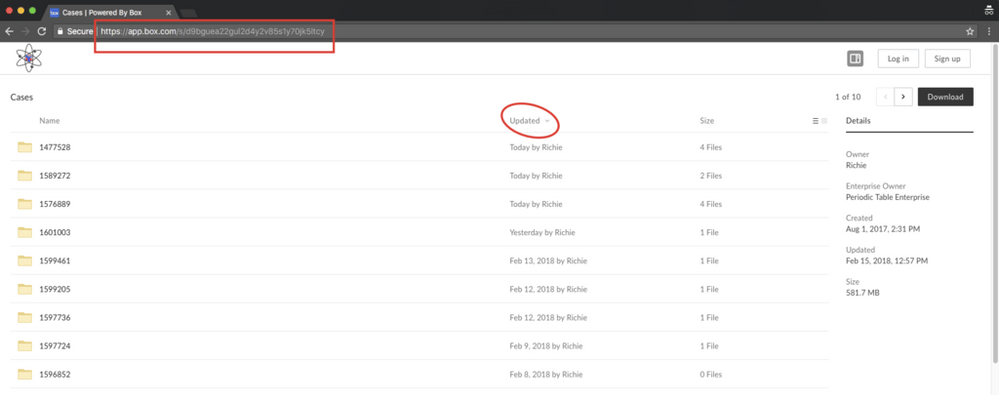 However, you may want your shared links to be automatically sorted by a different column, like **Name** or **Size,** when opened.
**To sort by a different column:**
1. Click your [**Shared Link**](/en/box-fundamentals/for-users/collaborating/using-shared-links/creating-shared-links)
2. Click the name of the column you want sorted, and you'll notice the shared link in the URL bar changes.
However, you may want your shared links to be automatically sorted by a different column, like **Name** or **Size,** when opened.
**To sort by a different column:**
1. Click your [**Shared Link**](/en/box-fundamentals/for-users/collaborating/using-shared-links/creating-shared-links)
2. Click the name of the column you want sorted, and you'll notice the shared link in the URL bar changes.
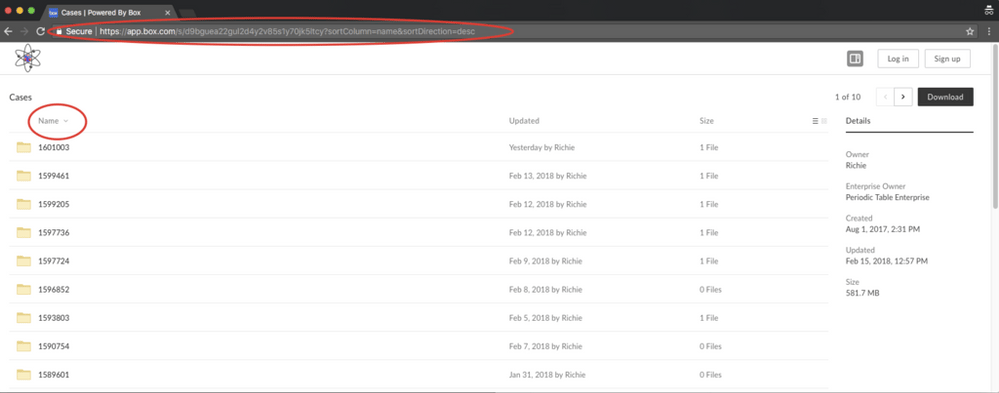 You can use this new URL as your shared link, and each time you access this link, the content is sorted as you specified.
So, your original shared link may look something like this:
[https://app.box.com/s/\<---RandomString--->](https://app.box.com/s/\<---RandomString--->).
And your new shared link may look something like this:
`https://app.box.com/s/?sortColumn=name&sortDirection=desc`
In both cases, Box generates "\<---RandomString--->".
You can use this new URL as your shared link, and each time you access this link, the content is sorted as you specified.
So, your original shared link may look something like this:
[https://app.box.com/s/\<---RandomString--->](https://app.box.com/s/\<---RandomString--->).
And your new shared link may look something like this:
`https://app.box.com/s/?sortColumn=name&sortDirection=desc`
In both cases, Box generates "\<---RandomString--->".