> ## Documentation Index
> Fetch the complete documentation index at: https://docs.box.com/llms.txt
> Use this file to discover all available pages before exploring further.
# Creating Shared Links
export const InlineImage = ({src, alt = "", height = "1em"}) => {
return  ;
};
Shared links enable you to quickly copy and share hyperlinks to content stored in Box with your coworkers and friends – both inside and outside the company. Sending someone a shared link to a file or folder is a way to work together with that person around shared content. Customizable permission levels, expiration dates, and optional password-protection make Box shared links a secure, simple way to share important content.
**Note**
Sharing a link is different from [inviting someone as a collaborator](/en/box-fundamentals/for-users/collaborating/collaborating-by-inviting-others/inviting-collaborators).
It takes just a moment to create a shared link. A few moments more, and you can also configure the link's security settings to control access to the linked content.
## Creating and Sharing a Link to a File or Folder
With simplified sharing, in just one click you can share access to the file or folder of your choice. You can also email links to people you invite to collaborate.
**Creating a link to share:**
1. In your Box files view, hover your cursor over the row of the file or folder you wish to share.
2. On the right, click **(Create and) Copy Shared Link** ().
The **Shared Link** window opens. The link automatically copies to your clipboard.
;
};
Shared links enable you to quickly copy and share hyperlinks to content stored in Box with your coworkers and friends – both inside and outside the company. Sending someone a shared link to a file or folder is a way to work together with that person around shared content. Customizable permission levels, expiration dates, and optional password-protection make Box shared links a secure, simple way to share important content.
**Note**
Sharing a link is different from [inviting someone as a collaborator](/en/box-fundamentals/for-users/collaborating/collaborating-by-inviting-others/inviting-collaborators).
It takes just a moment to create a shared link. A few moments more, and you can also configure the link's security settings to control access to the linked content.
## Creating and Sharing a Link to a File or Folder
With simplified sharing, in just one click you can share access to the file or folder of your choice. You can also email links to people you invite to collaborate.
**Creating a link to share:**
1. In your Box files view, hover your cursor over the row of the file or folder you wish to share.
2. On the right, click **(Create and) Copy Shared Link** ().
The **Shared Link** window opens. The link automatically copies to your clipboard.
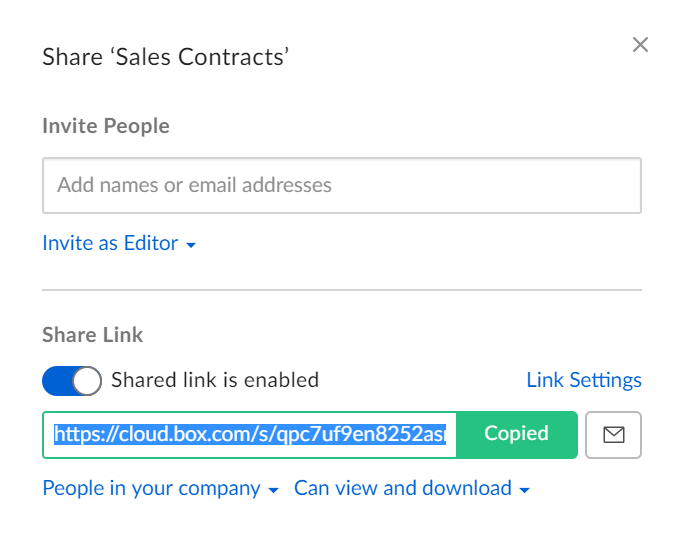 That's it. You can now paste that link into the app of your choice -- email, messaging, and so on -- to share your content.
**Note**
* By default, shared links are disabled. If you share a link to a file or folder by clicking the **Share** button, or via the **More Options** menu (**…** ) > **Share**, you must manually enable and then copy the link. Only if you click the link icon () does Box automatically enable the link and copy it to your clipboard.
* If the URL of the shared link you've sent changes due to any reason, such as your organization merging with another organization, Box requires the user's permission to redirect to the new destination.
## Modifying Link Security Settings
You can also use the **Share** window directly to configure security settings for your link. To do this:
1. In your Box files view, hover your cursor over the row of the file or folder you wish to share.
2. On the right, click **(Create and) Copy Shared Link** ().
3. Click **Link Settings**. Box displays a list of [link settings](/en/box-fundamentals/for-users/collaborating/using-shared-links/configuring-individual-shared-link-settings).
4. Edit these settings and click **Save**.
5. Select the access permission you wish to assign to the linked content. To do this, at the bottom of the Share window, click **People in your company**, and select from the menu that displays. (See below for further explanation of these menu options.)
6. If available, click **Can view and download**, and select the activity you wish to assign to the link recipients.
7. Close the **Share** window and use the app of your choice to send your link.
### Shared link access
When you create a shared link, you have these access permissions from which to choose:
* **People with the link:** Anyone with the link can access the item and no Box account is required. For extra security, you can also set a password or expiration for the link, as well as restrict download and/or preview access for link viewers.
* Password-protected shared links are available to all paid Box User accounts. All passwords for open shared links require at least eight characters, and should contain at least one uppercase letter, number, or special character.
* **People in your company:** Only people who: 1) are managed on a Box account (Starter and above); (2) have an email address that matches a domain registered with Box for the account that created the link, can access the link. For example, if *acme.com* is a registered domain on your account, all managed account members with an email address ending in *acme.com* can access this type of link. People who do not match a domain listed on your account cannot access the link, even if they are managed members on your account.
* When accessing the link, collaborators must log in to Box to verify their identities. **People in your company** is disabled if you do not have a valid business domain registered with Box.
* Collaborators in the folder can also access content if **People in your company** is selected.
* **Invited people only:** Only people invited to the folder or file can access the content. Collaborators already have access to their content, but can easily direct one another to a specific file or folder using the shared link.
### Shared link actions
When you create a shared link, you can select the actions that the shared link recipients can take. The actions you can choose depend on what your administrator allows, but can include any of:
* **Can edit**: The people with access to the link can:
* Edit, annotate, and comment on the file or Box Note
* View and download the file or Box Note
* Copy the file to a destination in their Box account
* **Can view and download**: The people with access to the link:
* Can view and download the file, the files in the folder, or the Box Note
* Can copy the file or folder to a destination in their Box account
* Cannot edit within Box
* **Can view only**: The people with access to the link can only view the file, the files in the folder, or the Box note, within Box.
Your administrator defines the maximum actions that shared link recipients can take separately for files, folders, and Box Notes and also defines the default choice for each when more than one choice is made available.
You can set the link options on individual files and/or folders by the owner, across all owned content, or by the admin for the entire company. Also, verify that the setting you choose allows file access to the person with whom you are sharing it. Otherwise, [your intended recipient receives an error](https://support.box.com/hc/en-us/articles/360044195893-Shared-Links-Frequently-Asked-Questions) when they click on the link.
That's it. You can now paste that link into the app of your choice -- email, messaging, and so on -- to share your content.
**Note**
* By default, shared links are disabled. If you share a link to a file or folder by clicking the **Share** button, or via the **More Options** menu (**…** ) > **Share**, you must manually enable and then copy the link. Only if you click the link icon () does Box automatically enable the link and copy it to your clipboard.
* If the URL of the shared link you've sent changes due to any reason, such as your organization merging with another organization, Box requires the user's permission to redirect to the new destination.
## Modifying Link Security Settings
You can also use the **Share** window directly to configure security settings for your link. To do this:
1. In your Box files view, hover your cursor over the row of the file or folder you wish to share.
2. On the right, click **(Create and) Copy Shared Link** ().
3. Click **Link Settings**. Box displays a list of [link settings](/en/box-fundamentals/for-users/collaborating/using-shared-links/configuring-individual-shared-link-settings).
4. Edit these settings and click **Save**.
5. Select the access permission you wish to assign to the linked content. To do this, at the bottom of the Share window, click **People in your company**, and select from the menu that displays. (See below for further explanation of these menu options.)
6. If available, click **Can view and download**, and select the activity you wish to assign to the link recipients.
7. Close the **Share** window and use the app of your choice to send your link.
### Shared link access
When you create a shared link, you have these access permissions from which to choose:
* **People with the link:** Anyone with the link can access the item and no Box account is required. For extra security, you can also set a password or expiration for the link, as well as restrict download and/or preview access for link viewers.
* Password-protected shared links are available to all paid Box User accounts. All passwords for open shared links require at least eight characters, and should contain at least one uppercase letter, number, or special character.
* **People in your company:** Only people who: 1) are managed on a Box account (Starter and above); (2) have an email address that matches a domain registered with Box for the account that created the link, can access the link. For example, if *acme.com* is a registered domain on your account, all managed account members with an email address ending in *acme.com* can access this type of link. People who do not match a domain listed on your account cannot access the link, even if they are managed members on your account.
* When accessing the link, collaborators must log in to Box to verify their identities. **People in your company** is disabled if you do not have a valid business domain registered with Box.
* Collaborators in the folder can also access content if **People in your company** is selected.
* **Invited people only:** Only people invited to the folder or file can access the content. Collaborators already have access to their content, but can easily direct one another to a specific file or folder using the shared link.
### Shared link actions
When you create a shared link, you can select the actions that the shared link recipients can take. The actions you can choose depend on what your administrator allows, but can include any of:
* **Can edit**: The people with access to the link can:
* Edit, annotate, and comment on the file or Box Note
* View and download the file or Box Note
* Copy the file to a destination in their Box account
* **Can view and download**: The people with access to the link:
* Can view and download the file, the files in the folder, or the Box Note
* Can copy the file or folder to a destination in their Box account
* Cannot edit within Box
* **Can view only**: The people with access to the link can only view the file, the files in the folder, or the Box note, within Box.
Your administrator defines the maximum actions that shared link recipients can take separately for files, folders, and Box Notes and also defines the default choice for each when more than one choice is made available.
You can set the link options on individual files and/or folders by the owner, across all owned content, or by the admin for the entire company. Also, verify that the setting you choose allows file access to the person with whom you are sharing it. Otherwise, [your intended recipient receives an error](https://support.box.com/hc/en-us/articles/360044195893-Shared-Links-Frequently-Asked-Questions) when they click on the link.
Emailing Your Link
You can also email your link to invited collaborators directly from the **Share** window. To do this:
1. In your Box files view, hover your cursor over the row of the file or folder you wish to share.
2. On the right, click **(Create and) Copy Shared Link** ().
3. In the **Share** window click **Send Shared Link** (). Box displays the **Email Link** window.
4. In the **Email Shared Link** field, type the name or email address of the collaborator.
5. In the **Message** field, type a message of up to 750 characters for the collaborator.
6. Click **Send**.
Finally, you can remove or cancel a shared link. To do this, from the **Share** window, click the **Share Link** slider to move it to the left. The slider color changes from blue to grey.
## Permissions and Shared Links
Box makes it easy to collaborate on and share files and documents with anyone, inside or outside your organization. However, when you share, move, or copy content, the permission to access those items might change, often to a less restrictive setting. [More on how Box helps you keep your content secure](/en/box-fundamentals/for-users/collaborating/sharing-content-using-box/avoiding-unintentional-exposure-of-your-files-and-documents).
### Detailed permissions
| Permission | View-Only Shared Link | View and Download Shared Links | Editable Shared Links |
| ----------------------- | --------------------- | ------------------------------ | --------------------- |
| Preview | Yes | Yes | Yes |
| Download | No | Yes | Yes |
| Upload | No | No | Yes |
| View / Add Comments | Yes (via API) | Yes (via API) | Yes (via API) |
| View Item Collaborators | No | No | No |
| View Item Owner | No | Yes | Yes |
| View Item Creator | No | Yes | Yes |
| View Item Modifier | Yes | Yes | Yes |
| View / Edit Metadata | Yes (via API) | Yes (via API) | Yes (via API) |
| View / Create Tasks | No | No | No |
("Item" means the folder or file to which the shared link points.)
**Notes**
* When uploading a new version of a file via an editable shared link, the filename cannot be different from the existing file.
* People who have access to a shared link (either by your sending them a link, or by their accessing it elsewhere, such as in a Web page or forwarded email) are allowed to see and work with you on the content to which the shared link points. Depending on the link settings, these permissions may include downloading or editing the content.
* Comments and metadata on files pointed to by a shared link can be viewed and created programatically via the API, even if they are not obviously visible in the preview experience.
* You can also access the **Share** window by highlighting the row of the item you want and either clicking **Share** or clicking the ellipsis (**...**) and then clicking **Share**.
When a collaborator has more restrictive access to a file that that is given through a shared link, the collaborator gains the permissions provided by the link when accessing a file with the link. For example, a user collaborating on a file you own has just the Viewer collaborator role. You create a shared link and allow View and download. If that user accesses the file with the shared link, rather than directly, they could both view and download the file.
## Known Issues
* You cannot send shared links to users whose domains are not added to your enterprise, even if you set the definition of your enterprise to **Enterprise ID**.