> ## Documentation Index
> Fetch the complete documentation index at: https://docs.box.com/llms.txt
> Use this file to discover all available pages before exploring further.
# Understanding Item Permissions
A Box Item is a file, folder, Automate workflow, AI session, Extract Agent, or weblink.
Except for Relay workflows, Extract Agent and AI Sessions, which are not typically located in a browsable file system, permission levels on Box Items follow a "waterfall" design in which individuals have access only to the Item they are invited into and any content beneath it. You can also be invited to individual files.
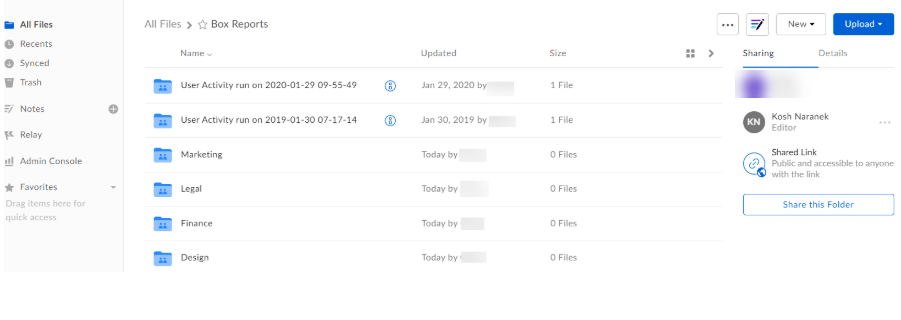
For example, if Kosh Naranek is invited to be a collaborator on the **Box Reports** parent folder, Kosh sees this folder and all subfolders (**Design**, **Finance**, **Legal**, and so on).
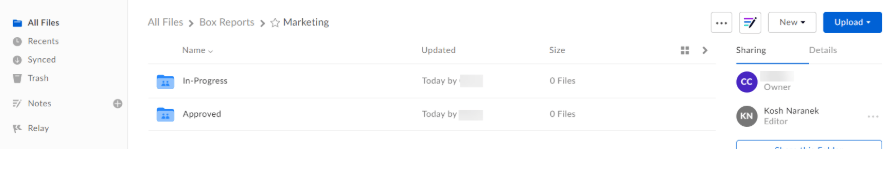
 However, if Kosh is invited to be a collaborator in only the **Marketing** subfolder, Kosh sees only the **Marketing**, **Approved**, and **In-Progress** subfolders, but ***not*** the **Design**, **Finance**, and **Legal** subfolders.
 If an individual is a collaborator on a parent Item, the access level is the same for all content beneath it. Changing permissions on the content beneath a parent Item will result in an error being thrown. The collaboration is only changeable at the item from which it was created. The system displays a message stating this information when changing someone's access level in content beneath a parent Item.
For example, if Kosh is invited into the **Box Reports** parent folder as an *Editor*, you could not change Kosh's access to *Viewer* in the **Marketing** subfolder without changing Kosh's access to *Viewer* in the **Box Reports** parent folder as well. Changing Kosh's access to *Viewer* in the **Marketing** subfolder causes the access level to change to *Viewer* for the **Box Reports** folder ***and*** all its subfolders.
You can, however, give a collaborator a higher access level at content beneath a parent Item. To do this, first invite the collaborator to the subfolder, then invite the collaborator to the parent Item. For example, you could invite Kosh to the **Marketing** subfolder as an *Co-Owner*, then invite Kosh to the **Box Reports** parent folder as a *Viewer*.
**Note:**
Box does not allow you to add a person as a collaborator on content when this person is already a collaborator on the parent Item of this content. When you try to add a collaborator in this circumstance, Box:
* does not add the collaborator,
* erroneously displays a message indicating the collaborator was added, and
* erroneously emails a notification to the collaborator.
In the **Files** window's **Sharing** sidebar, Box displays your highest collaboration role. For other collaborators, Box displays the roles that were assigned to those collaborators when the collaborators were added to the Item. If any of these collaborators is a member of a group with higher access, Box does not dispay that higher role.
If you’d like to send a document to someone who is not a collaborator in the folder, use a [shared link](/en/box-fundamentals/for-users/collaborating/using-shared-links/creating-shared-links). The recipient of the shared link can preview or download the document.
If an individual is a collaborator on a parent Item, the access level is the same for all content beneath it. Changing permissions on the content beneath a parent Item will result in an error being thrown. The collaboration is only changeable at the item from which it was created. The system displays a message stating this information when changing someone's access level in content beneath a parent Item.
For example, if Kosh is invited into the **Box Reports** parent folder as an *Editor*, you could not change Kosh's access to *Viewer* in the **Marketing** subfolder without changing Kosh's access to *Viewer* in the **Box Reports** parent folder as well. Changing Kosh's access to *Viewer* in the **Marketing** subfolder causes the access level to change to *Viewer* for the **Box Reports** folder ***and*** all its subfolders.
You can, however, give a collaborator a higher access level at content beneath a parent Item. To do this, first invite the collaborator to the subfolder, then invite the collaborator to the parent Item. For example, you could invite Kosh to the **Marketing** subfolder as an *Co-Owner*, then invite Kosh to the **Box Reports** parent folder as a *Viewer*.
**Note:**
Box does not allow you to add a person as a collaborator on content when this person is already a collaborator on the parent Item of this content. When you try to add a collaborator in this circumstance, Box:
* does not add the collaborator,
* erroneously displays a message indicating the collaborator was added, and
* erroneously emails a notification to the collaborator.
In the **Files** window's **Sharing** sidebar, Box displays your highest collaboration role. For other collaborators, Box displays the roles that were assigned to those collaborators when the collaborators were added to the Item. If any of these collaborators is a member of a group with higher access, Box does not dispay that higher role.
If you’d like to send a document to someone who is not a collaborator in the folder, use a [shared link](/en/box-fundamentals/for-users/collaborating/using-shared-links/creating-shared-links). The recipient of the shared link can preview or download the document.