> ## Documentation Index
> Fetch the complete documentation index at: https://docs.box.com/llms.txt
> Use this file to discover all available pages before exploring further.
# Managing Collaborators
export const InlineImage = ({src, alt = "", height = "1em"}) => {
return  ;
};
Learn how to control who has access to your content and collaboration settings in this article below.
;
};
Learn how to control who has access to your content and collaboration settings in this article below.
Modifying Collaborator Access Levels
If you are an editor, owner, or co-owner in a file or folder, you can modify the access levels of other collaborators.
**To modify a collaborator's access level in a folder:**
* Open the appropriate folder.
* You will see a list of collaborators in the right-hand sidebar in the **Sharing** tab.
* Click a collaborator's name to to view all the collaborators in this folder.
* Find the collaborator whose access level you would like to modify. You can search by name using the **Filter Collaborators** search box in the upper right.
* Under the **Permissions** column, click the user's access level to modify it. Select the appropriate access level from the dropdown that appears. If the access level is greyed out, you may not have the necessary permissions to modify that user's access level.
**Note:**
Users can see a list of all users and groups who have access to a folder in the right-hand sidebar, in the **Sharing** tab. This includes deactivated users.
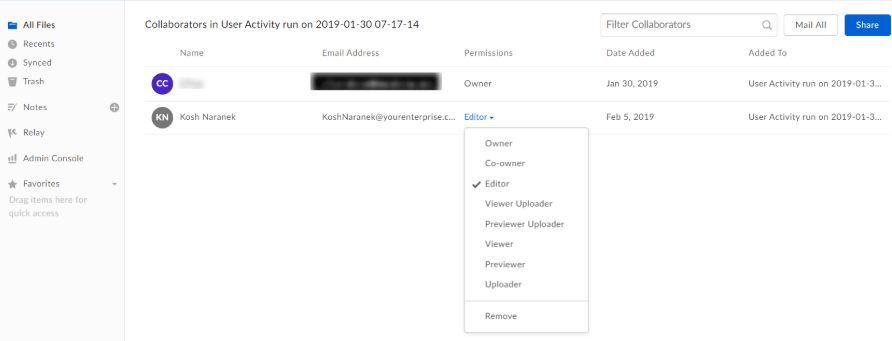 **To modify a collaborator's access level in a single file:**
* Locate the appropriate file
* Click the **Collaboration Icon ** to the right of the file name.
* Alternatively, you can open **More Options** > **More Actions** and select **Manage Collaborators**.
* Find the collaborator whose access level you would like to modify. You can search by name using the **Filter Collaborators** search box in the upper right.
* Under the **Permissions** column, click the user's access level to modify it. Select the appropriate access level from the dropdown that appears. If the access level is greyed out, you may not have the necessary permissions to modify that user's access level. **Note:** Collaborators in single files can only be granted the **Editor** and **Viewer** access levels.
**To modify a collaborator's access level in a single file:**
* Locate the appropriate file
* Click the **Collaboration Icon ** to the right of the file name.
* Alternatively, you can open **More Options** > **More Actions** and select **Manage Collaborators**.
* Find the collaborator whose access level you would like to modify. You can search by name using the **Filter Collaborators** search box in the upper right.
* Under the **Permissions** column, click the user's access level to modify it. Select the appropriate access level from the dropdown that appears. If the access level is greyed out, you may not have the necessary permissions to modify that user's access level. **Note:** Collaborators in single files can only be granted the **Editor** and **Viewer** access levels.
Viewing Hub Co-Owners
For files or folders shared in a [Box Hub](/en/box-hubs/box-hubs-for-admins/about-box-hubs), you can see who manages the Hub by checking the **Hubs** tab on the **Collaborators** page.
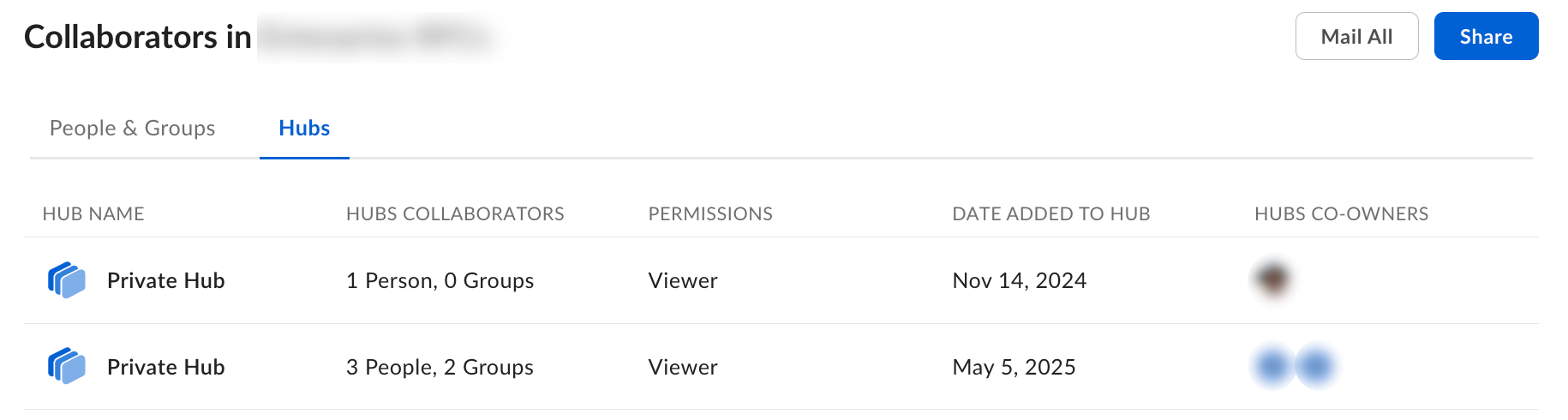 **To view Hub co-owners:**
1. Open the file or folder. In the right-hand sidebar, on the **Sharing** tab, look for the Hubs icon with the number of associated Hubs.
2. Click the Hubs icon . The **Hubs** tab on the **Collaborators** page is opened automatically.
3. Check the Hub **Co-owners** column. Hover over the avatars to see co-owner names.
**To view Hub co-owners:**
1. Open the file or folder. In the right-hand sidebar, on the **Sharing** tab, look for the Hubs icon with the number of associated Hubs.
2. Click the Hubs icon . The **Hubs** tab on the **Collaborators** page is opened automatically.
3. Check the Hub **Co-owners** column. Hover over the avatars to see co-owner names.
Unlinking Items From a Hub
Content owners and co-owners can remove their files and folders from any [Box Hub](/en/box-hubs/box-hubs-for-admins/about-box-hubs) where they’re being used. This gives you more control over your content and helps ensure that sensitive or regulated content isn't visible in Hubs where it shouldn't be.
**To unlink items from a Hub:**
1. Open the file or folder. In the right-hand sidebar, on the **Sharing** tab, look for the Hubs icon with the number of associated Hubs.
2. Click the Hubs icon . The **Hubs** tab on the **Collaborators** page is opened automatically.
3. Find the Hub you want to unlink the item from.
4. Click **Remove Access** next to the Hub name, then confirm the action.
After unlinking, the item will no longer be visible in that Hub.
**Note:**
If a Hub contains folders at multiple levels of a hierarchy (for example, a grandparent folder, a parent folder within it, and files within the parent folder), unlinking a file will not remove access to the file from the Hub if any of its parent folders remain linked.
Transferring Folder Ownership
If you are the owner of a folder, you can transfer folder ownership to a collaborator at any time. Simply follow the instructions above, and select **Owner** from the access level dropdown (this option is only visible to folder owners). The collaborator you designate will be the new "Owner" of the folder and your access level will be downgraded to "Editor". The contents of the folder will no longer count against your account's storage allowance.
If you are transferring a private ([yellow](/en/box-fundamentals/for-users/staying-organized/managing-files-and-folders/create-new-files-and-folders)) folder, you will first need to invite the user to this folder before you can you transfer ownership. For larger transfers, we recommend doing this at the end of the day so users are not disrupted by the move. If you experience any issues, submit a [support case](https://support.box.com/hc/en-us/articles/360043693474) so Box can assist with the transfer. If the new owner is in a different enterprise, then any [Shared Link Custom URLs](/en/box-admin-tools/how-to-guides-for-admins/shared-links-settings-for-your-enterprise) will be cleared.
If you move a folder you own into a folder someone else owns, the ownership of the moved folder also moves — from the original owner (in this, case, you) to the person who owns the folder into which you moved your content. For example, if you own Folder A, and you move Folder A into Folder B, the person who owns Folder B becomes the new owner of Folder A.
You will only be allowed to transfer ownership of a folder to another user if the user is collaborated directly on the folder. For example, if the user was invited to collaborate on Folder A and it contains Folder A-1, you will not be able to transfer ownership of Folder A-1 because the user inherited collaboration permissions to Folder A-1 via its parent folder, Folder A. You will only be able to transfer ownership of Folder A to the user since that is the folder the user was invited to collaborate on.
When transferring folder ownership, you will receive the following warning message:
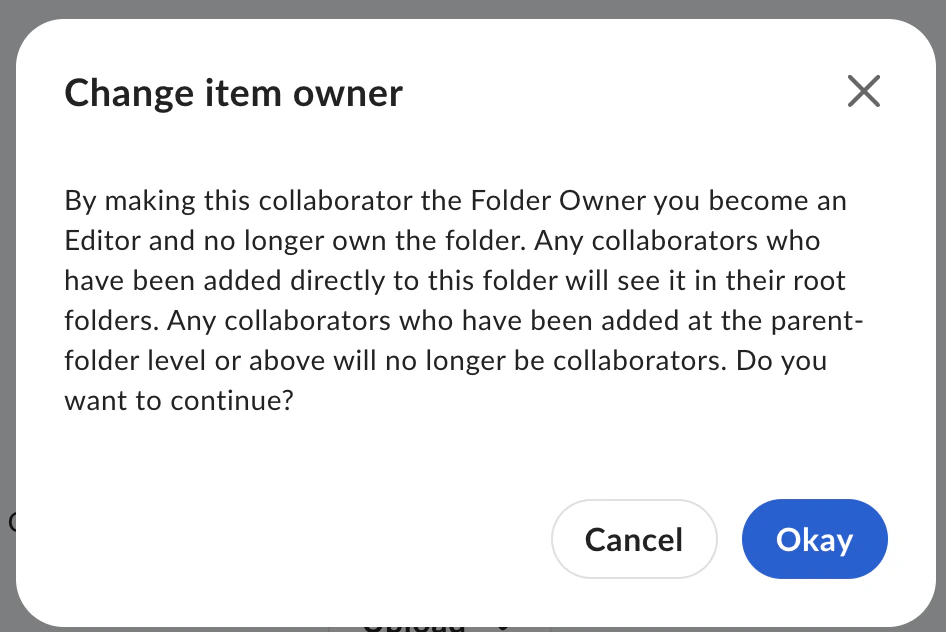 The warning message is generic and is shown for ownership transfers at any folder level, including both root-level folders and subfolders. It does not mean collaborators will always lose access. The warning is describing a possible permission impact when a subfolder is transferred. If some users only had access because they were collaborators on a parent folder above that subfolder, they may lose access after the transfer because the subfolder is no longer part of the same parent folder structure.
For a root-level folder transfer, that specific issue does not apply because there is no higher parent folder above it. The same warning will still appear, but it is just the standard generic message shown at any level. Collaborators lose access only when their permission came from above the subfolder being transferred. If there is no higher level involved, such as with a root-level folder transfer, other permissions are not impacted.
To transfer ownership of a folder to a [Service Account](https://developer.box.com/platform/user-types/#service-account), use the [API](https://developer.box.com/guides/folders/single/change-owner/).
The warning message is generic and is shown for ownership transfers at any folder level, including both root-level folders and subfolders. It does not mean collaborators will always lose access. The warning is describing a possible permission impact when a subfolder is transferred. If some users only had access because they were collaborators on a parent folder above that subfolder, they may lose access after the transfer because the subfolder is no longer part of the same parent folder structure.
For a root-level folder transfer, that specific issue does not apply because there is no higher parent folder above it. The same warning will still appear, but it is just the standard generic message shown at any level. Collaborators lose access only when their permission came from above the subfolder being transferred. If there is no higher level involved, such as with a root-level folder transfer, other permissions are not impacted.
To transfer ownership of a folder to a [Service Account](https://developer.box.com/platform/user-types/#service-account), use the [API](https://developer.box.com/guides/folders/single/change-owner/).
Removing Collaborators
If you are an editor, owner, or co-owner in a folder, you can remove collaborators from the folder.
**To remove a collaborator from a folder:**
* Open the appropriate folder.
* You will see a list of collaborators in the right-hand sidebar.
* Click a collaborator's name to to view all the collaborators in this folder.
* Find the collaborator whose access level you would like to modify. You can search by name using the **Filter Collaborators** search box in the upper right.
* Under the **Permissions** column, click the user's access level to modify it. Select **Remove**. If the option is greyed out, you may not have the necessary permissions to remove that collaborator.
**To remove a collaborator from a single file:**
* Locate the appropriate file
* Click the **Collaboration Icon** (****) to the right of the file name.
* Alternatively, you can open **More Options** > **More Actions** and select **Manage Collaborators**.
* Find the collaborator whose access level you would like to modify. You can search by name using the **Filter Collaborators** search box in the upper right.
* Under the **Permissions** column, click the user's access level to modify it. Select **Remove**. If the option is greyed out, you may not have the necessary permissions to remove that collaborator.
Hiding Collaborators
Owners and Co-Owners of folders have the ability to "**hide collaborators**". With this enabled, collaborators with "**Editor**" access and below will not be able to see the names of the other collaborators in the folder (Co-Owners will be able to see all collaborators in the folder). When hidden, the word "Someone" will replace their name whenever necessary to maintain anonymity.
**Note**
* In order to ensure the identities of non-owner collaborators are not revealed, please [disable Comments](/en/box-fundamentals/for-users/staying-organized/managing-files-and-folders/box-folder-settings) in the Folder Settings **in addition to** enabling the “Hide Collaborators” setting.
* This feature currently does not anonymize any names shown in the Version History. The names of any non-owner collaborators who upload a new version will be visible to other collaborators in the file's Version history.
* With this settling enabled, collaborators are still able to utilize [Tasks](/en/box-fundamentals/for-users/collaborating/sharing-content-using-box/adding-comments-and-tasks).
* With this setting enabled, collaborators in the affected folder cannot use Microsoft Office Online or Box for Microsoft Office Co-Authoring to open Office files in the folder.
To hide collaborators:
1. Right-click the folder (or click the **ellipsis** (**...**)) to open the **More Options** menu.
2. Click **Settings** to open **Folder Settings**.
3. In the **Privacy** section, check the box next to **Hide collaborators and their activity from non-owners.**
 From this page, you can also modify various collaboration settings, including restricting who can send invitations, and who can collaborate in this folder. For more information, see [**Folder Settings**](/en/box-fundamentals/for-users/staying-organized/managing-files-and-folders/box-folder-settings).
Collaborator Auto-Expiration
**Note:**
Collaborator auto-expiration applies to individual collaborators, but does not apply to [Groups](/en/box-admin-tools/managing-box-users-and-admins/groups/creating-and-managing-groups). When you add a group as a collaborator, you may see a clock icon next to the group name, but the auto-expiration is not actually applied to the group.
**Important:**
To enable collaboration auto-expiration, you must enable the **Automatically remove invited collaborators** setting. Do this via the Admin Console, in **Enterprise Settings**. If the setting is disabled, you cannot create or modify collaborator expirations. More information on this in the Invited [Collaborators expiration settings](https://support.box.com/hc/en-us/articles/4404822772755-Enterprise-Settings-Content-Sharing-Tab/#Invited_collaborators_expiration_settings) section.
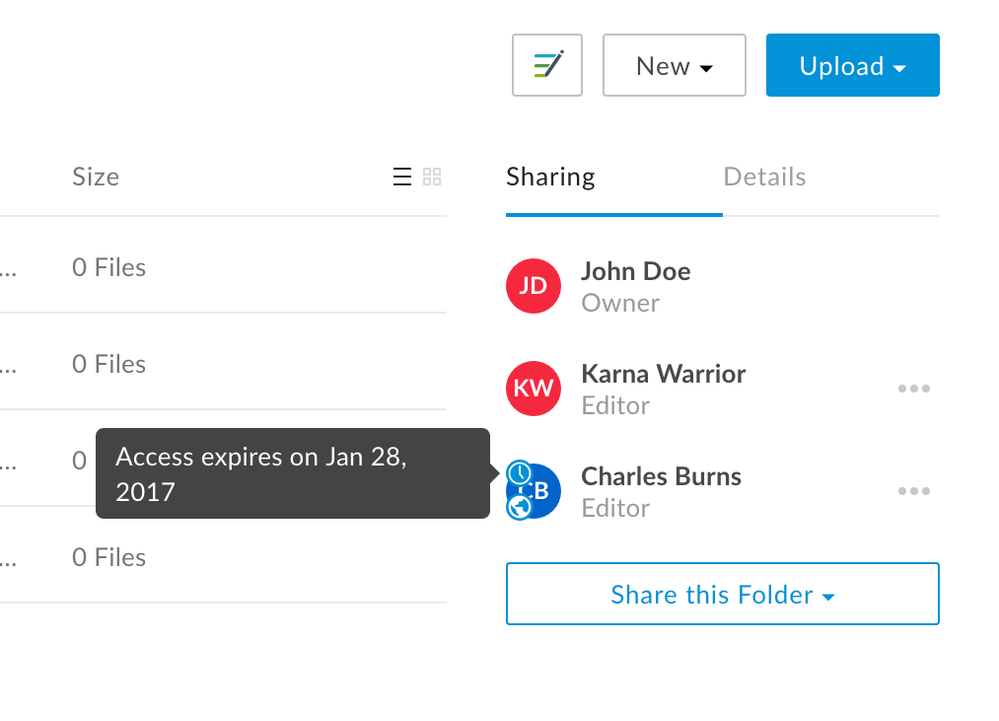
Depending on your organization's Enterprise Settings, collaborators may find that their access to a folder is set to expire after a certain period of time. If a collaborator is set to auto-expire, a **clock icon** will appear beside their name in the right-hand sidebar (under the **Sharing** tab). You can hover over the icon to view a collaborator's expiration date.
 Before a collaboration expires, Box sends emailed notifications to the owner and any co-owners of the corresponding folder, assuming this notification setting is turned on in your organization's Enterprise Settings. Box notifies only co-owners who are directly collaborating on the item with a pending expiration; Box does not notify co-owners who are collaborating via inherited permissions.
### Extending Collaborator Auto-Expiration
Folder owners have the ability to extend the auto-expiration date for a collaborator.
To extend a collaborator's auto-expiration date:
* Click **any name** in the Collaborators side bar to enter the Collaborator Management screen. You can also navigate to this screen using the Folder Menu - Click the **folder name** in the folder tree list, then click **More Options** > **More Actions** and select **Manage Collaborators**.
Before a collaboration expires, Box sends emailed notifications to the owner and any co-owners of the corresponding folder, assuming this notification setting is turned on in your organization's Enterprise Settings. Box notifies only co-owners who are directly collaborating on the item with a pending expiration; Box does not notify co-owners who are collaborating via inherited permissions.
### Extending Collaborator Auto-Expiration
Folder owners have the ability to extend the auto-expiration date for a collaborator.
To extend a collaborator's auto-expiration date:
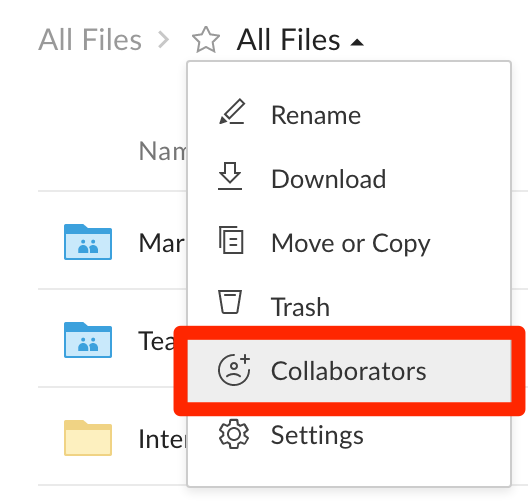
* Click **any name** in the Collaborators side bar to enter the Collaborator Management screen. You can also navigate to this screen using the Folder Menu - Click the **folder name** in the folder tree list, then click **More Options** > **More Actions** and select **Manage Collaborators**.
 * Click the **clock icon** beside the collaborator whose auto-expiration date you'd like to extend. If there are a large number of collaborators, you can use the search bar in the upper right to filter by a specific name or email.
* Click **Extend Access**.
* Click the **clock icon** beside the collaborator whose auto-expiration date you'd like to extend. If there are a large number of collaborators, you can use the search bar in the upper right to filter by a specific name or email.
* Click **Extend Access**.
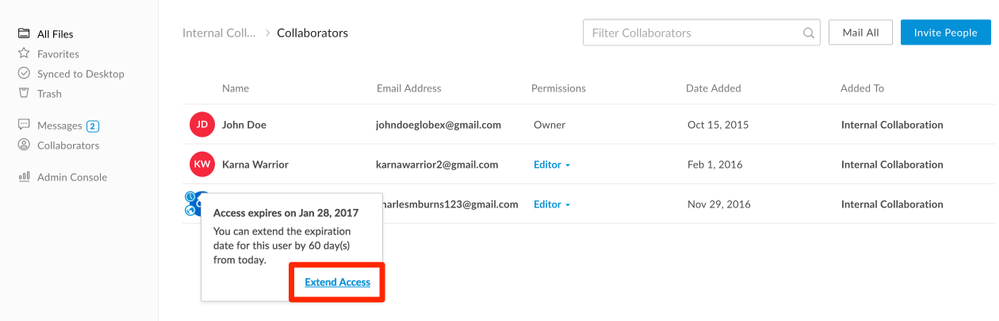 * A confirmation message will be displayed with the new expiration date.