> ## Documentation Index
> Fetch the complete documentation index at: https://docs.box.com/llms.txt
> Use this file to discover all available pages before exploring further.
# Inviting Collaborators
export const InlineImage = ({src, alt = "", height = "1em"}) => {
return  ;
};
A collaborator is someone you invite into a file or folder. When you add someone as a collaborator to a file or folder, the item appears in their**Files** page.
If you send a collaboration invitation to a person without a Box account, Box prompts that person to sign up with Box before being able to access the content. If you send a collaboration invitation to someone outside of your enterprise's domain, Box displays both an alert and a visual indicator. This bolsters data security by helping ensure you don't unintentionally share content with someone outside of your organization.
**Note**
When someone **within your enterprise’s domain**receives an invitation to collaborate in a folder but doesn't yet have a Box account, Box provisions an account and that collaborator automatically becomes a [managed user under your enterprise instance](/en/box-fundamentals/for-admins/collaborating/collaborating-by-inviting-others/collaboration-invites-create-an-account).
When someone with your enterprise’s domain receives an invitation to collaborate in a file:
* If they are currently an unmanaged user, they will remain so
* If they are not currently an unmanaged user, an account will be provisioned and that user will automatically become a managed user under your enterprise instance
**Admins** can identify all accounts created this way through the Admin Console reporting section:
* Do not select any groups so the report captures all users
* Under User Activity, select **Created new user**
* The column shows when the account was created by “Invited collaborator”
## Inviting a collaborator
With simplified sharing, it takes just moments to invite people to collaborate. You can send up to 100 invitations at a time.
**To invite someone to collaborate in a file or folder:**
1. Open the **Share** window. To do this, in your Box files view, hover over the row of the file or folder you wish to share.
2. On the right, click **Share**.
;
};
A collaborator is someone you invite into a file or folder. When you add someone as a collaborator to a file or folder, the item appears in their**Files** page.
If you send a collaboration invitation to a person without a Box account, Box prompts that person to sign up with Box before being able to access the content. If you send a collaboration invitation to someone outside of your enterprise's domain, Box displays both an alert and a visual indicator. This bolsters data security by helping ensure you don't unintentionally share content with someone outside of your organization.
**Note**
When someone **within your enterprise’s domain**receives an invitation to collaborate in a folder but doesn't yet have a Box account, Box provisions an account and that collaborator automatically becomes a [managed user under your enterprise instance](/en/box-fundamentals/for-admins/collaborating/collaborating-by-inviting-others/collaboration-invites-create-an-account).
When someone with your enterprise’s domain receives an invitation to collaborate in a file:
* If they are currently an unmanaged user, they will remain so
* If they are not currently an unmanaged user, an account will be provisioned and that user will automatically become a managed user under your enterprise instance
**Admins** can identify all accounts created this way through the Admin Console reporting section:
* Do not select any groups so the report captures all users
* Under User Activity, select **Created new user**
* The column shows when the account was created by “Invited collaborator”
## Inviting a collaborator
With simplified sharing, it takes just moments to invite people to collaborate. You can send up to 100 invitations at a time.
**To invite someone to collaborate in a file or folder:**
1. Open the **Share** window. To do this, in your Box files view, hover over the row of the file or folder you wish to share.
2. On the right, click **Share**.
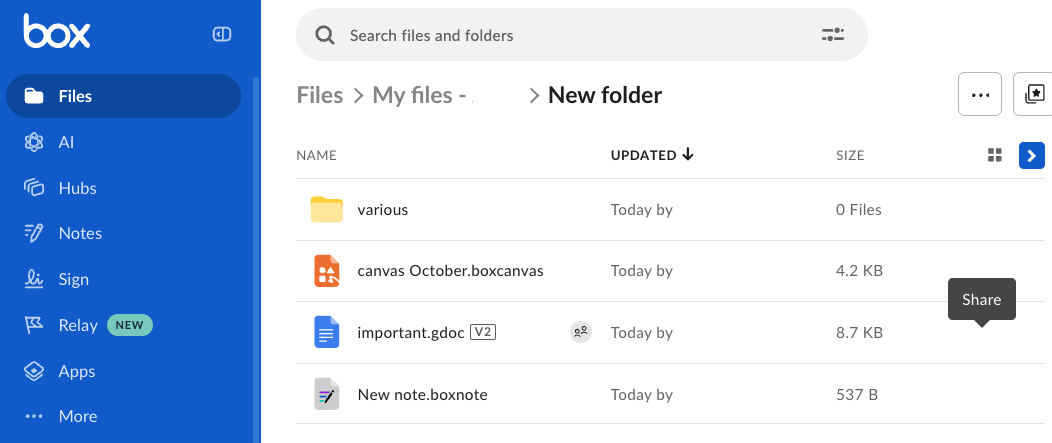 3. The **Share** window opens.
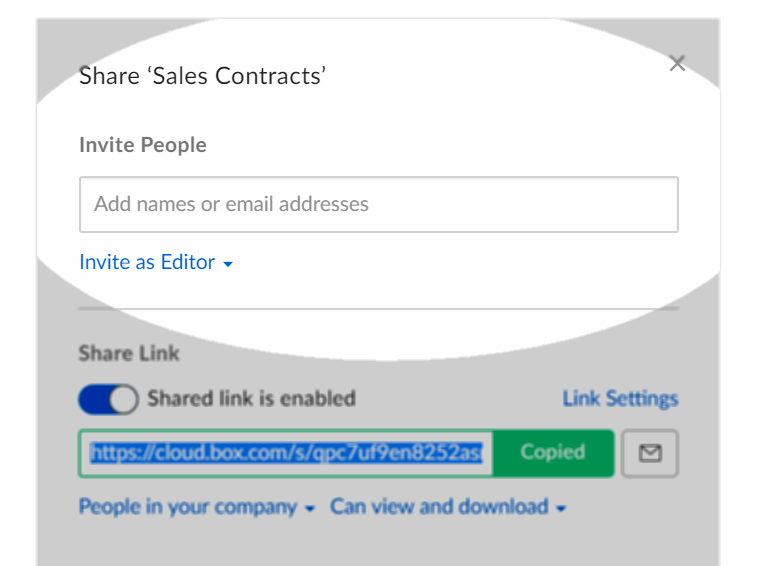 4. In the **Share** window, under **Invite People**, click **Add names or email addresses**.
5. Type a collaborator's name or email address.
* As you type, Box anticipates your intended recipient and lists corresponding email addresses. You can select the recipient you want, or continue typing the full email address.
* When typing full email addresses, separate recipients by a horizontal space.
6. Click the **Invite as** drop-down menu. Box displays a list of [roles](/en/box-fundamentals/for-users/collaborating/collaborating-by-inviting-others/understanding-collaborator-permission-levels).
7. Click the role you wish to assign to the collaborator.
8. (Optional) In the **Message** field, type a message of up to 750 characters for the collaborator.
9. Click **Send**.
### Security indicators
If you invite someone outside of your organization to collaborate, Box adds a small image of a globe to external invitee's avatar image or initials. At the bottom of the **Share** window, Box also displays a text reminder that you are sharing this folder's contents externally.
[More on Box's security indicators.](/en/box-fundamentals/for-users/collaborating/sharing-content-using-box/avoiding-unintentional-exposure-of-your-files-and-documents)
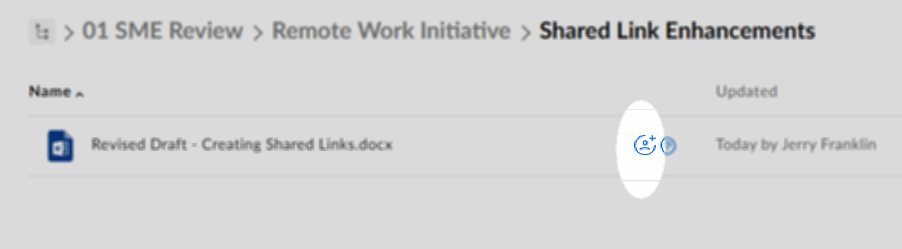
After you invite collaborators to a file, the Collaborator badge () displays adjacent to the file name.
4. In the **Share** window, under **Invite People**, click **Add names or email addresses**.
5. Type a collaborator's name or email address.
* As you type, Box anticipates your intended recipient and lists corresponding email addresses. You can select the recipient you want, or continue typing the full email address.
* When typing full email addresses, separate recipients by a horizontal space.
6. Click the **Invite as** drop-down menu. Box displays a list of [roles](/en/box-fundamentals/for-users/collaborating/collaborating-by-inviting-others/understanding-collaborator-permission-levels).
7. Click the role you wish to assign to the collaborator.
8. (Optional) In the **Message** field, type a message of up to 750 characters for the collaborator.
9. Click **Send**.
### Security indicators
If you invite someone outside of your organization to collaborate, Box adds a small image of a globe to external invitee's avatar image or initials. At the bottom of the **Share** window, Box also displays a text reminder that you are sharing this folder's contents externally.
[More on Box's security indicators.](/en/box-fundamentals/for-users/collaborating/sharing-content-using-box/avoiding-unintentional-exposure-of-your-files-and-documents)
After you invite collaborators to a file, the Collaborator badge () displays adjacent to the file name.
 **Notes**
* When inviting collaborators to a single file, the only available access level is **Editor**. You can change this access level to **Viewer** from the [Manage Collaborators](/en/box-fundamentals/for-users/collaborating/collaborating-by-inviting-others/managing-collaborators) page. These are the only access levels available for collaborators on a single file
* All [collaboration settings](/en/box-admin-tools/managing-content/legacy-content-manager/sharing-files-and-folders-through-the-admin-console)configured by enterprise admins apply to both single files and folders
* The Message field does not permit URLs. When you input a word including a period (e.g. \[text].\[text]), the system recognizes it as a URL and returns an error. Including a space will allow you to continue. For example, **J. Smith** not **J.Smith**
* The Message field does not permit email addresses
* The Message field is limited to 750 characters
* The Invite People field provides suggested names for up to 50 groups
**Notes**
* When inviting collaborators to a single file, the only available access level is **Editor**. You can change this access level to **Viewer** from the [Manage Collaborators](/en/box-fundamentals/for-users/collaborating/collaborating-by-inviting-others/managing-collaborators) page. These are the only access levels available for collaborators on a single file
* All [collaboration settings](/en/box-admin-tools/managing-content/legacy-content-manager/sharing-files-and-folders-through-the-admin-console)configured by enterprise admins apply to both single files and folders
* The Message field does not permit URLs. When you input a word including a period (e.g. \[text].\[text]), the system recognizes it as a URL and returns an error. Including a space will allow you to continue. For example, **J. Smith** not **J.Smith**
* The Message field does not permit email addresses
* The Message field is limited to 750 characters
* The Invite People field provides suggested names for up to 50 groups