> ## Documentation Index
> Fetch the complete documentation index at: https://docs.box.com/llms.txt
> Use this file to discover all available pages before exploring further.
# Managing Box Forms
export const InlineImage = ({src, alt = "", height = "1em"}) => {
return  ;
};
**Note:**
Box Forms is available only for Enterprise Advanced accounts. Customers must agree to the Box Forms Addendum in order to use Box Forms.
# Forms List
You can view available forms in your Box account by going to **Relay > Forms**.
;
};
**Note:**
Box Forms is available only for Enterprise Advanced accounts. Customers must agree to the Box Forms Addendum in order to use Box Forms.
# Forms List
You can view available forms in your Box account by going to **Relay > Forms**.
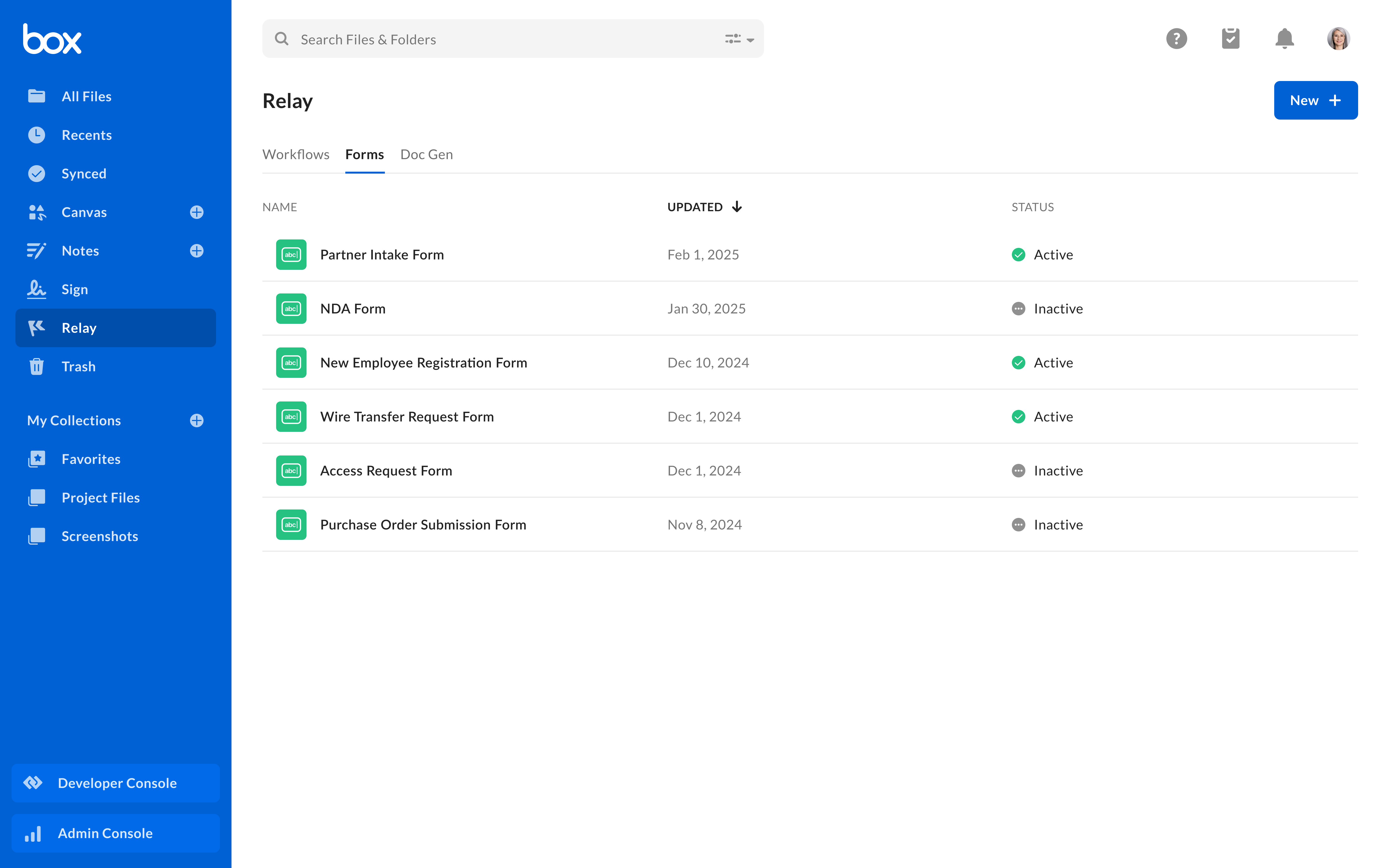 From the list view, you can edit, share, activate or deactivate a form. Hover to the right of a form and click on the ellipsis button to view the actions:
* **Edit**
Opens the Form Builder to edit a form
* **Share**
Once a form is [published](/en/box-forms/creating-a-form), the toggle **Link is enabled** allows you to copy the link to share. Click **Settings** to configure the following:
* Choose whether submitters will have to log in to Box by default.
* Set a link expiration date from the calendar pop-up.
* **Delete** This action will permanently delete the form, including all submissions associated with it. However the files received from submissions will not be deleted.
* **Activate or Deactivate**
Deactivate or active the form by toggling this setting on or off. Deactivated forms do not receive submissions.
* **Submissions**
View the information that has been collected using the form.
# Submitted Forms
Clicking **Submissions** brings you the list of information collected from the form. The columns are shown in the order they appear on the form.
From the list view, you can edit, share, activate or deactivate a form. Hover to the right of a form and click on the ellipsis button to view the actions:
* **Edit**
Opens the Form Builder to edit a form
* **Share**
Once a form is [published](/en/box-forms/creating-a-form), the toggle **Link is enabled** allows you to copy the link to share. Click **Settings** to configure the following:
* Choose whether submitters will have to log in to Box by default.
* Set a link expiration date from the calendar pop-up.
* **Delete** This action will permanently delete the form, including all submissions associated with it. However the files received from submissions will not be deleted.
* **Activate or Deactivate**
Deactivate or active the form by toggling this setting on or off. Deactivated forms do not receive submissions.
* **Submissions**
View the information that has been collected using the form.
# Submitted Forms
Clicking **Submissions** brings you the list of information collected from the form. The columns are shown in the order they appear on the form.
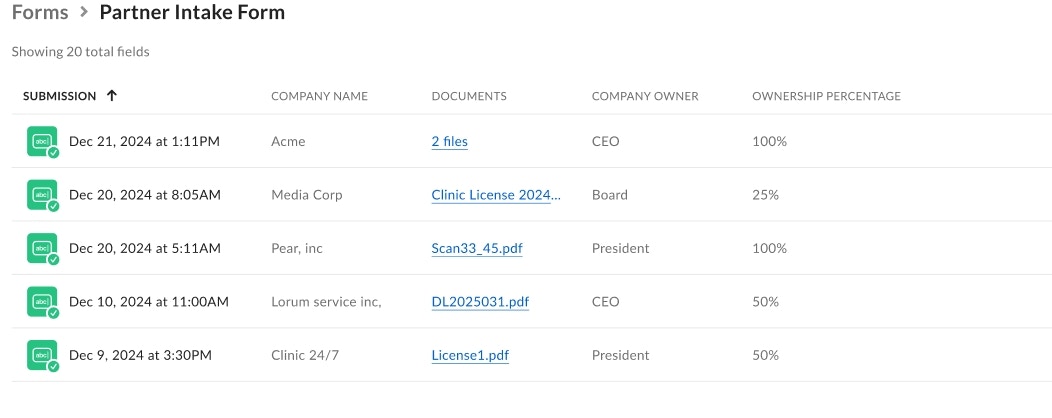 To see further actions, hover to the right of a submission:
* **View**
* When you click **View**, a pop-up shows the form submission and displays all the fields from the form that the submitter filled out, along with their responses.
* When you view a submission, clicking the file directs you to its location in Box.
* The recipient’s name is displayed at the top within the individual submission view.
* **Delete**
* This action permanently removes the submission and all associated data, including the Metadata associated with the form submission, from your Box account. However, files submitted and received, as well as Metadata applied to files and folders, will not be removed unless deleted separately.
* Additionally, you can delete a submission from the individual submission view.
To see further actions, hover to the right of a submission:
* **View**
* When you click **View**, a pop-up shows the form submission and displays all the fields from the form that the submitter filled out, along with their responses.
* When you view a submission, clicking the file directs you to its location in Box.
* The recipient’s name is displayed at the top within the individual submission view.
* **Delete**
* This action permanently removes the submission and all associated data, including the Metadata associated with the form submission, from your Box account. However, files submitted and received, as well as Metadata applied to files and folders, will not be removed unless deleted separately.
* Additionally, you can delete a submission from the individual submission view.