> ## Documentation Index
> Fetch the complete documentation index at: https://docs.box.com/llms.txt
> Use this file to discover all available pages before exploring further.
# Enabling Box Forms
**Note:**\
Box Forms is available only for Enterprise Advanced accounts. Customers must agree to the Box Forms Addendum in order to use Box Forms.
Box Forms allows users to easily design, customize, and publish web forms with required fields, dynamic rules, and customizable workflows for starting business processes.
# Admin Enablement
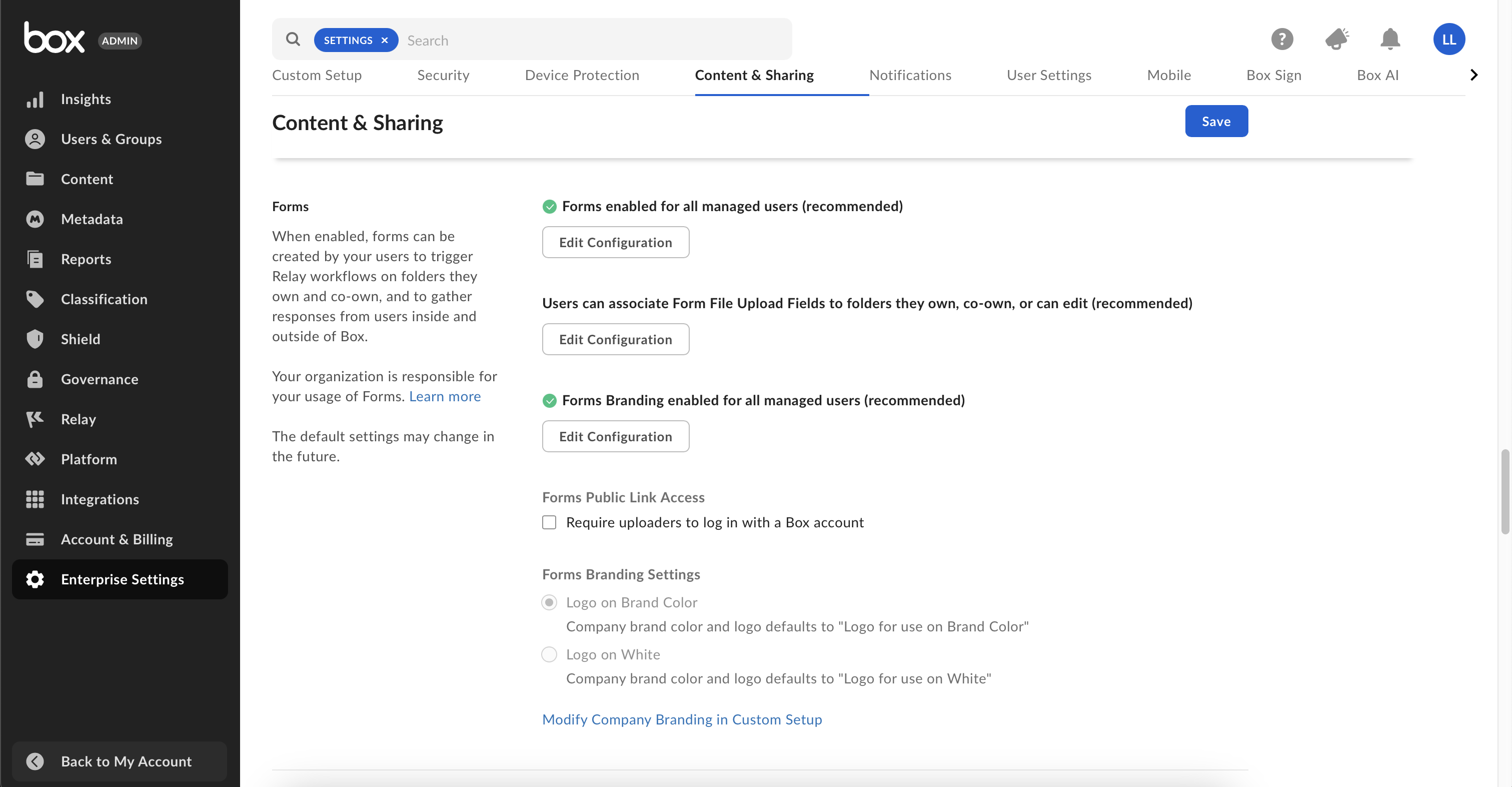
Admins can enable Box Forms for their organization by accessing the **Admin Console**, and then **Enterprise Settings**. In the **Content & Sharing** tab, scroll down to the **Forms** section and select **Edit Configuration** under **Forms**.
 ## For Select Users and Groups
By default, Box Forms is disabled for all users. You can configure access for your organization:
* Disable for all managed users
* Enable for all managed users
* Enable for select users and groups
* Enable for everyone except select users and groups
Add the desired users and groups to enable Box Forms for them. Once you have selected your users and group preferences, click **Save**.
## Form File Upload Fields Configuration
Specify whether to limit form file upload access to folder owners and co-owners (that is, to exclude editors), based on folder permissions. You can set the permissions by selecting **Form File Upload Fields Configuration**, then selecting from the following options:
* **Owners/Co-Owners Only**\
Allows only users who own or co-own the folder to upload files.
* **Owners/Co-Owners and Editors** (Recommended)\
Allows owners, co-owners, and editors of the folder to upload files.
## Forms Branding
Configure access for forms branding:
* Disable for all managed users
* Enable for all managed users
* Enable for select users and groups
* Enable for everyone except select users and groups
Add the desired users and groups to enable custom branding for them. Once you have selected your users and group preferences, click **Save**.
Admins can select what logo their organization uses by default on forms:
* **Logo on Brand Color**\
Company brand color and logo defaults to **Logo for use on Brand Color**. The selected logo on brand color (icon and background color) is added to the form when a new form is created.
* **Logo on White**\
Company brand color and logo defaults to **Logo for use on white**. The selected logo on white background (icon and background color) is shown on the form whenever a new form is created.
## Form Public Link Access
Admins can select access to forms by either requiring uploaders to log in with a Box account or allowing anyone with a link to access the form. This setting affects all forms within the organization.
# Known Limitations
## Data handling
As of now, form submissions have different data handling measures than files and folders. Contact your Box administrator and support team for additional information.
## Interoperability
Box Forms is not fully interoperable with all features within Box, such as Box Governance, Box Shield, Box Zones, and Box Keysafe. This limitation may affect your ability to meet compliance requirements that depend on these services such as CJIS or ITAR compliance, GxP standards, or FINRA Broker-Dealer regulations.
## Metadata
Forms can be created with either Metadata fields or non-metadata files.
## File Size
Box Forms has a maximum size limit of 2.5 MB.
## For Select Users and Groups
By default, Box Forms is disabled for all users. You can configure access for your organization:
* Disable for all managed users
* Enable for all managed users
* Enable for select users and groups
* Enable for everyone except select users and groups
Add the desired users and groups to enable Box Forms for them. Once you have selected your users and group preferences, click **Save**.
## Form File Upload Fields Configuration
Specify whether to limit form file upload access to folder owners and co-owners (that is, to exclude editors), based on folder permissions. You can set the permissions by selecting **Form File Upload Fields Configuration**, then selecting from the following options:
* **Owners/Co-Owners Only**\
Allows only users who own or co-own the folder to upload files.
* **Owners/Co-Owners and Editors** (Recommended)\
Allows owners, co-owners, and editors of the folder to upload files.
## Forms Branding
Configure access for forms branding:
* Disable for all managed users
* Enable for all managed users
* Enable for select users and groups
* Enable for everyone except select users and groups
Add the desired users and groups to enable custom branding for them. Once you have selected your users and group preferences, click **Save**.
Admins can select what logo their organization uses by default on forms:
* **Logo on Brand Color**\
Company brand color and logo defaults to **Logo for use on Brand Color**. The selected logo on brand color (icon and background color) is added to the form when a new form is created.
* **Logo on White**\
Company brand color and logo defaults to **Logo for use on white**. The selected logo on white background (icon and background color) is shown on the form whenever a new form is created.
## Form Public Link Access
Admins can select access to forms by either requiring uploaders to log in with a Box account or allowing anyone with a link to access the form. This setting affects all forms within the organization.
# Known Limitations
## Data handling
As of now, form submissions have different data handling measures than files and folders. Contact your Box administrator and support team for additional information.
## Interoperability
Box Forms is not fully interoperable with all features within Box, such as Box Governance, Box Shield, Box Zones, and Box Keysafe. This limitation may affect your ability to meet compliance requirements that depend on these services such as CJIS or ITAR compliance, GxP standards, or FINRA Broker-Dealer regulations.
## Metadata
Forms can be created with either Metadata fields or non-metadata files.
## File Size
Box Forms has a maximum size limit of 2.5 MB.