> ## Documentation Index
> Fetch the complete documentation index at: https://docs.box.com/llms.txt
> Use this file to discover all available pages before exploring further.
# Hiding files and folders in Box Drive
In Box Drive, you can hide files and folders from your view in Explorer/Finder to show only relevant and necessary items.
When you hide a file or folder, it disappears from your local Box folder tree, making it easier to find active work, but it remains in your Box account—securely stored in the cloud, available in Box.com and still searchable in Box Drive
Important
* Hiding files and folders **does not**:
* Delete content or change collaborator permissions.
* Remove content from Box. The content is still available on the Box website and through search.
* Hide files and folders from other collaborators.
# Requirements
* Box Drive version 2.48 must be installed on devices
# How Hidden Files & Folders Work
* **Personal and device-specific**: Hiding a file or folder in Box Drive only removes, not delete, it from your Finder (Mac) or File Explorer (Windows) on that device. The item remains in Box and with collaborator visibility.
* **Still searchable and accessible:** Hidden files and folders remain part of your Box account. They are hidden from view but still synced and cached on your local machine—not deleted. You can search their contents in Box Drive, appearing in the search results. Newly shared content will always show up by default—even if its parent folder is hidden.
* **Marked for Offline folders:** If you hide a file or folder that is marked for offline access, it will still be updated whenever you are online and remain available when offline. Hiding the file or folder helps clear up your item view—it does not affect its availability when you go offline.
# Hiding a File/Folder with Finder/Explorer:
## To hide items:
1. Open Finder (Mac) or File Explorer (Windows)
2. Right click on the item
3. Select **Hide this Folder** or **Hide this File.**
# Hiding or Unhiding Folders/Files through Preferences
**Windows:**
1. Open Box Drive Preferences via:
* System tray Box icon → Gear icon → Preferences
* Keyboard shortcut: Ctrl + Shift + Alt + B → Gear icon → Preferences
* Right-click system tray Box icon → Preferences
2. Navigate to folder visibility settings within Preferences.
**macOS:**
1. Open Box Drive Preferences via:
* Click Box icon in menu bar → Select gear icon → Preferences
* Keyboard shortcut: Ctrl + Shift + Alt + B → Gear icon → Preferences
* Right-click system tray Box icon → Preferences
2. Navigate to folder visibility settings within Preferences.
3. Click "Change Selection..." button
# Changing Box Drive Hide/Unhide Preferences
Opening the Preferences menu displays a list of your Box folders and files:
* **Checked folders** - visible in Box Drive.
* **Unchecked folders** - hidden in Box Drive.
To Modify:
1. Uncheck the box for any folder/file you want to **hide**.
2. Check the box for any folder/file you want to **unhide** (make visible).
3. Click **Done** to save changes.
# Searching Hidden items and Unhiding from Box Drive
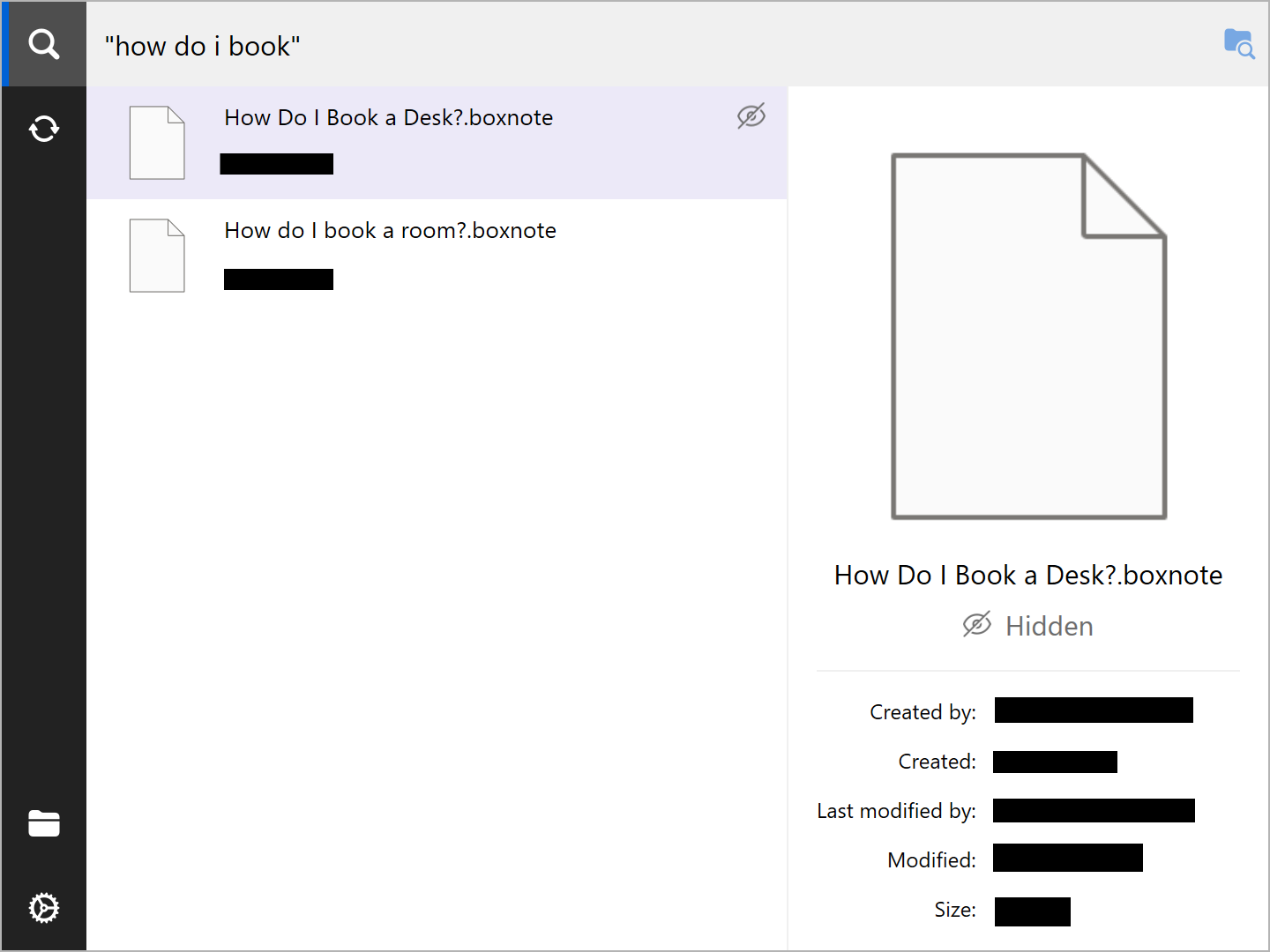
### **On Windows**
1. Click the **Box icon** in the system tray/menu bar
1. Alternatively: Use **Ctrl + Shift + Alt + B**.
2. To search all of Box Drive, type your keywords — results appear as you type.
1. Within a specific folder:
1. Click the **Search inside a Folder** icon
3. Right-click the item and click Unhide File or Unhide Folder; item will reappear in the File Explorer
 ### **On Mac**
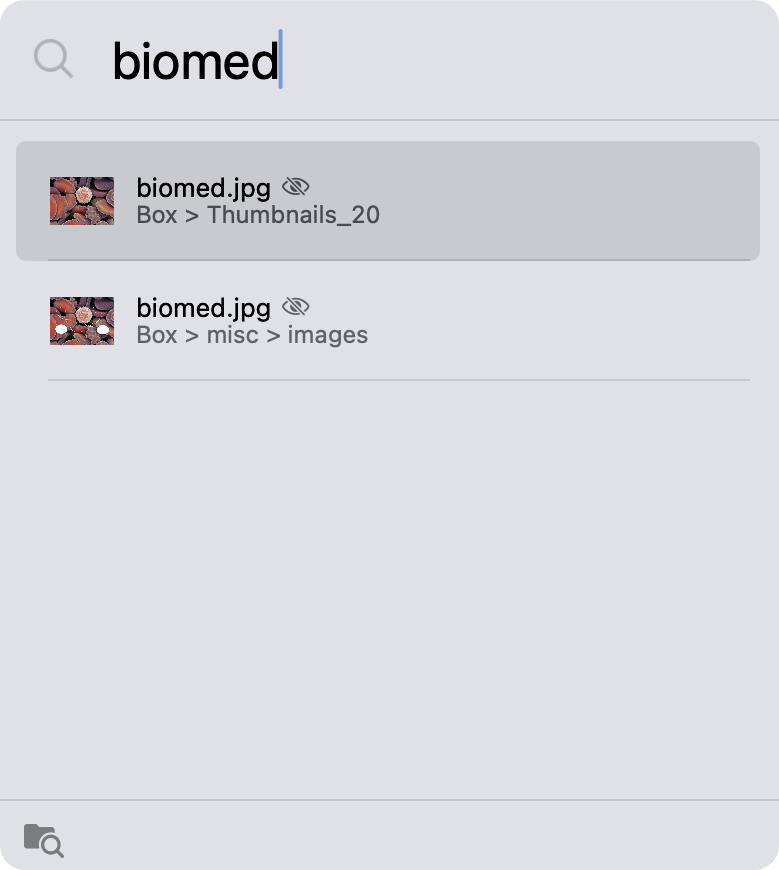
1. Click the **Box icon** in the menu bar to open the search bar
1. Alternatively: Use **Ctrl + Option + Cmd + Space**
2. Search for the item
1. Within a specific folder:
1. Click the **Search inside a Folder** icon
3. Right-click the item and click Unhide File or Unhide Folder; item will reappear in Finder
### **On Mac**
1. Click the **Box icon** in the menu bar to open the search bar
1. Alternatively: Use **Ctrl + Option + Cmd + Space**
2. Search for the item
1. Within a specific folder:
1. Click the **Search inside a Folder** icon
3. Right-click the item and click Unhide File or Unhide Folder; item will reappear in Finder
 # Known Issues
* Partially hidden folder states do not persist after closing the **Preferences** menu. The correct visibility restores when you next navigate to a hidden item.
* On Mac, **Hide This Folder/File** context menu option does not appear for some items.
* Select **Refresh File/Folder**, then **Hide This File/Folder** will appear.
# Known Issues
* Partially hidden folder states do not persist after closing the **Preferences** menu. The correct visibility restores when you next navigate to a hidden item.
* On Mac, **Hide This Folder/File** context menu option does not appear for some items.
* Select **Refresh File/Folder**, then **Hide This File/Folder** will appear.