> ## Documentation Index
> Fetch the complete documentation index at: https://docs.box.com/llms.txt
> Use this file to discover all available pages before exploring further.

# Enabling Enhanced Lock/Unlock on Box Drive (Windows Only)

<div className="article_labels_list" style={{display: 'none'}} dangerouslySetInnerHTML={{__html: "Box Drive , Overview , Admin , Article , Product Utilization , Established , P3"}} />

Beginning with v2.21, Box Drive supports the ability to lock (or) unlock files when user opens (or) closes the document. Admins can enable this feature for their end users to help improve the collaboration experience for Box files when accessed by the user on their desktop.

## Background

Box Drive currently provides the option to lock a file to ensure other users are not able to edit the document at the same time. To lock the file, right click it and select the lock option before you open the file. If you don't lock a file, there may be conflicting copies of files created when multiple users try to save document at the same time. See [File Version Conflicts](https://support.box.com/hc/en-us/articles/360044193873) for details on how Box resolves conflicts such as these.

## Enhanced lock/unlock experience

On Box Drive v2.21 and above, admins can enable the enhanced lock/unlock feature for their users. There are 2 configurations the admins can set - Automatic or Prompted locking.

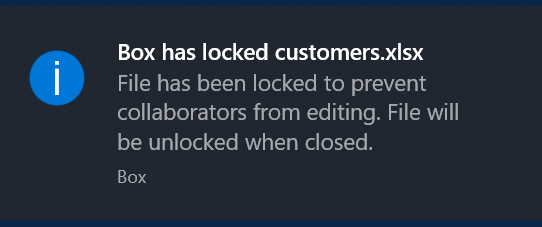
* Automatic Locking (AutoLockUnlock=1) - The file will automatically be locked/unlocked when the user opens/closes the file.
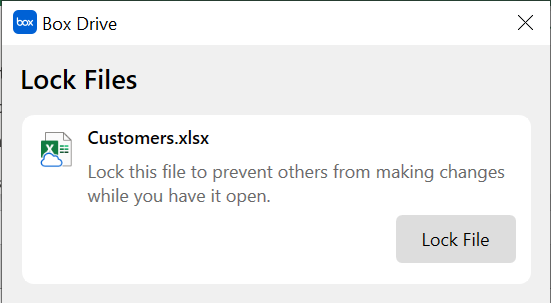
* Prompted Locking (AutoLockUnlock=0) - When the user opens the file, they will receive a prompt asking if they want to lock the file. When the user closes the file it will automatically be unlocked.

## Enabling the enhanced lock/unlock feature

**Automatic locking option:**

1. Create a new DWORD (32-bit) value (REG\_DWORD) using the Registry Editor tool under **HKEY\_LOCAL\_MACHINE\SOFTWARE\Box\Box** called **AutoLockUnlock**.
2. Set the value of **AutoLockUnlock** to **1**.
3. Restart Box Drive.

**Prompted locking option:**

1. Create a new DWORD (32-bit) value (REG\_DWORD) using the Registry Editor tool under **HKEY\_LOCAL\_MACHINE\SOFTWARE\Box\Box** called **AutoLockUnlock**.
2. Set the value of **AutoLockUnlock** to **0**.
3. Restart Box Drive.

## Disabling the enhanced lock/unlock feature

1. Delete the **AutoLockUnlock** registry value from **HKEY\_LOCAL\_MACHINE\SOFTWARE\Box\Box**.
2. Restart Box Drive.

<Note>
  **Important factors:**

  **Support** - Enhanced lock/unlock is supported only for the following:

  * * Microsoft Word, Excel and PowerPoint 2010 and above.
    * Windows 10 (64-bit) and above.
    * Collaborated folders

  **Offline behavior**

  * Box Drive does NOT support enhanced lock/unlock experience when the user is offline. Opening a file when offline will not automatically lock or prompt the user to lock the file. Similarly, closing a file when offline will not unlock it.

  **Auto-lock behavior**

  * Using [Box for Microsoft Office coauthoring](https://support.box.com/hc/en-us/articles/5954058378899-Box-for-Microsoft-Office-coauthoring) with Enhanced lock/unlock on Box Drive disables auto-lock as the presence of a Box lock prevents coauthoring from starting.
</Note>

## Known limitations

* Drive will not be able to detect that file opens and closes when the Office application is opened with admin privileges. This is a system limitation without a workaround.
* Users who have enabled Preview pane on Windows File Explorer will not receive the unlock prompt if Explorer is trying to fetch the preview for the file (when the file is selected when File Explorer is in focus).

## User Experience

The below table lists the experiences for the different configurations for enhanced lock/unlock when accessing files on the Box Drive folder:

<table border="1">
  <tbody>
    <tr>
      <td><font face="-apple-system, BlinkMacSystemFont, Segoe UI, Helvetica, Arial, sans-serif"> <span>Flow</span> </font></td>
      <td><font face="-apple-system, BlinkMacSystemFont, Segoe UI, Helvetica, Arial, sans-serif"> <span>Prompted Option</span> </font></td>
      <td><font face="-apple-system, BlinkMacSystemFont, Segoe UI, Helvetica, Arial, sans-serif"> <span>Automatic Option</span> </font></td>
    </tr>

    <tr>
      <td>
        <p><span> <font face="-apple-system, BlinkMacSystemFont, Segoe UI, Helvetica, Arial, sans-serif">Lock a collaborated file</font> </span></p>
        <p><font face="-apple-system, BlinkMacSystemFont, Segoe UI, Helvetica, Arial, sans-serif"> <span>When a user opens an unlocked Word/Excel/PowerPoint file</span> </font></p>
      </td>

      <td>
        <p>User is prompted to lock the file. This prompt will also be displayed when a user saves a file to Box using <strong>Save As</strong>.</p>
        <p><span class="wysiwyg-underline"><em>Note:</em></span><br />This prompt will be displayed when the Office application opens the file. The file is locked when the user clicks <strong>Lock File</strong>.</p>

        <p>
          <img src="https://mintcdn.com/product-docs/s-271m0kwdd6XjvM/images/box-drive/blobid0.png?fit=max&auto=format&n=s-271m0kwdd6XjvM&q=85&s=f108c4e772b255ae3e49089006b8e470" alt="blobid0-png" width="551" height="303" data-path="images/box-drive/blobid0.png" />
        </p>
      </td>

      <td>
        <p>File is automatically locked. The file is also locked when a user saves a file to Box using <strong>Save As</strong>.</p>
        <p> </p>

        <p>
          <img src="https://mintcdn.com/product-docs/s-271m0kwdd6XjvM/images/box-drive/blobid1.png?fit=max&auto=format&n=s-271m0kwdd6XjvM&q=85&s=65a28e5839b61fdd5bd2aa3369f0968a" alt="blobid1-png" width="542" height="227" data-path="images/box-drive/blobid1.png" />
        </p>
      </td>
    </tr>

    <tr>
      <td>
        <p><font face="-apple-system, BlinkMacSystemFont, Segoe UI, Helvetica, Arial, sans-serif"> <span>Unlock a file</span> </font></p>
        <p><font face="-apple-system, BlinkMacSystemFont, Segoe UI, Helvetica, Arial, sans-serif"> <span>When a user closes a locked Word/Excel/PowerPoint file that they locked</span> </font></p>
      </td>

      <td>
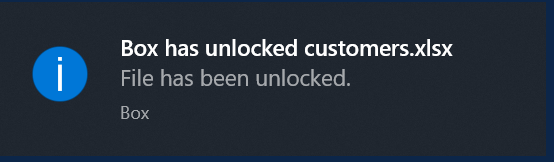
        <p>File is automatically unlocked</p>
        <p><span class="wysiwyg-underline"><em>Note:</em></span><br />If the user has made edits to the file, the file is unlocked only after it is uploaded to Box.</p>

        <p>
          <img src="https://mintcdn.com/product-docs/s-271m0kwdd6XjvM/images/box-drive/blobid2.png?fit=max&auto=format&n=s-271m0kwdd6XjvM&q=85&s=2cf4ff72860dcefb59d1972508409946" alt="blobid2-png" width="554" height="162" data-path="images/box-drive/blobid2.png" />
        </p>
      </td>

      <td>
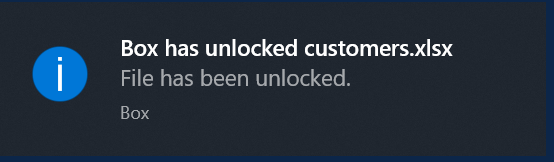
        <p>File is automatically unlocked</p>
        <p><span class="wysiwyg-underline"><em>Note:</em></span><br />If the user has made edits to the file, the file is unlocked only after it is uploaded to Box.</p>

        <p>
          <img src="https://mintcdn.com/product-docs/s-271m0kwdd6XjvM/images/box-drive/blobid2-2.png?fit=max&auto=format&n=s-271m0kwdd6XjvM&q=85&s=96ff1f1236324e5432a141427acc17c3" alt="blobid2-png" width="554" height="162" data-path="images/box-drive/blobid2-2.png" />
        </p>
      </td>
    </tr>

    <tr>
      <td>
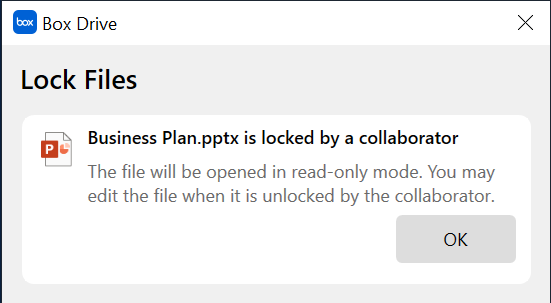
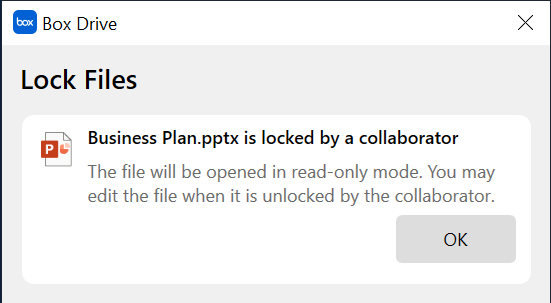
        <p>File locked by a collaborator</p>
        <p>When users open a locked Word/Excel/PowerPoint file.</p>
      </td>

      <td>
        <p>User is notified that the file is locked by a collaborator, and the file will open in read-only mode.</p>

        <p>
          <img src="https://mintcdn.com/product-docs/s-271m0kwdd6XjvM/images/box-drive/blobid3.png?fit=max&auto=format&n=s-271m0kwdd6XjvM&q=85&s=2e2b2efe358a94ddd7a03c8e6932a712" alt="blobid3-png" width="551" height="303" data-path="images/box-drive/blobid3.png" />
        </p>
      </td>

      <td>
        <p>User is notified that the file is locked by a collaborator, and the file will open in read-only mode.</p>

        <p>
          <img src="https://mintcdn.com/product-docs/s-271m0kwdd6XjvM/images/box-drive/blobid3-2.png?fit=max&auto=format&n=s-271m0kwdd6XjvM&q=85&s=429d8251073eecc1b2022d043e581ee1" alt="blobid3-png" width="551" height="303" data-path="images/box-drive/blobid3-2.png" />
        </p>
      </td>
    </tr>
  </tbody>
</table>