> ## Documentation Index
> Fetch the complete documentation index at: https://docs.box.com/llms.txt
> Use this file to discover all available pages before exploring further.
# Supported PDF features
Box Doc Gen lets you generate documents from a PDF template using several form field types. This article describes each supported field type and how to fill it when you generate a document.
## Supported field types
Box Doc Gen supports the following field types in a PDF template:
* Text fields
* Radio buttons
* Check boxes
* Drop-downs
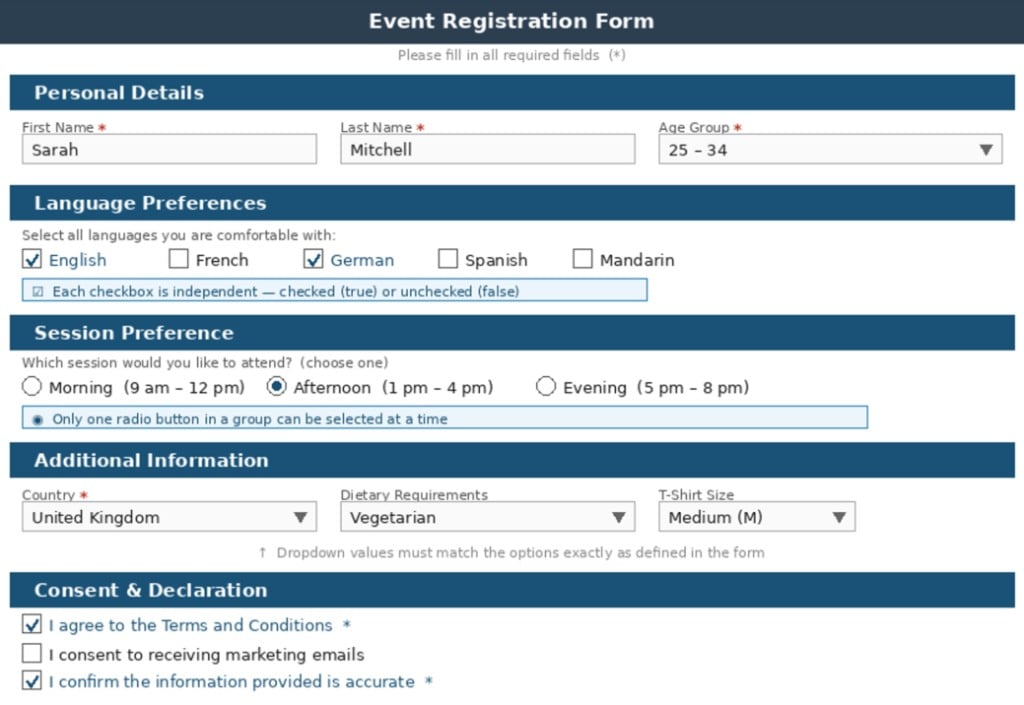
The examples in this article use an event registration form that includes all of these field types.
## Support by generation method
Support for each field type depends on how you generate the document.
| Field type | API | Automate | Box web app | Box for Salesforce |
| ------------- | --- | -------- | ----------- | ------------------ |
| Text fields | Yes | Yes | Yes | No |
| Radio buttons | Yes | No | Yes | No |
| Check boxes | Yes | No | Yes | No |
| Drop-downs | Yes | No | Yes | No |
PDF templates are not supported in the Box for Salesforce app.
The following example displays a filled event registration form that includes each field type Box Doc Gen supports.
 ## Text fields
Box Doc Gen replaces a text field in a PDF template with the value you provide. Pass the field name and its value as part of the document generation request.
To generate a document using the API, pass the field name and its value in the JSON schema used in the API call.
For example, to fill a text field named `firstname`:
```json theme={null}
{
"firstname": "value"
}
```
## Radio buttons
Radio buttons let you select exactly one option from a group. In the example form, **Session Preference** uses radio buttons: Morning, Afternoon, or Evening. Selecting Afternoon automatically deselects the others.
How it works:
* Provide the group name and the option you want selected. The value must match the option exactly as defined in the PDF, and it is case-sensitive.
* One option from the group is selected.
* The previously selected option, if any, is automatically deselected.
What does not work:
* Selecting more than one option in the same group. Radio buttons are single-selection only.
* Deselecting all options. If you omit the field, the template default stays selected, with no warning.
* Approximate matches. For example, `afternoon` does not match `Afternoon`.
To generate a document using the API, pass the field name and its value in the JSON schema. For example, to select an option in the `SessionPreference` radio button group:
```json theme={null}
{
"SessionPreference": "Afternoon"
}
```
The following table describes what happens when a value is invalid or missing.
| Situation | What Box Doc Gen does | What you should do |
| -------------------------------- | ----------------------------------------------------------- | ------------------------------------------------------ |
| Value matches an option | Selects the option, with no warning | No action needed |
| Field is missing from your input | Keeps the template default selected, with no warning | Always include required radio button fields explicitly |
| Value does not match any option | Raises an `UNABLE_TO_GET_TAG` warning and selects no option | Check the exact option values defined in the PDF |
## Check boxes
Check boxes let you select or clear one or more options in a PDF form. In the example form, **Language Preferences** uses check boxes: English and German are selected, while French, Spanish, and Mandarin are cleared.
How it works:
* Set each check box by name to `true` (selected) or `false` (cleared). Each check box is a separate field.
* You can select or clear each check box independently.
* You can select multiple check boxes at the same time, unlike radio buttons.
* Setting a check box to `false` explicitly clears it, even if the template selects it by default.
What does not work:
* Passing anything other than `true` or `false`. Values such as `yes` or `1` are not recognized.
* Controlling multiple check boxes with a single field name. Each check box must have its own entry.
To generate a document using the API, pass the field name and its value in the JSON schema. For example, to select a check box named `English` and clear a check box named `French`:
```json theme={null}
{
"English": true,
"French": false
}
```
The following table describes what happens when a value is invalid or missing.
| Situation | What Box Doc Gen does | What you should do |
| -------------------------------- | ------------------------------------------------------------------------------------------- | ----------------------------------- |
| Value is correct | Selects or clears the check box, with no warning | No action needed |
| Field is missing from your input | Raises an `UNABLE_TO_GET_TAG` warning and keeps the check box in its template default state | Add the missing field to your input |
| Value is not `true` or `false` | Raises a warning and does not change the check box state | Use only `true` or `false` |
## Drop-downs
Box Doc Gen can fill an option in a drop-down menu in a generated document. A drop-down field lets you select a value from a fixed list. In the example form, **Country**, **Dietary Requirements**, and **T-Shirt Size** are drop-downs. You can only choose values already in the list; you cannot type a custom entry.
How it works:
* Provide the field name and the option you want selected. The value must match one of the available options exactly, and it is case-sensitive.
* A single option from the list is selected.
* If you do not supply a value, Box Doc Gen uses the template default, with no warning.
What does not work:
* Selecting more than one option. Only single selection is supported.
* Free-text entries that are not in the predefined list.
* Approximate matches. For example, `united kingdom` does not match `United Kingdom`.
To generate a document using the API, pass the field name and its value in the JSON schema. For example, to fill values in drop-down menus:
```json theme={null}
{
"Country": "United Kingdom",
"DietaryRequirements": "Vegetarian",
"TShirtSize": "Medium (M)"
}
```
The following table describes what happens when a value is invalid or missing.
| Situation | What Box Doc Gen does | What you should do |
| -------------------------------- | -------------------------------------------------------------------------------------- | ------------------------------------------------------- |
| Value matches an option | Selects the option, with no warning | No action needed |
| Field is missing from your input | Uses the template default, with no warning | Include all required drop-downs explicitly |
| Value is not in the list | Raises an `UNABLE_TO_GET_TAG` warning and may leave the field empty or use the default | Use the exact option text from the PDF field properties |
## Text fields
Box Doc Gen replaces a text field in a PDF template with the value you provide. Pass the field name and its value as part of the document generation request.
To generate a document using the API, pass the field name and its value in the JSON schema used in the API call.
For example, to fill a text field named `firstname`:
```json theme={null}
{
"firstname": "value"
}
```
## Radio buttons
Radio buttons let you select exactly one option from a group. In the example form, **Session Preference** uses radio buttons: Morning, Afternoon, or Evening. Selecting Afternoon automatically deselects the others.
How it works:
* Provide the group name and the option you want selected. The value must match the option exactly as defined in the PDF, and it is case-sensitive.
* One option from the group is selected.
* The previously selected option, if any, is automatically deselected.
What does not work:
* Selecting more than one option in the same group. Radio buttons are single-selection only.
* Deselecting all options. If you omit the field, the template default stays selected, with no warning.
* Approximate matches. For example, `afternoon` does not match `Afternoon`.
To generate a document using the API, pass the field name and its value in the JSON schema. For example, to select an option in the `SessionPreference` radio button group:
```json theme={null}
{
"SessionPreference": "Afternoon"
}
```
The following table describes what happens when a value is invalid or missing.
| Situation | What Box Doc Gen does | What you should do |
| -------------------------------- | ----------------------------------------------------------- | ------------------------------------------------------ |
| Value matches an option | Selects the option, with no warning | No action needed |
| Field is missing from your input | Keeps the template default selected, with no warning | Always include required radio button fields explicitly |
| Value does not match any option | Raises an `UNABLE_TO_GET_TAG` warning and selects no option | Check the exact option values defined in the PDF |
## Check boxes
Check boxes let you select or clear one or more options in a PDF form. In the example form, **Language Preferences** uses check boxes: English and German are selected, while French, Spanish, and Mandarin are cleared.
How it works:
* Set each check box by name to `true` (selected) or `false` (cleared). Each check box is a separate field.
* You can select or clear each check box independently.
* You can select multiple check boxes at the same time, unlike radio buttons.
* Setting a check box to `false` explicitly clears it, even if the template selects it by default.
What does not work:
* Passing anything other than `true` or `false`. Values such as `yes` or `1` are not recognized.
* Controlling multiple check boxes with a single field name. Each check box must have its own entry.
To generate a document using the API, pass the field name and its value in the JSON schema. For example, to select a check box named `English` and clear a check box named `French`:
```json theme={null}
{
"English": true,
"French": false
}
```
The following table describes what happens when a value is invalid or missing.
| Situation | What Box Doc Gen does | What you should do |
| -------------------------------- | ------------------------------------------------------------------------------------------- | ----------------------------------- |
| Value is correct | Selects or clears the check box, with no warning | No action needed |
| Field is missing from your input | Raises an `UNABLE_TO_GET_TAG` warning and keeps the check box in its template default state | Add the missing field to your input |
| Value is not `true` or `false` | Raises a warning and does not change the check box state | Use only `true` or `false` |
## Drop-downs
Box Doc Gen can fill an option in a drop-down menu in a generated document. A drop-down field lets you select a value from a fixed list. In the example form, **Country**, **Dietary Requirements**, and **T-Shirt Size** are drop-downs. You can only choose values already in the list; you cannot type a custom entry.
How it works:
* Provide the field name and the option you want selected. The value must match one of the available options exactly, and it is case-sensitive.
* A single option from the list is selected.
* If you do not supply a value, Box Doc Gen uses the template default, with no warning.
What does not work:
* Selecting more than one option. Only single selection is supported.
* Free-text entries that are not in the predefined list.
* Approximate matches. For example, `united kingdom` does not match `United Kingdom`.
To generate a document using the API, pass the field name and its value in the JSON schema. For example, to fill values in drop-down menus:
```json theme={null}
{
"Country": "United Kingdom",
"DietaryRequirements": "Vegetarian",
"TShirtSize": "Medium (M)"
}
```
The following table describes what happens when a value is invalid or missing.
| Situation | What Box Doc Gen does | What you should do |
| -------------------------------- | -------------------------------------------------------------------------------------- | ------------------------------------------------------- |
| Value matches an option | Selects the option, with no warning | No action needed |
| Field is missing from your input | Uses the template default, with no warning | Include all required drop-downs explicitly |
| Value is not in the list | Raises an `UNABLE_TO_GET_TAG` warning and may leave the field empty or use the default | Use the exact option text from the PDF field properties |