> ## Documentation Index
> Fetch the complete documentation index at: https://docs.box.com/llms.txt
> Use this file to discover all available pages before exploring further.
# Setting up Box Doc Gen in Salesforce
### Overview
**Box Doc Gen for Salesforce** enables teams to automatically generate custom documents directly from Salesforce records using dynamic templates stored in Box. By merging Salesforce data into pre-configured templates, organizations can generate consistent, accurate documents in seconds without leaving Salesforce.
This reduces manual document preparation, eliminates repetitive data entry, and helps teams accelerate business processes such as approvals and contracts. Documents are generated using Salesforce data and Box templates, allowing teams to produce formatted, error-free documents in seconds.
**Common use cases include:**
* Generating sales proposals or quotes from Opportunity data
* Creating contracts, agreements, or NDAs from Account or Contact records
* Customer onboarding documentation
* Automatically generating documents that are sent for signature using Box Sign within Salesforce
### Pre-requisites
**Important:** The instructions below may vary depending on changes made to the Salesforce interface which is outside of Box’s control.
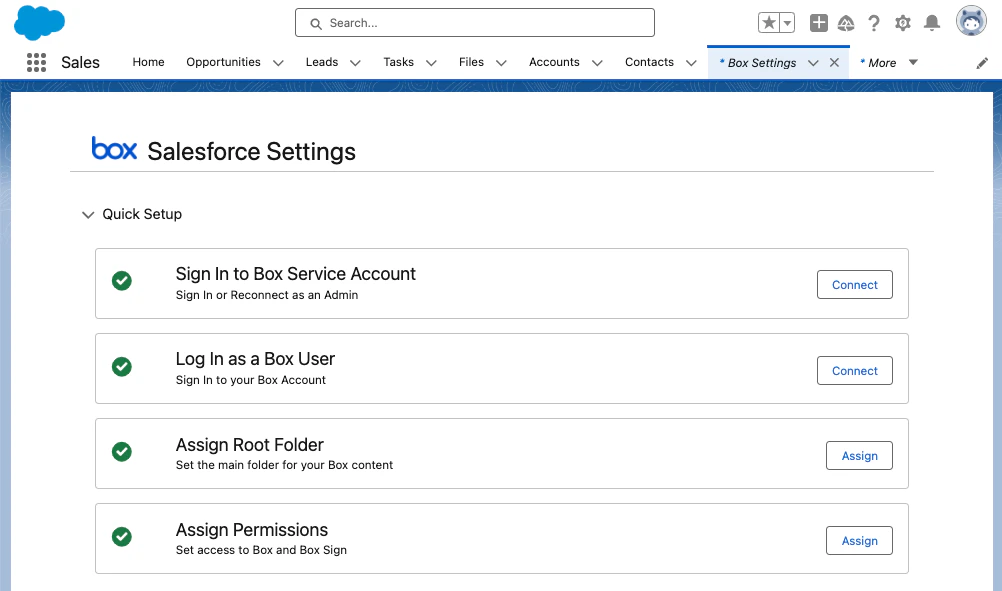
* You have completed [Installing and Configuring Box For Salesforce](https://support.box.com/hc/en-us/articles/360044195713) for your organization. This means:
* The Box Service Account is signed in
* The Box User is signed in, and is a different user than the Box Service Account
* The Box for Salesforce Root Folder exists
* Applicable permissions are assigned to Users
 * Your organization is eligible to use Box Doc Gen (please reach out to your Account Manager for more information.)
* Box Doc Gen is enabled in the Box Admin console (**Enterprise Settings > Content & Sharing > Box Doc Gen > Edit Configuration**)
* After Box Doc Gen is enabled, the Salesforce Admin needs to re-connect the Box Service Account and Box User, to approve the new Doc Gen application scopes.
**Note:**
1. The document generation is by default run by the Box User account, so they require access to the Doc Gen folder under the Salesforce root folder.
2. When a user attempts to generate a document, they will automatically be added as a collaborator to both the record folder and the Doc Gen template within Box.
3. The document generated is stored in the applicable Box for Salesforce folders.
4. Viewing documents and UI elements are run as the specific/standard Box users.
### Assign Box Doc Gen Permission Sets
Box Doc Gen for Salesforce enables you to assign specific users in Salesforce to:
1. Create and manage the templates used in Salesforce and/or
2. Use the templates to generate documents.
To do this, you will need to assign applicable users custom Box permission sets.
As the Salesforce Admin:
1. In the Salesforce App Launcher, search for and navigate to **Box Settings.**
2. In the Assign Permissions section, click **Assign**.
1. For Box Doc Gen Template Manager, click **Manage Assignments** and [manage the permission set](https://help.salesforce.com/s/articleView?id=platform.perm_sets_manage_assignments.htm\&type=5) for users who will create, edit, or set up Box Doc Gen templates.
**Note:**
This permission set allows these users to see **Box Doc Gen** and **Box Doc Gen Templates** from the App Launcher.
2. For Box Doc Gen Users, click **Manage Assignments** to manage the permission set for users who can generate documents in Salesforce.
### Adding Box Doc Gen Templates to Salesforce
In the **Box Doc Gen Templates** tab, Box enables users with Box Doc Gen Template Manager permissions to create and manage templates for generating documents. The Box Doc Gen Templates tab displays a list of all available templates, including sObject, status, and folder ID.
As a user with the Box DocGen Template Manager permission set:
1. From the App Launcher, search and navigate to **Box Doc Gen Templates.**
2. In the top right corner, click **New** to launch the template manager.
3. While in the **Create Template** step:
1. In **Template Name**, choose a name for the template in Salesforce
2. In **Generated File Name**, choose the name you want the generated file to be named
3. In **Object**, choose the Salesforce Object associated with the template.
4. Click **Next**.
4. In the **Download JSON** step:
1. Click **Download JSON File** to download a file named \{ObjectName}DocGen.json. This is used to pull the tags into the Microsoft Word Add In .
2. Click **Next**.
5. Create and edit your template in the [Box Doc Gen Template Creator, Microsoft Word Add-in](https://appsource.microsoft.com/en-us/product/office/WA200007137?tab=Overview). (See next step)
6. In the **Upload Template** step:
1. Attach your template as a docx or pdf file.
2. Click **Upload**.
3. Once the upload is complete, click **Next**.
7. (Optional) In the **Preview** step, test your template on a sample record.
1. In Sample Record, search and select the record you would like to test your template on.
2. Click **Preview**.
3. Click **Next**.
8. In the Settings step, you can finalize the template settings:
1. Check the **Available for Box Sign** checkbox to make it available for approval and signature.
2. In **Output type**, choose the desired file type to be generated.
3. Click **Save and Finish**.
On completion, the Box Doc Gen Template tab displays the details, tabs for previewing the document, previous jobs ran, and tags within the document
### Creating a Template with the Box Doc Gen Template Creator in Microsoft Word
To create and edit Box Doc Gen templates, Box recommends using the [Box Doc Gen Template Creator](https://appsource.microsoft.com/en-us/product/office/wa200007137?tab=overview) Word Add-in. For more information on how to create a Box Doc Gen template, see [here](https://support.box.com/hc/sections/36152031104147-Box-Doc-Gen-Templates).
To begin using Salesforce tags in the Box Doc Gen Template Creator, you will first need to import the tags. To import tags:
1. Open the file that will be your template in Microsoft Word, and open the Box Doc Gen Template.
2. Click **Start with your data**.
3. Upload the json file you previously downloaded.
4. Click **Generate tags**.
5. Search and select the appropriate fields to build your own template. The tags are displayed next to your cursor.
### Adding and Displaying the Box Doc Gen button in Objects
Before your users can generate documents, you need to create a button and add it to your applicable Object page(s).
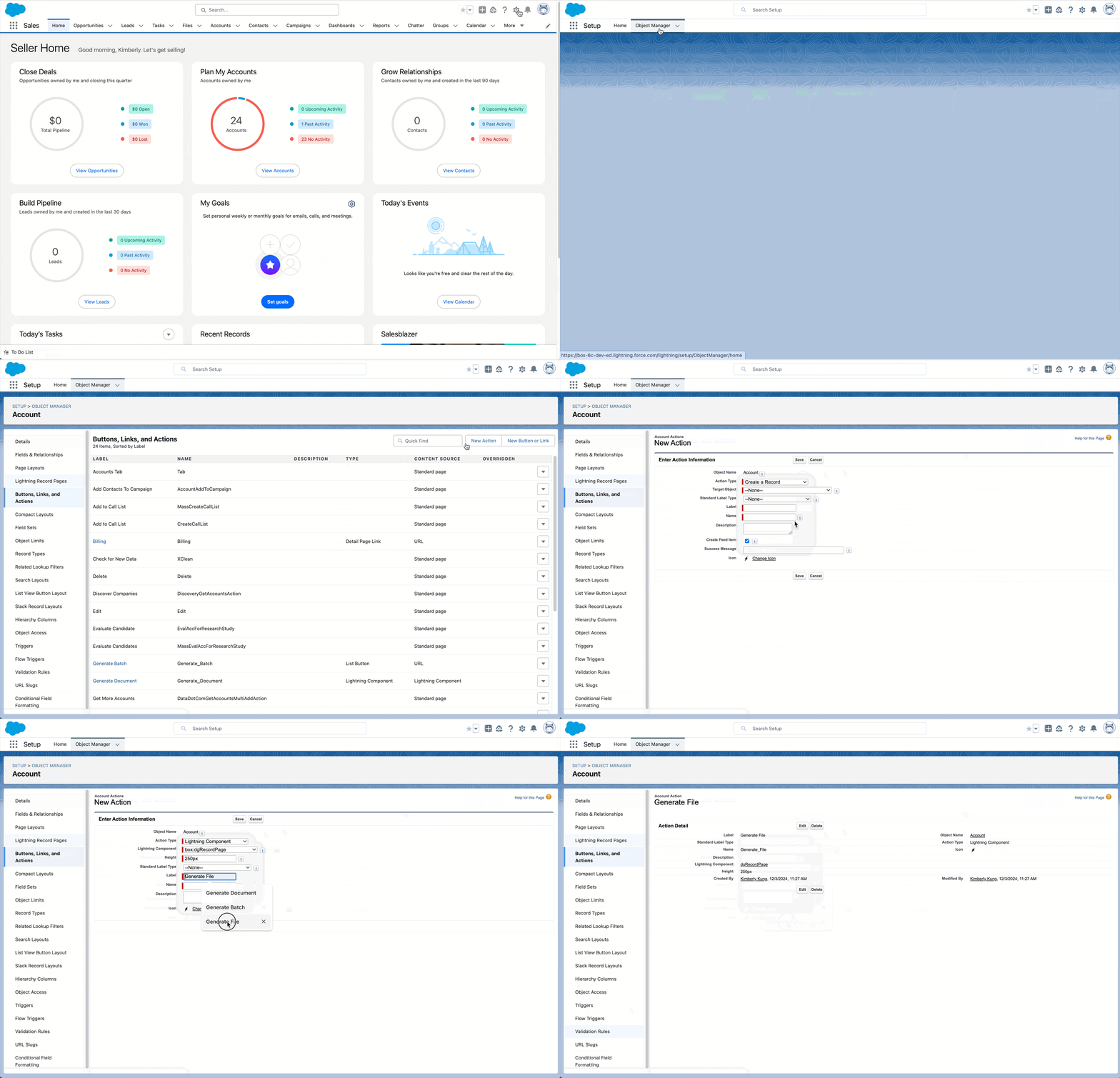
1. Navigate to **Setup** by clicking on the gear icon in the top-right hand corner of your Salesforce instance.
2. In the upper-left, navigate to **Object Manager** tab.
3. Select the Object(s) where you want to add the button for your users to generate documents.
4. Go to **Buttons, Links, and Actions** in the left-hand side-bar.
5. Click **New Action** from the upper right corner.
* In the **Action Type** dropdown, select **Lightning Component**.
* In the **Lightning Component** dropdown, select “box:dgRecordPage”.
* In the **Label** field, type in the name you want to call your Button (example: “Generate Doc”)
1. Optionally, edit the pre-populated **field (without spaces.)**
2. Optionally, change the Icon to a different logo.
6. Once complete, click **Save**.
* Your organization is eligible to use Box Doc Gen (please reach out to your Account Manager for more information.)
* Box Doc Gen is enabled in the Box Admin console (**Enterprise Settings > Content & Sharing > Box Doc Gen > Edit Configuration**)
* After Box Doc Gen is enabled, the Salesforce Admin needs to re-connect the Box Service Account and Box User, to approve the new Doc Gen application scopes.
**Note:**
1. The document generation is by default run by the Box User account, so they require access to the Doc Gen folder under the Salesforce root folder.
2. When a user attempts to generate a document, they will automatically be added as a collaborator to both the record folder and the Doc Gen template within Box.
3. The document generated is stored in the applicable Box for Salesforce folders.
4. Viewing documents and UI elements are run as the specific/standard Box users.
### Assign Box Doc Gen Permission Sets
Box Doc Gen for Salesforce enables you to assign specific users in Salesforce to:
1. Create and manage the templates used in Salesforce and/or
2. Use the templates to generate documents.
To do this, you will need to assign applicable users custom Box permission sets.
As the Salesforce Admin:
1. In the Salesforce App Launcher, search for and navigate to **Box Settings.**
2. In the Assign Permissions section, click **Assign**.
1. For Box Doc Gen Template Manager, click **Manage Assignments** and [manage the permission set](https://help.salesforce.com/s/articleView?id=platform.perm_sets_manage_assignments.htm\&type=5) for users who will create, edit, or set up Box Doc Gen templates.
**Note:**
This permission set allows these users to see **Box Doc Gen** and **Box Doc Gen Templates** from the App Launcher.
2. For Box Doc Gen Users, click **Manage Assignments** to manage the permission set for users who can generate documents in Salesforce.
### Adding Box Doc Gen Templates to Salesforce
In the **Box Doc Gen Templates** tab, Box enables users with Box Doc Gen Template Manager permissions to create and manage templates for generating documents. The Box Doc Gen Templates tab displays a list of all available templates, including sObject, status, and folder ID.
As a user with the Box DocGen Template Manager permission set:
1. From the App Launcher, search and navigate to **Box Doc Gen Templates.**
2. In the top right corner, click **New** to launch the template manager.
3. While in the **Create Template** step:
1. In **Template Name**, choose a name for the template in Salesforce
2. In **Generated File Name**, choose the name you want the generated file to be named
3. In **Object**, choose the Salesforce Object associated with the template.
4. Click **Next**.
4. In the **Download JSON** step:
1. Click **Download JSON File** to download a file named \{ObjectName}DocGen.json. This is used to pull the tags into the Microsoft Word Add In .
2. Click **Next**.
5. Create and edit your template in the [Box Doc Gen Template Creator, Microsoft Word Add-in](https://appsource.microsoft.com/en-us/product/office/WA200007137?tab=Overview). (See next step)
6. In the **Upload Template** step:
1. Attach your template as a docx or pdf file.
2. Click **Upload**.
3. Once the upload is complete, click **Next**.
7. (Optional) In the **Preview** step, test your template on a sample record.
1. In Sample Record, search and select the record you would like to test your template on.
2. Click **Preview**.
3. Click **Next**.
8. In the Settings step, you can finalize the template settings:
1. Check the **Available for Box Sign** checkbox to make it available for approval and signature.
2. In **Output type**, choose the desired file type to be generated.
3. Click **Save and Finish**.
On completion, the Box Doc Gen Template tab displays the details, tabs for previewing the document, previous jobs ran, and tags within the document
### Creating a Template with the Box Doc Gen Template Creator in Microsoft Word
To create and edit Box Doc Gen templates, Box recommends using the [Box Doc Gen Template Creator](https://appsource.microsoft.com/en-us/product/office/wa200007137?tab=overview) Word Add-in. For more information on how to create a Box Doc Gen template, see [here](https://support.box.com/hc/sections/36152031104147-Box-Doc-Gen-Templates).
To begin using Salesforce tags in the Box Doc Gen Template Creator, you will first need to import the tags. To import tags:
1. Open the file that will be your template in Microsoft Word, and open the Box Doc Gen Template.
2. Click **Start with your data**.
3. Upload the json file you previously downloaded.
4. Click **Generate tags**.
5. Search and select the appropriate fields to build your own template. The tags are displayed next to your cursor.
### Adding and Displaying the Box Doc Gen button in Objects
Before your users can generate documents, you need to create a button and add it to your applicable Object page(s).
1. Navigate to **Setup** by clicking on the gear icon in the top-right hand corner of your Salesforce instance.
2. In the upper-left, navigate to **Object Manager** tab.
3. Select the Object(s) where you want to add the button for your users to generate documents.
4. Go to **Buttons, Links, and Actions** in the left-hand side-bar.
5. Click **New Action** from the upper right corner.
* In the **Action Type** dropdown, select **Lightning Component**.
* In the **Lightning Component** dropdown, select “box:dgRecordPage”.
* In the **Label** field, type in the name you want to call your Button (example: “Generate Doc”)
1. Optionally, edit the pre-populated **field (without spaces.)**
2. Optionally, change the Icon to a different logo.
6. Once complete, click **Save**.
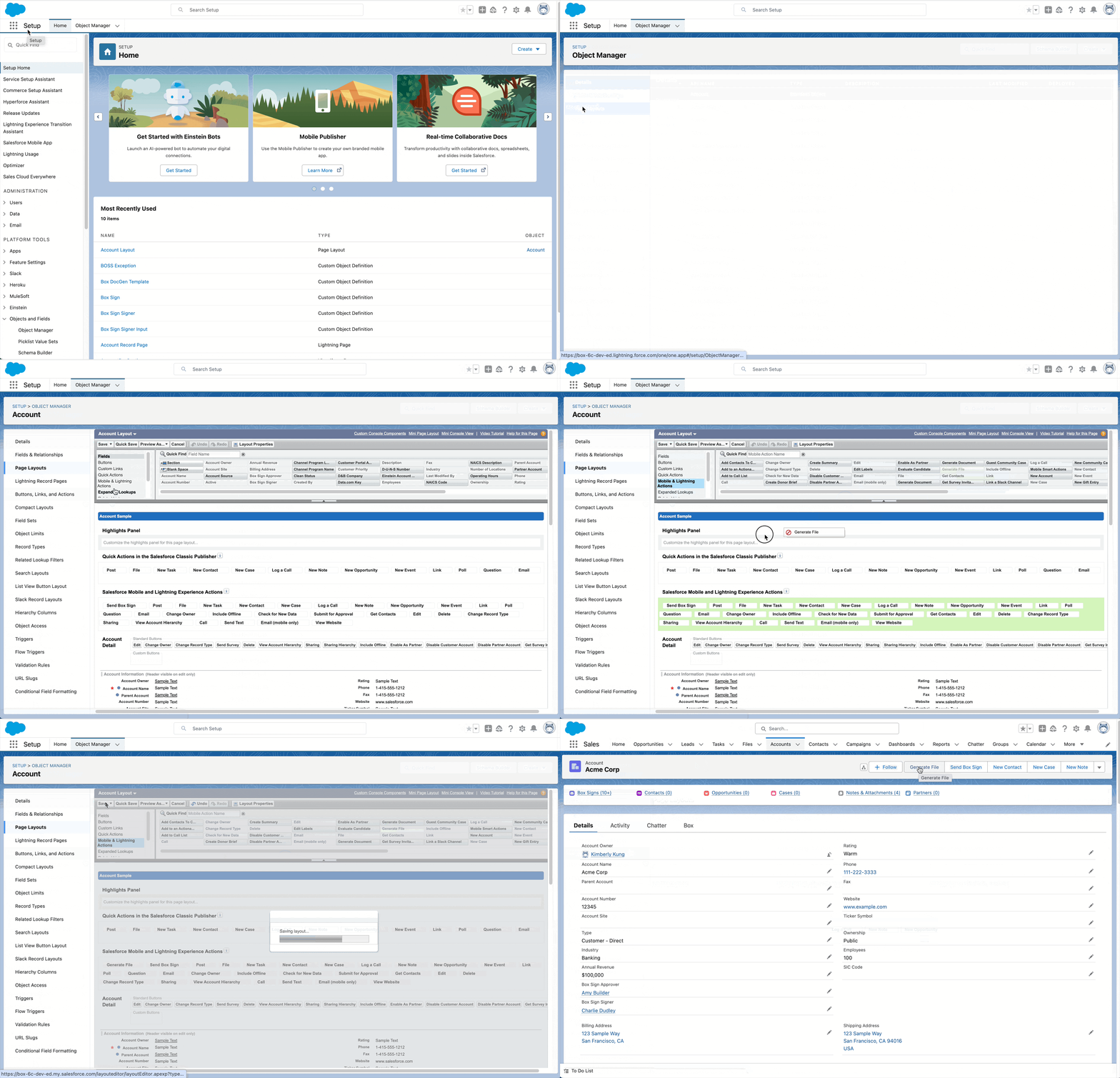
 Once you’ve added the Box Doc Gen button to the applicable Object(s), you can begin editing the pages where you want to add the Box Doc Gen button.
1. From Salesforce Object Manager, in the applicable Object(s), navigate to **Page Layouts**.
2. Select the applicable Page Layout.
3. Select **Mobile and Lightning Actions**.
4. From the palette, find the Box Doc Gen button you have created, and drag it down to the desired position in **Salesforce Mobile and Lightning Experience Actions**. (Box recommends hovering your cursor over the button to confirm it is the created Box button. There is also a standard button named **Generate Document**.)
5. Click **Save**.
Once you’ve added the Box Doc Gen button to the applicable Object(s), you can begin editing the pages where you want to add the Box Doc Gen button.
1. From Salesforce Object Manager, in the applicable Object(s), navigate to **Page Layouts**.
2. Select the applicable Page Layout.
3. Select **Mobile and Lightning Actions**.
4. From the palette, find the Box Doc Gen button you have created, and drag it down to the desired position in **Salesforce Mobile and Lightning Experience Actions**. (Box recommends hovering your cursor over the button to confirm it is the created Box button. There is also a standard button named **Generate Document**.)
5. Click **Save**.
 ### Setting up Batch Doc Gen
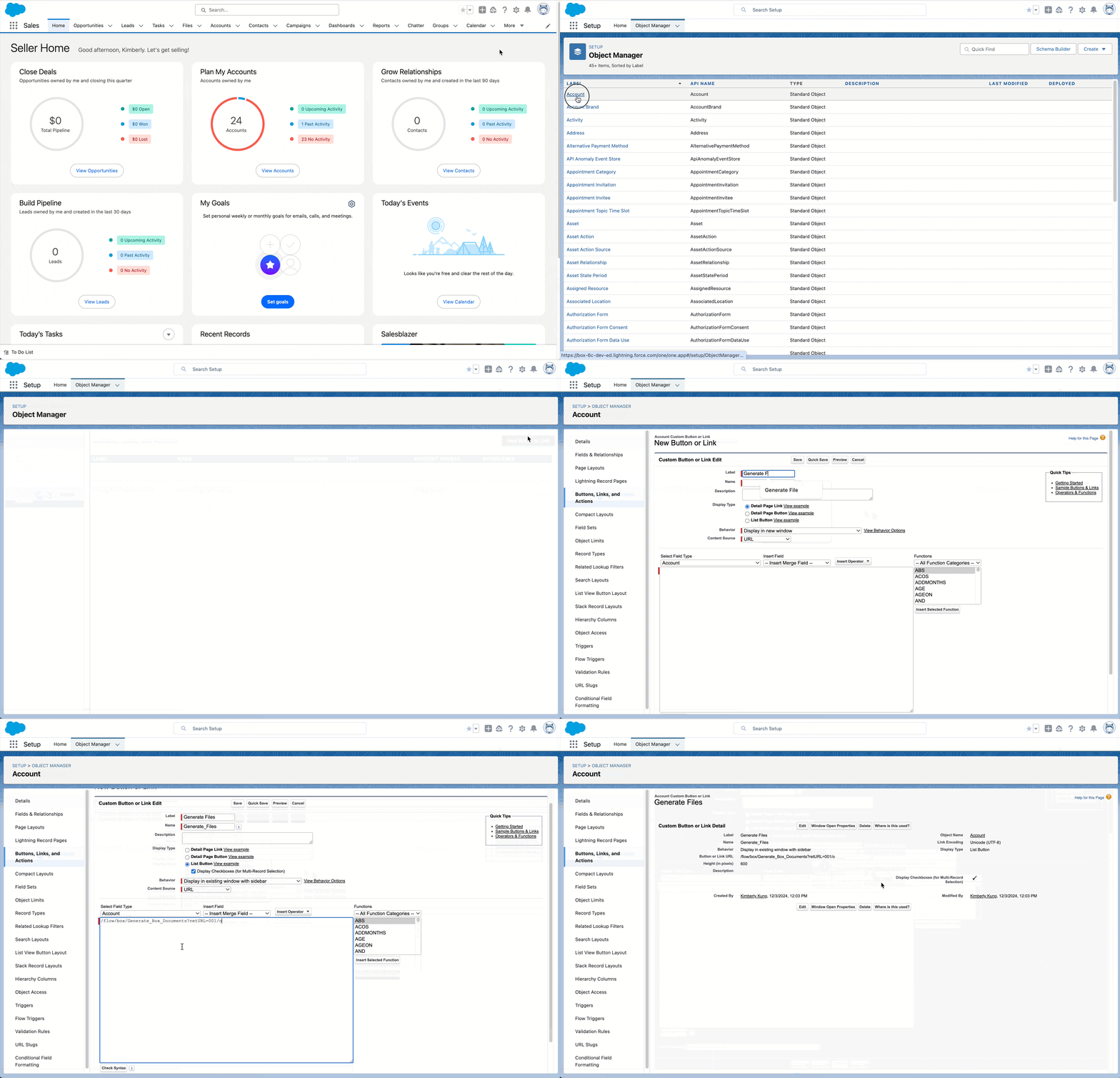
You can also enable users to generate documents for multiple records for a given object at once, from a Salesforce [List View](https://help.salesforce.com/s/articleView?id=xcloud.basics_understanding_list_views_lex.htm\&type=5). First create a button and add it to your applicable List View(s).
First, create the Batch DocGen button:
1. Navigate to **Setup**..
2. Navigate to **Object Manager**, nested under **Objects**.
3. Select the Object(s) where you want to add the button for your users to generate documents.
4. In the left-hand side-bar, go to **Buttons, Links, and Actions**.
5. In the upper right corner, click **New Button or Link**.
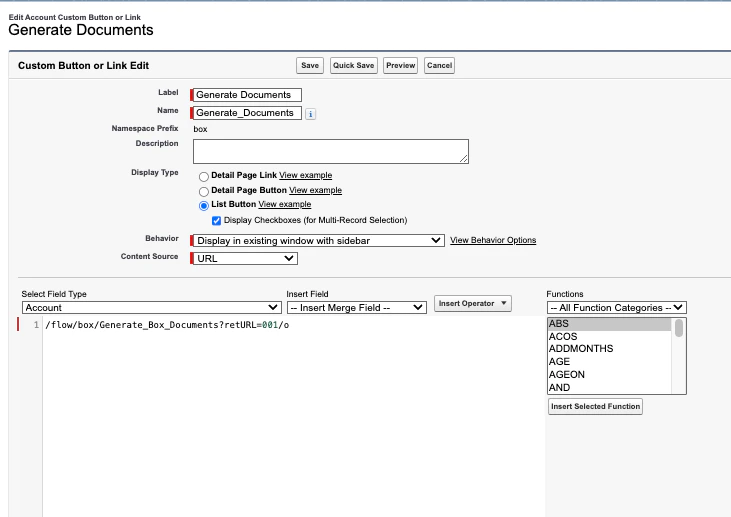
* In **Label**, select a label to call your Button
* In **Name**, select a Name (or edit the pre-populated Name field - without spaces)
* For **Display Type**, select **List Button**
* Populate the formula with “/flow/box/Generate\_Box\_Documents?retURL=001/o”
6. Click **Save**.
### Setting up Batch Doc Gen
You can also enable users to generate documents for multiple records for a given object at once, from a Salesforce [List View](https://help.salesforce.com/s/articleView?id=xcloud.basics_understanding_list_views_lex.htm\&type=5). First create a button and add it to your applicable List View(s).
First, create the Batch DocGen button:
1. Navigate to **Setup**..
2. Navigate to **Object Manager**, nested under **Objects**.
3. Select the Object(s) where you want to add the button for your users to generate documents.
4. In the left-hand side-bar, go to **Buttons, Links, and Actions**.
5. In the upper right corner, click **New Button or Link**.
* In **Label**, select a label to call your Button
* In **Name**, select a Name (or edit the pre-populated Name field - without spaces)
* For **Display Type**, select **List Button**
* Populate the formula with “/flow/box/Generate\_Box\_Documents?retURL=001/o”
6. Click **Save**.
 **Notes:**
* [retURL](https://help.salesforce.com/s/articleView?id=sf.flow_distribute_internal_url_retURL.htm\&type=5) will be specific to the object type.
* "Enable Lightning runtime for flows" in Process Automation Settings is required.
**Notes:**
* [retURL](https://help.salesforce.com/s/articleView?id=sf.flow_distribute_internal_url_retURL.htm\&type=5) will be specific to the object type.
* "Enable Lightning runtime for flows" in Process Automation Settings is required.
 After you create the Batch DocGen button, make an Object's List View to be viewable to your users.
To edit an Object's List View:
1. In the Object manager, select the Object where you want to add the List View button.
2. In the left-hand sidebar, navigate to **List View Button Layout.**
3. In the **List View** row, click the dropdown then **Edit**.
4. Scroll to the **Custom Buttons section**, select the newly created button and click the **Add** arrow to add the button.
5. Click **Save**.
After you create the Batch DocGen button, make an Object's List View to be viewable to your users.
To edit an Object's List View:
1. In the Object manager, select the Object where you want to add the List View button.
2. In the left-hand sidebar, navigate to **List View Button Layout.**
3. In the **List View** row, click the dropdown then **Edit**.
4. Scroll to the **Custom Buttons section**, select the newly created button and click the **Add** arrow to add the button.
5. Click **Save**.
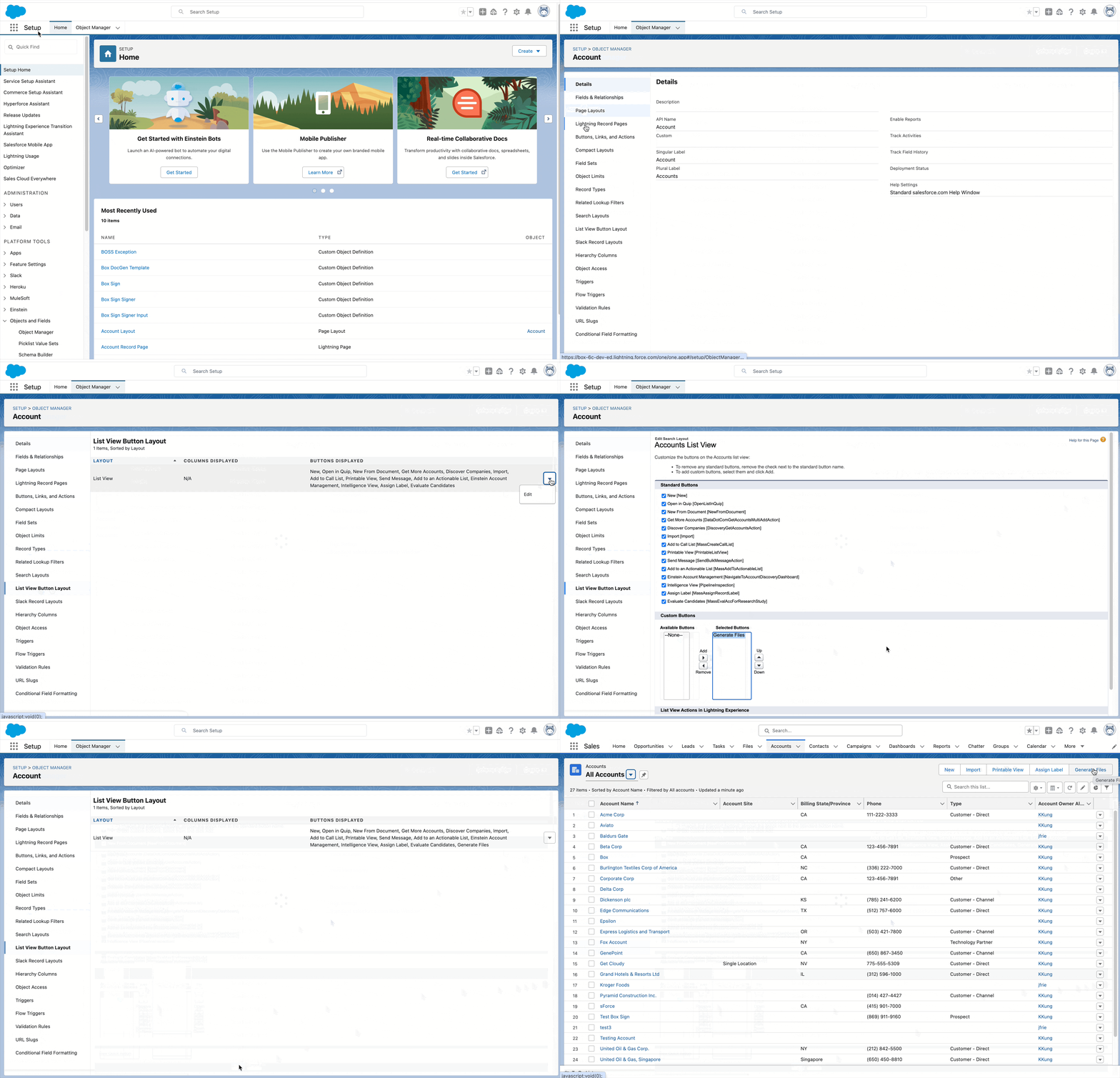 Now the button is available in your users’ List views.
### (optional) Additional Customization
Administrators and developers can customize document generation and other Box workflows using Salesforce Flow Actions provided by the [Box for Salesforce Developers](https://developer.box.com/guides/tooling/salesforce-toolkit/flow-actions) toolkit.
**Box Doc Gen Flow Actions**
Box provides several Flow Actions specifically for document generation workflows, including:
* **Create Doc Gen Template (**`**createDocGenTemplate**`**)** – Create a new document generation template.
* **Generate Doc Gen For Record (**`**generateDocGenForRecord**`**)** – Generate a document for a specific Salesforce record.
* **Submit Doc Gen Batch (**`**submitDocgenBatch**`**)** – Generate documents for multiple records in a batch process.
* **Get Doc Gen Batch Status (**`**getDocgenBatch**`**)** – Retrieve the status of a batch document generation job.
When using Flow Actions from the Box for Salesforce toolkit, administrators can configure operations to run using the **Box Service Account** rather than the currently logged-in Salesforce user.
Running actions as the service account can be useful for:
* Allowing automated processes to access Box content even if the triggering user does not have direct access
* Centralizing content management under the integration service account
Now the button is available in your users’ List views.
### (optional) Additional Customization
Administrators and developers can customize document generation and other Box workflows using Salesforce Flow Actions provided by the [Box for Salesforce Developers](https://developer.box.com/guides/tooling/salesforce-toolkit/flow-actions) toolkit.
**Box Doc Gen Flow Actions**
Box provides several Flow Actions specifically for document generation workflows, including:
* **Create Doc Gen Template (**`**createDocGenTemplate**`**)** – Create a new document generation template.
* **Generate Doc Gen For Record (**`**generateDocGenForRecord**`**)** – Generate a document for a specific Salesforce record.
* **Submit Doc Gen Batch (**`**submitDocgenBatch**`**)** – Generate documents for multiple records in a batch process.
* **Get Doc Gen Batch Status (**`**getDocgenBatch**`**)** – Retrieve the status of a batch document generation job.
When using Flow Actions from the Box for Salesforce toolkit, administrators can configure operations to run using the **Box Service Account** rather than the currently logged-in Salesforce user.
Running actions as the service account can be useful for:
* Allowing automated processes to access Box content even if the triggering user does not have direct access
* Centralizing content management under the integration service account