> ## Documentation Index
> Fetch the complete documentation index at: https://docs.box.com/llms.txt
> Use this file to discover all available pages before exploring further.

# Marking a Document as a Doc Gen Template

export const InlineImage = ({src, alt = "", height = "1em"}) => {
  return <img noZoom src={src} alt={alt} style={{
    display: "inline-block",
    verticalAlign: "middle",
    height: height,
    width: "auto",
    margin: "0"
  }} />;
};

<div className="article_labels_list" style={{display: 'none'}} dangerouslySetInnerHTML={{__html: "End User , Established , P3 , Box Doc Gen"}} />

Before generating documents, you must add your template to Box Doc Gen. You can do this by:

* Marking an existing file already stored in your Box account as a Doc Gen template.
* [Uploading a template](/en/box-doc-gen/box-doc-gen-templates/uploading-templates-to-doc-gen).

This article covers marking existing documents as templates.

## Prerequisites

To generate documents automatically, the template must already contain Box Doc Gen template tags. Use one of the following approaches to add the tags:

1. Use the [Box Doc Gen Template Creator add-in for Microsoft Word](/en/box-doc-gen/box-doc-gen-installation/installing-the-box-doc-gen-template-creator-add-in-for-microsoft-word) to create a Box Doc Gen template without any code.
2. Use the [Box Doc Gen tagging script](/en/box-doc-gen/box-doc-gen-templates/template-tags-reference-guide-and-examples) to manually author the template.

## Marking an existing document in Box as a Doc Gen Template

You can leverage an existing .docx file within your Box account as a Box Doc Gen template by marking it as a Box Doc Gen template.

To mark an existing document as a Doc Gen template:

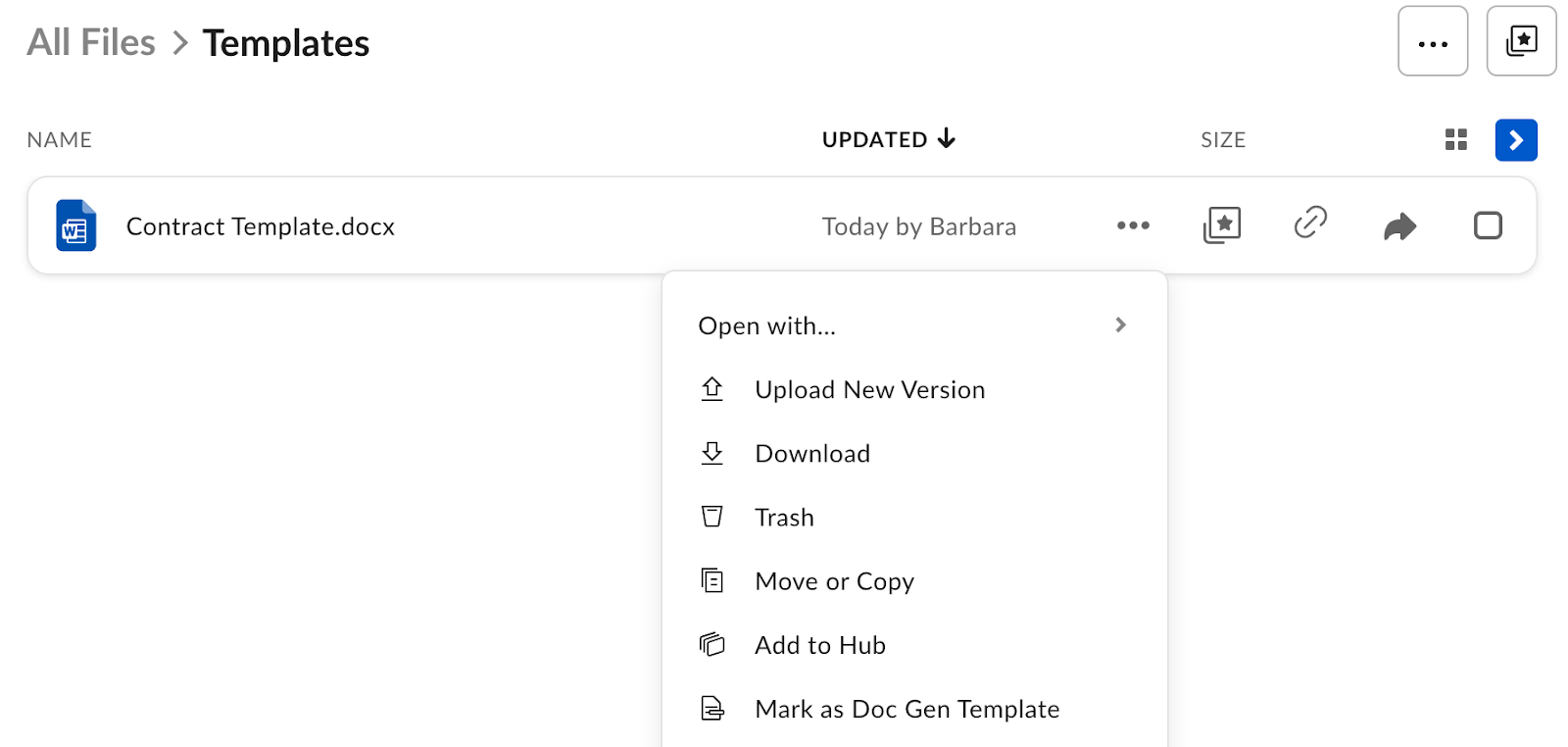
1. Right-click the file to open the menu.
2. Select **Mark as Doc Gen Template**.

<Frame>
  <img src="https://mintcdn.com/product-docs/W7v2MbKmGbQqsC_V/images/box-doc-gen/38025840499219.png?fit=max&auto=format&n=W7v2MbKmGbQqsC_V&q=85&s=507e300f0639b69ed5b0d25e10d08ef8" alt="" width="1600" height="762" data-path="images/box-doc-gen/38025840499219.png" />
</Frame>

After that, the file is marked as a Doc Gen template and is ready to be used to dynamically generate custom documents.
<Note>
  **Note:** You can access the template from the folder where it is stored, and the **Doc Gen** tab in **Relay**.
</Note>

## Unmarking Box Doc Gen templates

To unmark the template:

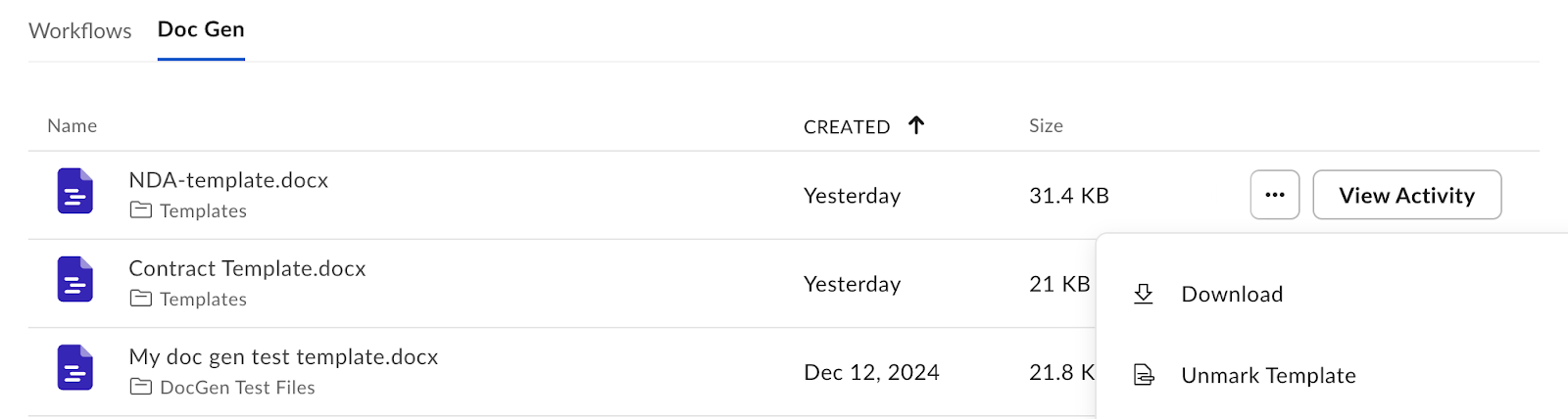
1. Go to **Relay** > **Doc Gen**.
2. Hover over the template you wish to unmark and select the ellipsis (<InlineImage src="/images/box-doc-gen/0968a513-62fc-4386-9ad2-22c4cdf09824.png" alt="" />).
3. Select **Unmark Template**.

<Frame>
  <img src="https://mintcdn.com/product-docs/W7v2MbKmGbQqsC_V/images/box-doc-gen/38025840508563.png?fit=max&auto=format&n=W7v2MbKmGbQqsC_V&q=85&s=83a5e81ad048d23f2ed8fd2b6cb90dbf" alt="" width="1600" height="428" data-path="images/box-doc-gen/38025840508563.png" />
</Frame>

After that, the template is removed from the Box Doc Gen template list. It is available as a regular file in the designated save location folder.
