> ## Documentation Index
> Fetch the complete documentation index at: https://docs.box.com/llms.txt
> Use this file to discover all available pages before exploring further.
# Creating an App
export const InlineImage = ({src, alt = "", height = "1em"}) => {
return  ;
};
To create an app:
1. Go to **Box Apps**.
2. Click **New**.
3. Name your app.\
You land on a page with an empty section.
4. Name the first section.
5. Configure the app by adding blocks to your first section and/or adding more sections.
6. When you finish adding sections and blocks, click **Done** to save your app.
**Note**\
The **Done** button is inactive if you forgot to add parameters to any of the sections or blocks.
;
};
To create an app:
1. Go to **Box Apps**.
2. Click **New**.
3. Name your app.\
You land on a page with an empty section.
4. Name the first section.
5. Configure the app by adding blocks to your first section and/or adding more sections.
6. When you finish adding sections and blocks, click **Done** to save your app.
**Note**\
The **Done** button is inactive if you forgot to add parameters to any of the sections or blocks.
Configuring a section
1. Choose how you want to display the blocks in your section: by
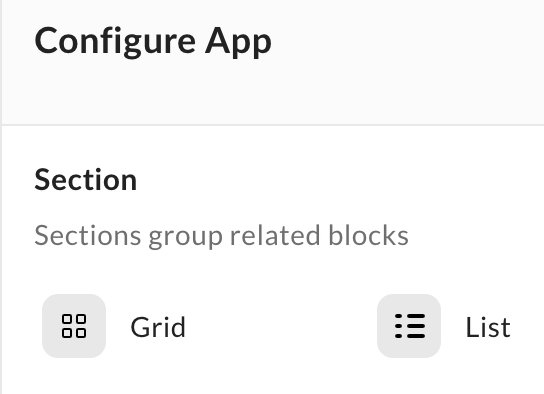
* In the **Section** area under **Configure App**, select **Grid** or **List**.
 * Select a section, click the **List Layout**
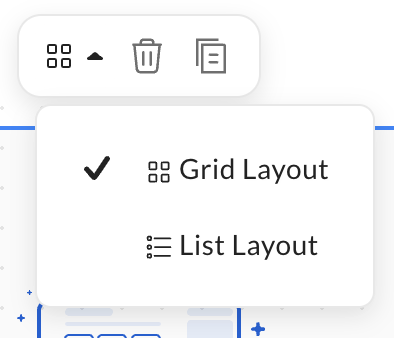 The grid view displays blocks in your section next to each other. The list view displays blocks in your section under each other.
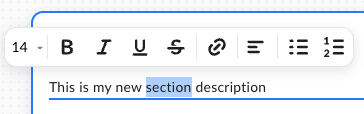
2. In the **Add a description** area, enter any text that you want to display, and then format the description by double-clicking the content and choosing from the available options in the contextual menu.
The grid view displays blocks in your section next to each other. The list view displays blocks in your section under each other.
2. In the **Add a description** area, enter any text that you want to display, and then format the description by double-clicking the content and choosing from the available options in the contextual menu.
 To delete a section, select it and click the trash icon from the context menu.
Adding, deleting, and configuring blocks
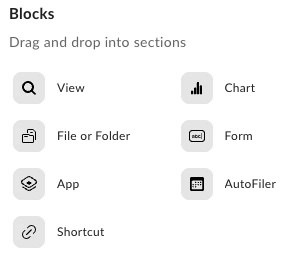
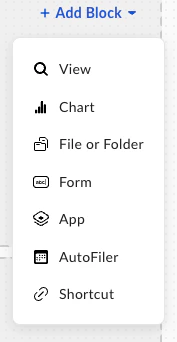
To add a block, drag and drop it to your section from the Blocks area under **Configure App**, or choose the **+ Add Blocks** drop-down list in a section to add a new block to your app.
**Note**\
To delete a block, select it and click the trash icon from the context menu.
 You can add the following blocks:
* View
* Chart
* File or Folder
* Form
* App
* Shortcut
* Auto Filer
You can add the following blocks:
* View
* Chart
* File or Folder
* Form
* App
* Shortcut
* Auto Filer
Required and optional block parameters
There is one required parameter for all blocks: **Title/Tile Name**. You need to add it to every tile to save your app. Other required parameters differ depending on the block type.
Optional parameters are the same for every block type:
* **Description** – click **Add Optional Description** to display the **Description** field.
To add more lines to the field, press enter. Click **Hide Description** or delete the contents of this field if you want to remove it.
* **Theme** – choose a color theme. Select **Light** to choose a color for the block icon. Select **Dark** to choose a color for the whole block.
The default values for block names are:
* View: **Create a View**
* Chart: **Chart Title**
* File or folder: **Create a file or folder**
* Form: **Create a form**
* App: **Link to an App**
* Shortcut: **Create a shortcut**
* Auto Filer: **Create an AutoFiler**
Block types
Choose the block types you want to have on your app.
View
Select the **Create** tab in **Create a new View** to configure the View block. Add the following parameters:
* **View Name –** name your View
* **Metadata Template** – choose one of the available templates from the dropdown list
Click **Create** to finish adding a new view block. Click the **Hide Item Count** toggle if you don’t want to show the exact number of view results.
**Important:**
Once you set the View name and choose the metadata template, these options can’t be changed.
See [Configuring view](/en/box-apps/using-box-apps/configuring-view-in-box-apps) for more information about **View** blocks.
You can also duplicate a view block. To do so:
1. Select the **Duplicate** tab in **Save Views & Parameters**.
2. Add a name to your View.
3. Select a recent View from the **Duplicate settings from** drop-down list.
4. Click **Duplicate** to save your View.\
You can also add the optional description and a theme to the duplicated view block.
Chart
With the Chart block, you can create a bar or donut chart based on the configuration details that you provide. For more information, see [Using Charts in Box Apps](/en/box-apps/using-box-apps/using-charts-in-box-apps).
File or folder
When you add a file or folder block, you need to specify a root folder where the app users will add new content. Click the **Select Content** button under **Choose from Box**. In the next window, you can see a standard search field and your **Files** view. Select a folder and click **Choose** to go back to block configuration.
**Note**\
When you add a name, it changes the folder name in the block. The original folder name in your **Files** is not changed.
In a form block, you need to provide a Box Form to use and decide how you want to present it.
Select the specific form under **Choose a Box Form** by clicking the search field or start typing in the name of the Form to get a suggestion.
There are two options of the **Presentation** parameter: **Overlay / Pop-Up** and **Open in New Tab**.
App
The app tile links to another app you or another Box Apps Admin created. Click the **Select an App** field under **Choose from Box** to display the available apps.
Shortcut
Add a link in the **Enter a URL** field.
Auto Filer
Add Metadata to files or folders while they are uploading. You can add Metadata in the **Current File** tab. Select the desired **Metadata Template** from the drop-down list.
List
Lists are customizable saved searches based on metadata. Name your list and select the metadata template you want to use. After creating a list block you can add filters to it. The filters depend on the metadata template you use. Click the cogwheel icon in the **Customize** section to set up filters, select columns you want to see in your list view, and display settings. Toggle on or off the options in the **Presentation** section: **Show Item Count** and/or **Show Borders**.
A list block is designed to have feature parity with the View block tooling, but some functionalities are still in development. If you can't find an option in the List block, click the icon in the top-right corner to open the corresponding View.
Adding pages
You can add multiple pages when you’re creating or editing your apps.
To add more pages:
1. Click **New App** or navigate to an existing app and click **Edit**.
2. Click the **Add Page** button under the app name.
3. Name your new page. The name has to be unique and no more than 50 characters long.
Once the new page is created, you can populate it with blocks.
Any new pages you create are added to the right.
Click the **More Options** (ellipsis) menu to display the page actions:
* **Duplicate** — duplicate page name is *original page name(1)*
* **Rename**
* **Move Left**
* **Move Right**
* **Delete**
**Note**\
By default, your app has one page and only the first two options from the **More Options menu** are available.
When your app has multiple pages and they no longer fit in the visible navigation bar, a **More** dropdown appears. Click on it to access the rest of your pages. When you reach the 15 page limit, the **Add Page** button greys out.
Long page names are displayed when you hover on the name.
### Sharing a page
You can share only a specific page(s) from your app. To do so:
1. Share your app like any other Box product.
2. After you [invite a collaborator](/en/box-fundamentals/for-users/collaborating/collaborating-by-inviting-others/inviting-collaborators), open the **More Options** menu in your app.
3. Choose the **Manage Collaborators** option.
4. Select the correct [access level](/en/box-apps/box-apps-for-box-admins/box-apps-permissions) in the **Permission** column.
5. Select the pages you want to share with the collaborator in the **Added To** column — only available for the Viewer role.
By default, every new collaborator has access to the whole app (**All current and future pages**). If you want to restrict the collaborator’s access, select the Viewer access level for them and follow the instructions above.
**Note**\
If a collaborator with the Viewer access removes themself from a page, they lose access to the whole app.