> ## Documentation Index
> Fetch the complete documentation index at: https://docs.box.com/llms.txt
> Use this file to discover all available pages before exploring further.
# Enabling Box AI Studio and Managing Agents
**Note**
Notes: Box AI Studio is only available for Enterprise Advanced accounts.
Box AI Studio allows admins to configure and build powerful AI agents for their organizations to user in no-code solutions, enabling faster and easier collaboration.
## Admin Enablement
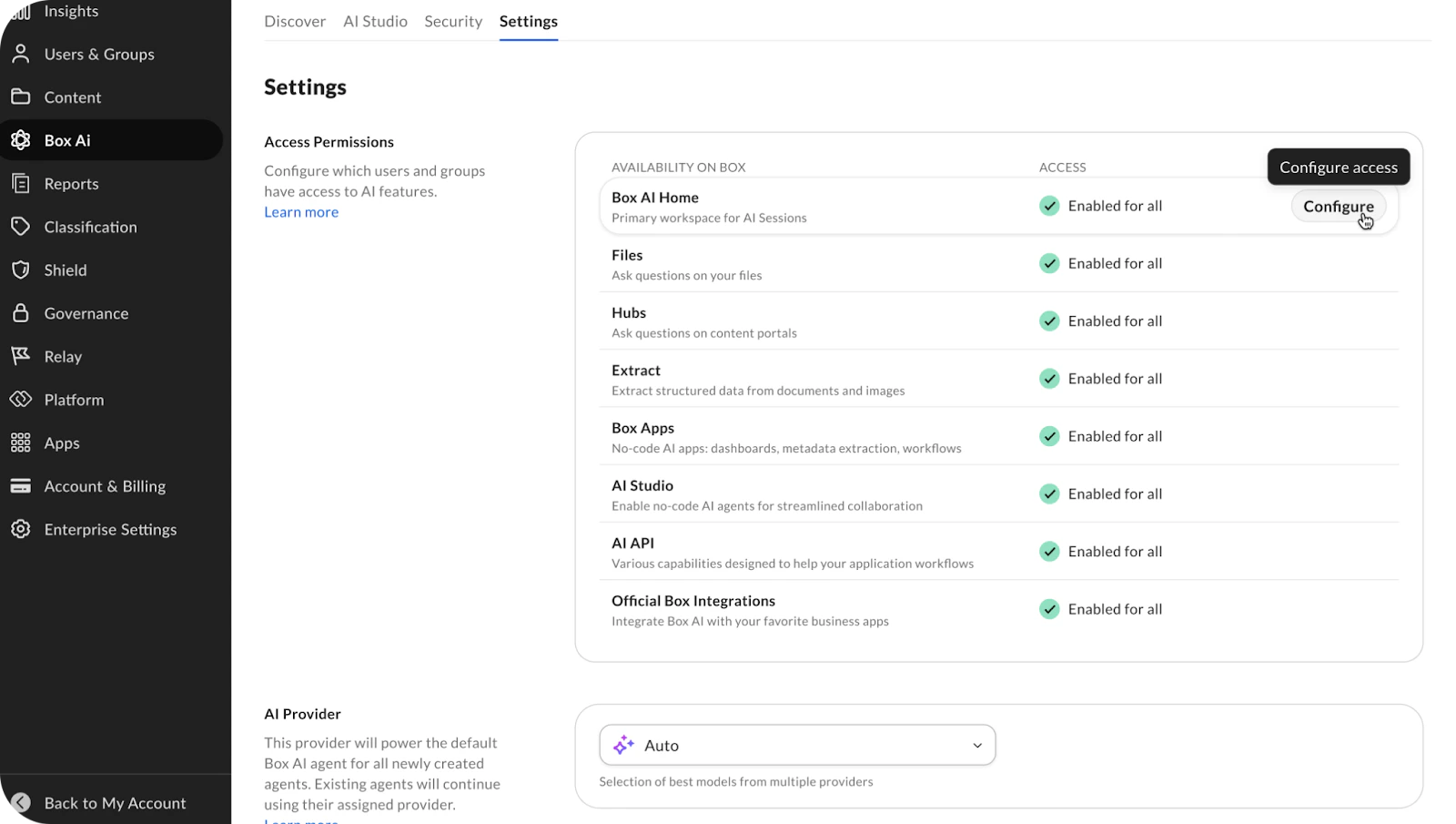
Within the Admin Console, go to the **Box AI section** and then the **Settings** tab and set the permissions for both users and groups. If your organization has not fully enabled Box AI, you can click **Enable for All** to do so for all services.
 ### Enabling AI Settings
To enable Box AI Studio, first enable Box AI home:
1. Navigate **Box AI -> Settings**
2. Click **configure** on “AI Home”
3. Select **Enable**
Once a Box AI setting is enabled, admins can toggle between the existing Box AI Agent experience (i.e., the legacy agents experience) and the new Agent experience by enabling the AI Home in the Box AI Settings page.
Considerations with AI Home:
* After enabling AI Home, organizations that had AI Studio enabled with the legacy version will automatically have the new version of AI Studio enabled.
* After enabling AI Home, Admins cannot create new legacy agents. However, they can still modify existing legacy agents.
## Upgrading Agents
When accessing legacy agents, you can upgrade the agent to begin using updated features. When configuring a legacy agent, click **Upgrade Agent** to create a new agent that mirrors the legacy agent.
### Enabling AI Settings
To enable Box AI Studio, first enable Box AI home:
1. Navigate **Box AI -> Settings**
2. Click **configure** on “AI Home”
3. Select **Enable**
Once a Box AI setting is enabled, admins can toggle between the existing Box AI Agent experience (i.e., the legacy agents experience) and the new Agent experience by enabling the AI Home in the Box AI Settings page.
Considerations with AI Home:
* After enabling AI Home, organizations that had AI Studio enabled with the legacy version will automatically have the new version of AI Studio enabled.
* After enabling AI Home, Admins cannot create new legacy agents. However, they can still modify existing legacy agents.
## Upgrading Agents
When accessing legacy agents, you can upgrade the agent to begin using updated features. When configuring a legacy agent, click **Upgrade Agent** to create a new agent that mirrors the legacy agent.
 The process sets the model to **Auto** by default and copies:
* Agent name and appends "(new)" to it
* Description
* Custom instructions (if the legacy agent has both Q\&A and Compose modes, only the Q\&A custom instruction is copied; otherwise, the entire custom instruction is copied)
The new agent is **disabled** by default. The existing legacy agent remains active and unaffected unless manually disabled.
**Note**
Note: For new and upgraded agents, APIs usage is not supported.
## Enabling Access for Co-Admins
To enable Box AI Studio for Co-Admins:
1. Go to the **Admin Console ->** then **User & Groups**
2. Select **View** on the co-admin to configure
3. Click **Edit** on the **Role and Access Permissions** section
4. Toggle on for **AI Studio**.
### Compliance Support
Customers are responsible for configuring suitable AI models based on their specific requirements. Visit [Supported AI models - Box Dev Docs](https://developer.box.com/guides/box-ai/ai-models) to see a full list of models and providers.
## Managing Custom Box Agents in Box AI Studio
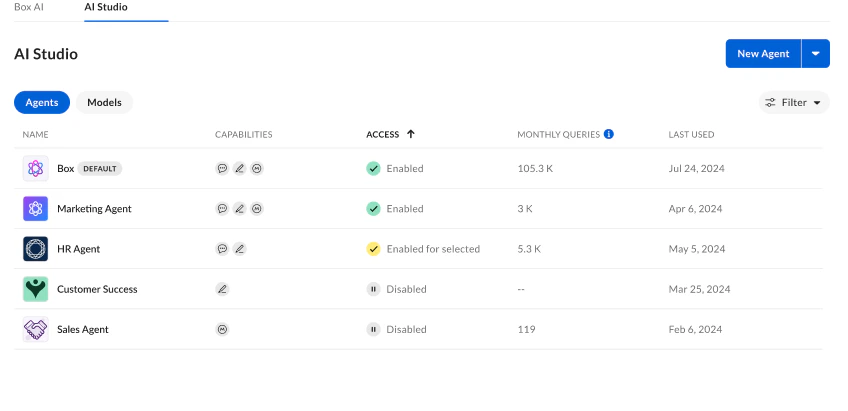
To see a list of agents available, go to the **AI Studio** tab from the Box AI section in the Admin Console.
The process sets the model to **Auto** by default and copies:
* Agent name and appends "(new)" to it
* Description
* Custom instructions (if the legacy agent has both Q\&A and Compose modes, only the Q\&A custom instruction is copied; otherwise, the entire custom instruction is copied)
The new agent is **disabled** by default. The existing legacy agent remains active and unaffected unless manually disabled.
**Note**
Note: For new and upgraded agents, APIs usage is not supported.
## Enabling Access for Co-Admins
To enable Box AI Studio for Co-Admins:
1. Go to the **Admin Console ->** then **User & Groups**
2. Select **View** on the co-admin to configure
3. Click **Edit** on the **Role and Access Permissions** section
4. Toggle on for **AI Studio**.
### Compliance Support
Customers are responsible for configuring suitable AI models based on their specific requirements. Visit [Supported AI models - Box Dev Docs](https://developer.box.com/guides/box-ai/ai-models) to see a full list of models and providers.
## Managing Custom Box Agents in Box AI Studio
To see a list of agents available, go to the **AI Studio** tab from the Box AI section in the Admin Console.
 ### Managing Legacy Agents
From the legacy **Agent** view, you can see:
* Name
* Capabilities
* Content Q\&A
* Text Generation
* Access
* Enabled
* Enabled for selected
* Disabled
* Monthly Queries
* Last Used
You can filter from:
* Type
* Content Q\&A
* Text Generation
* Access
* Enabled
* Enabled for selected
* Disabled
For additional options, hover over the right side of the agent and click on the ellipsis to:
* Edit
* Access
* Delete
* **Deleting an agent cannot be undone.**
To set the AI model provider, hover over the right side of the agent and click on the ellipsis to choose between the Box Recommended option and specific providers.
You can also upgrade the legacy agent from the right ellipsis button, selecting **Upgrade Agent** from the dropdown menu.
### Managing Agents
To see a list of agents available, go to the AI Studio tab from the Box AI section in the Admin Console.
From the **Agent** view, you can see:
* Name
* Access
* Created By
* Monthly Queries
* Last Used
You can filter from:
* Access
* Enabled
* Enabled for selected
* Disabled
For additional options, hover over the right side of the agent and click on the ellipsis to:
* Edit
* Duplicate
* Delete
* Deleting an agent cannot be undone.
### Managing Legacy Agents
From the legacy **Agent** view, you can see:
* Name
* Capabilities
* Content Q\&A
* Text Generation
* Access
* Enabled
* Enabled for selected
* Disabled
* Monthly Queries
* Last Used
You can filter from:
* Type
* Content Q\&A
* Text Generation
* Access
* Enabled
* Enabled for selected
* Disabled
For additional options, hover over the right side of the agent and click on the ellipsis to:
* Edit
* Access
* Delete
* **Deleting an agent cannot be undone.**
To set the AI model provider, hover over the right side of the agent and click on the ellipsis to choose between the Box Recommended option and specific providers.
You can also upgrade the legacy agent from the right ellipsis button, selecting **Upgrade Agent** from the dropdown menu.
### Managing Agents
To see a list of agents available, go to the AI Studio tab from the Box AI section in the Admin Console.
From the **Agent** view, you can see:
* Name
* Access
* Created By
* Monthly Queries
* Last Used
You can filter from:
* Access
* Enabled
* Enabled for selected
* Disabled
For additional options, hover over the right side of the agent and click on the ellipsis to:
* Edit
* Duplicate
* Delete
* Deleting an agent cannot be undone.