> ## Documentation Index
> Fetch the complete documentation index at: https://docs.box.com/llms.txt
> Use this file to discover all available pages before exploring further.
# Configuring Box AI
Box AI can be made available to your users in Box Notes, Box Hubs, and when previewing files stored in your organization’s Box Service instance.
## **Access Permissions**
Within the Admin Console, go to the **Box AI section** and then the **Settings** tab and set the permissions for both users and groups. If your organization has not fully enabled Box AI, you can click **Enable Box AI** to do so for all services.
 Note: Business, Business Plus, and Enterprise plans will only have access to Box AI for Documents and Notes when Enable Box AI is toggled. Box AI APIs are available upon purchase of Box AI Units for Business, Business Plus, and Enterprise plans.
Use these settings to control which users and user groups within your organization have access to Box AI for the following services:
* AI Home
* Preview
* Notes
* Hubs
* Extract
* AI API
* Official Box Integrations
* To enable Box AI for Slack for your users and for further configuration, see [Deploying the Slack Integration in your Enterprise – Box Support](https://support.box.com/hc/en-us/articles/360043697294-Deploying-the-Slack-Integration-in-your-Enterprise).
Enabling Box AI for specific users has the following limitations:
* You can enter up to 100 names/email addresses and up to 100 groups. If you want to enable or disable more, you have to enable or disable Box AI for the entire organization.
* You can only select groups that have a **Permission Setting** set to **Admins Only**. For details, see [Creating and managing groups](/en/box-admin-tools/managing-box-users-and-admins/groups/creating-and-managing-groups).
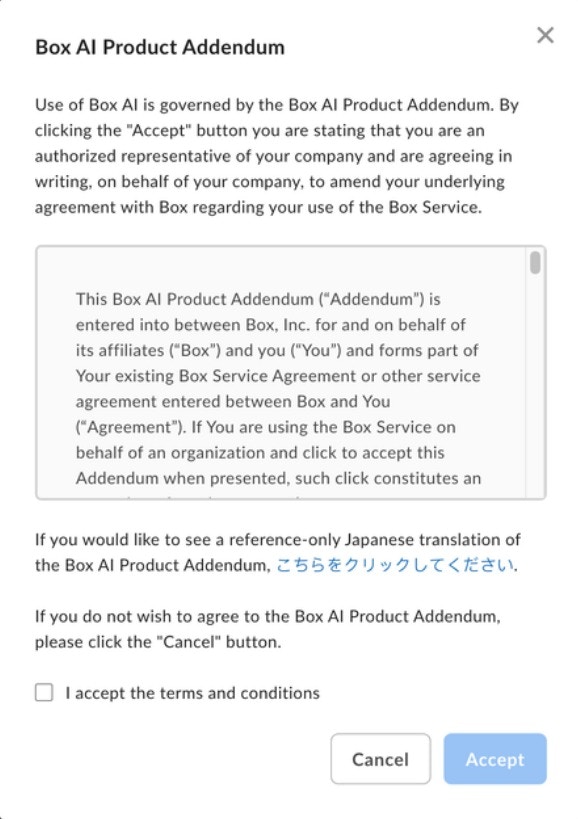
Before enabling Box AI features in the Admin Console, you will need to review and accept some specific Box AI legal terms. Depending on your agreement terms with Box, you are shown one of the following messages:
**Box AI Product Addendum Message**
If you are using your first Box AI feature, when opening the **Edit Configuration** menu, you will need to review and accept the Box AI Product Addendum before enabling Box AI for your organization:
Note: Business, Business Plus, and Enterprise plans will only have access to Box AI for Documents and Notes when Enable Box AI is toggled. Box AI APIs are available upon purchase of Box AI Units for Business, Business Plus, and Enterprise plans.
Use these settings to control which users and user groups within your organization have access to Box AI for the following services:
* AI Home
* Preview
* Notes
* Hubs
* Extract
* AI API
* Official Box Integrations
* To enable Box AI for Slack for your users and for further configuration, see [Deploying the Slack Integration in your Enterprise – Box Support](https://support.box.com/hc/en-us/articles/360043697294-Deploying-the-Slack-Integration-in-your-Enterprise).
Enabling Box AI for specific users has the following limitations:
* You can enter up to 100 names/email addresses and up to 100 groups. If you want to enable or disable more, you have to enable or disable Box AI for the entire organization.
* You can only select groups that have a **Permission Setting** set to **Admins Only**. For details, see [Creating and managing groups](/en/box-admin-tools/managing-box-users-and-admins/groups/creating-and-managing-groups).
Before enabling Box AI features in the Admin Console, you will need to review and accept some specific Box AI legal terms. Depending on your agreement terms with Box, you are shown one of the following messages:
**Box AI Product Addendum Message**
If you are using your first Box AI feature, when opening the **Edit Configuration** menu, you will need to review and accept the Box AI Product Addendum before enabling Box AI for your organization:
 **Review Agreement Offline Message**
If, when navigating to the **Box AI** tab, the **Review Agreement Offline** message appears, contact your Box Account Team or click on the link in the message to request Box AI access:
**Review Agreement Offline Message**
If, when navigating to the **Box AI** tab, the **Review Agreement Offline** message appears, contact your Box Account Team or click on the link in the message to request Box AI access:
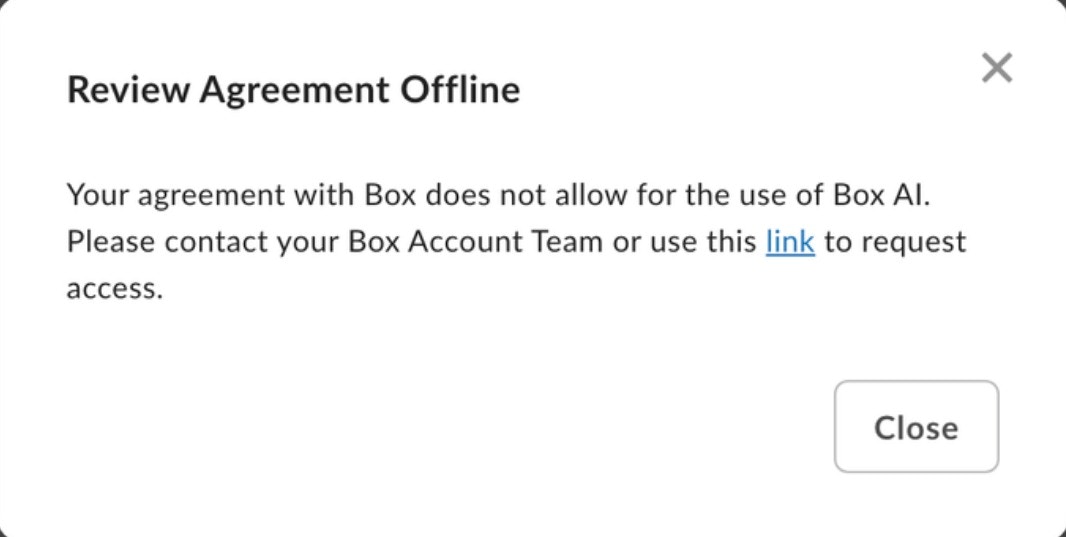 This message indicates that your organization has specific restrictions when using Box AI, however, as an admin, you may still request access and enable Box AI for your organization by reaching out to our account team or support.box.com.
## Configuring Box AI for users and groups
### Box AI for AI Home
Defines who can use Box AI. Click **configure** and then select:
* **Disable for all managed users**
* **Enable for all managed users (Default)**
* **Enable for select users and groups**, and then enter one or more user names, email addresses, or groups
* **Enable for everyone except select users and groups**, and then enter one or more user names, email addresses, or group
### Box AI for Documents and Notes
Defines who can use Box AI. Click **configure** and then select:
* **Disable for all managed users**
* **Enable for all managed users (Default)**
* **Enable for select users and groups**, and then enter one or more user names, email addresses, or groups
* **Enable for everyone except select users and groups**, and then enter one or more user names, email addresses, or group
### Box AI for Hubs
Defines who can use Box AI. Click **configure** and then select:
* **Disable for all managed users**
* **Enable for all managed users (Default)**
* **Enable for select users and groups**, and then enter one or more user names, email addresses, or groups
* **Enable for everyone except select users and groups**, and then enter one or more user names, email addresses, or group
### Box AI APIs
Defines developer users who can extend Box AI capabilities via AI API to their organization’s ecosystem. Click **configure** and then select:
* **Enable for all**
* **Disable for all**
### Box AI for Official Box Integrations
Defines who can use Box AI. Click **configure** and then select:
* **Disable for all managed users**
* **Enable for all managed users (Default)**
* **Enable for select users and groups**, and then enter one or more user names, email addresses, or groups
* **Enable for everyone except select users and groups**, and then enter one or more user names, email addresses, or group
### Box AI Studio Configurations
Defines who can use Box AI Studio. Click **configure** and then select:
* **Enable for all**
* **Disable for all**
## Box Extract
Box Extract automatically and accurately pulls key information from content and saves it as metadata in Box using Custom Extract Agents. With Box Extract, it’s now easier than ever for enterprises to automate workflows, accelerate decision-making, and power faster content discovery. Enterprise admins can enable Box Extract for specific users and groups within the Admin Console after [enabling Box AI](/en/box-ai/admins/configuring-box-ai). Users who have not been enabled with Box Extract will not see the Extract tab within Relay in the Box web UI.
Enterprise admins can define which users or groups can use Box Extract by selecting **Edit Configuration** and then selecting:
* **Disable for all managed users**
* **Enable for all managed users (recommended)** (default)
* **Enable for select users and groups**, and then enter one or more user names, email addresses, or groups
* **Enable for everyone except select users and groups**, and then enter one or more user names, email addresses, or groups
**Note**
* You can enter up to 100 names/email addresses and up to 100 groups. If you want to enable or disable more, you'll have to enable or disable Box Extract for the entire organization.
You can only select groups that have a **Permission Setting** set to **Admins Only**. For details, see [Creating and managing groups.](/en/box-admin-tools/managing-box-users-and-admins/groups/creating-and-managing-groups).
**Note**\
You can use the metadata confidence level in the API. For more information, see [Metadata confidence level](https://developer.box.com/guides/metadata/confidence-level).
This message indicates that your organization has specific restrictions when using Box AI, however, as an admin, you may still request access and enable Box AI for your organization by reaching out to our account team or support.box.com.
## Configuring Box AI for users and groups
### Box AI for AI Home
Defines who can use Box AI. Click **configure** and then select:
* **Disable for all managed users**
* **Enable for all managed users (Default)**
* **Enable for select users and groups**, and then enter one or more user names, email addresses, or groups
* **Enable for everyone except select users and groups**, and then enter one or more user names, email addresses, or group
### Box AI for Documents and Notes
Defines who can use Box AI. Click **configure** and then select:
* **Disable for all managed users**
* **Enable for all managed users (Default)**
* **Enable for select users and groups**, and then enter one or more user names, email addresses, or groups
* **Enable for everyone except select users and groups**, and then enter one or more user names, email addresses, or group
### Box AI for Hubs
Defines who can use Box AI. Click **configure** and then select:
* **Disable for all managed users**
* **Enable for all managed users (Default)**
* **Enable for select users and groups**, and then enter one or more user names, email addresses, or groups
* **Enable for everyone except select users and groups**, and then enter one or more user names, email addresses, or group
### Box AI APIs
Defines developer users who can extend Box AI capabilities via AI API to their organization’s ecosystem. Click **configure** and then select:
* **Enable for all**
* **Disable for all**
### Box AI for Official Box Integrations
Defines who can use Box AI. Click **configure** and then select:
* **Disable for all managed users**
* **Enable for all managed users (Default)**
* **Enable for select users and groups**, and then enter one or more user names, email addresses, or groups
* **Enable for everyone except select users and groups**, and then enter one or more user names, email addresses, or group
### Box AI Studio Configurations
Defines who can use Box AI Studio. Click **configure** and then select:
* **Enable for all**
* **Disable for all**
## Box Extract
Box Extract automatically and accurately pulls key information from content and saves it as metadata in Box using Custom Extract Agents. With Box Extract, it’s now easier than ever for enterprises to automate workflows, accelerate decision-making, and power faster content discovery. Enterprise admins can enable Box Extract for specific users and groups within the Admin Console after [enabling Box AI](/en/box-ai/admins/configuring-box-ai). Users who have not been enabled with Box Extract will not see the Extract tab within Relay in the Box web UI.
Enterprise admins can define which users or groups can use Box Extract by selecting **Edit Configuration** and then selecting:
* **Disable for all managed users**
* **Enable for all managed users (recommended)** (default)
* **Enable for select users and groups**, and then enter one or more user names, email addresses, or groups
* **Enable for everyone except select users and groups**, and then enter one or more user names, email addresses, or groups
**Note**
* You can enter up to 100 names/email addresses and up to 100 groups. If you want to enable or disable more, you'll have to enable or disable Box Extract for the entire organization.
You can only select groups that have a **Permission Setting** set to **Admins Only**. For details, see [Creating and managing groups.](/en/box-admin-tools/managing-box-users-and-admins/groups/creating-and-managing-groups).
**Note**\
You can use the metadata confidence level in the API. For more information, see [Metadata confidence level](https://developer.box.com/guides/metadata/confidence-level).