> ## Documentation Index
> Fetch the complete documentation index at: https://docs.box.com/llms.txt
> Use this file to discover all available pages before exploring further.
# Searching for Content Using the Admin Console
**IMPORTANT:**
This article describes the usage of the legacy Content Manager, which is replaced by the [new Content Manager](/en/box-admin-tools/managing-content/content-manager/about-content-manager). The legacy Content Manager was sunset in February 2026.
With Content Manager, you can easily search for files and folders across your organization by entering keywords in the search bar at the top of the page. After you click the search button, you can narrow your search results by using available filters.
**Note**
This feature is available in Business Plus, Enterprise, Enterprise Plus, and Enterprise Advanced plans only. For more information about pricing plans, or to upgrade, visit [app.box.com/pricing/](https://app.box.com/pricing/).
## Accessing Content Manager
**To access Content Manager:**
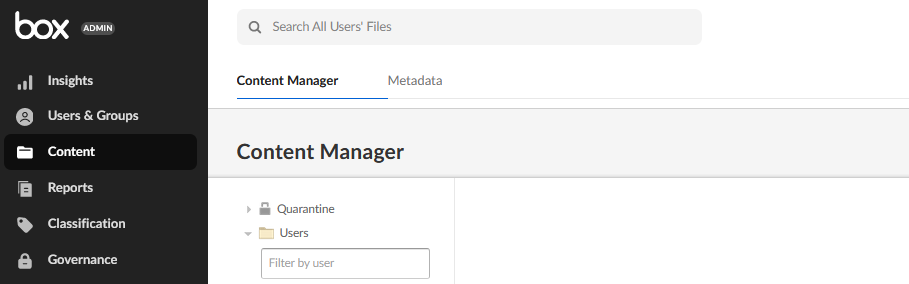
1. Open Admin Console.
2. In the Admin Console's left pane, click **Content**.
 ## Filtering by Folder or File Type
**To filter by folder or file type:**
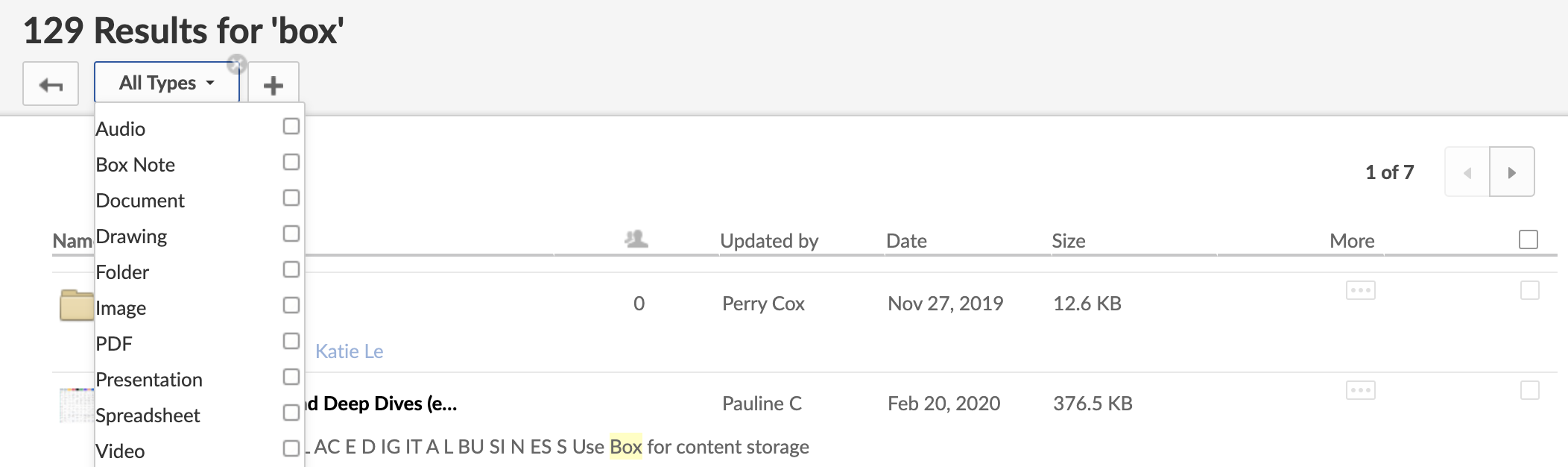
1. Search for a file or folder in the search bar.
2. Click **All Types**.
3. Select the file type you want.
4. Click **Apply.**
## Filtering by Folder or File Type
**To filter by folder or file type:**
1. Search for a file or folder in the search bar.
2. Click **All Types**.
3. Select the file type you want.
4. Click **Apply.**
 ## To add a new filter:
* Click the **+** icon.
* **Content:** Filter by searching for keywords in the content of the file. For example, search through a document’s information and the document’s content (Everything), or narrow by:file names specifically; comments added to files; descriptions added to files and folders; or file content (not file attributes).
* Click **Apply**
When you’ve found the file or folder you seeking, click the file/folder name to preview it.
## To add a new filter:
* Click the **+** icon.
* **Content:** Filter by searching for keywords in the content of the file. For example, search through a document’s information and the document’s content (Everything), or narrow by:file names specifically; comments added to files; descriptions added to files and folders; or file content (not file attributes).
* Click **Apply**
When you’ve found the file or folder you seeking, click the file/folder name to preview it.