> ## Documentation Index
> Fetch the complete documentation index at: https://docs.box.com/llms.txt
> Use this file to discover all available pages before exploring further.
# Managing File Requests
**The File Request dashboard does not currently show any links created with File Request (v1). Check back for when we add support for File Request (v1) links.**
To better secure your content in Box, you can view and manage file requests from within your organization. Doing so you gives you control on what to do with file requests, and see information about the requests.
## Viewing File Requests
To see your file request from your admin console, navigate to **Content** from the left-hand menu, and then select **File Requests.**
From here, you can see:
* File Requests
* Status
* Access
* Date Created
* User Information
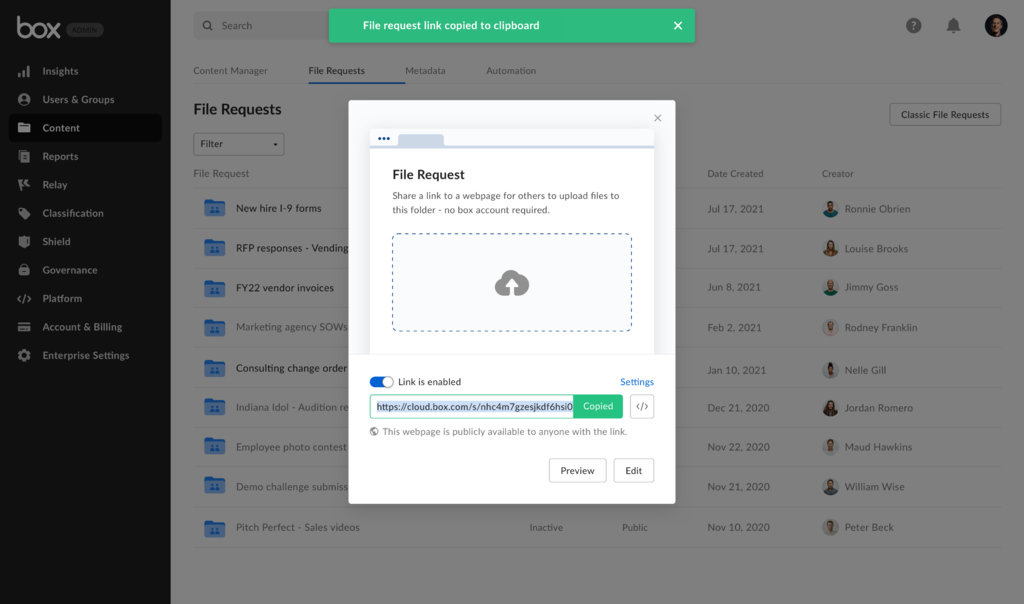
If you need to copy a link for a file request, click on the blue link icon. Alternately, click on the folder name. The window pop-up gives you a link to copy and share.
 ## Managing File Requests
In the File Request view, hover over the three dots button on the right-hand side of a file request. Clicking the button give you two options on managing a request:
## Managing File Requests
In the File Request view, hover over the three dots button on the right-hand side of a file request. Clicking the button give you two options on managing a request:
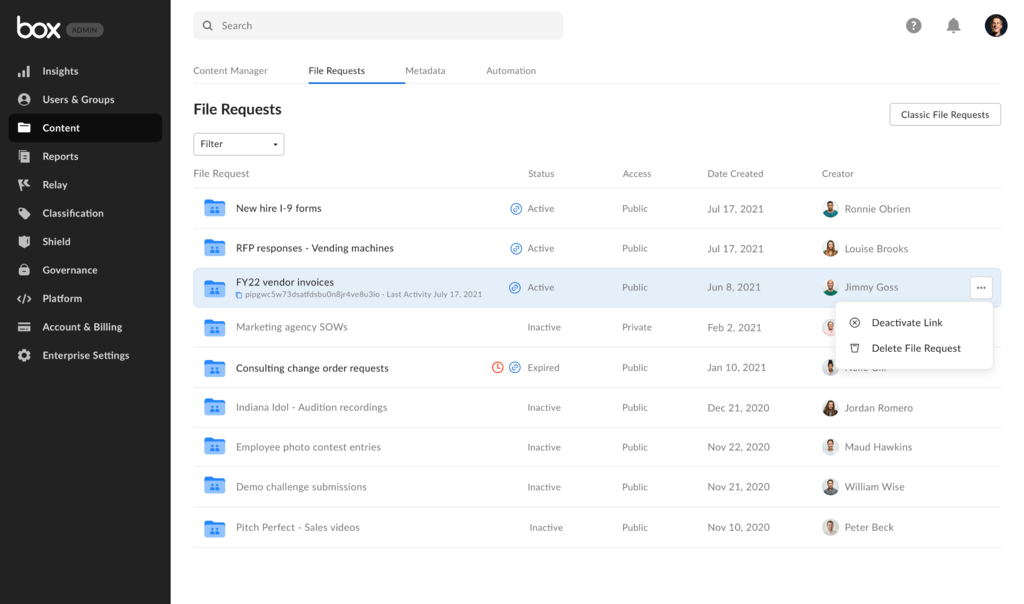 * **Deactivating** a file request.
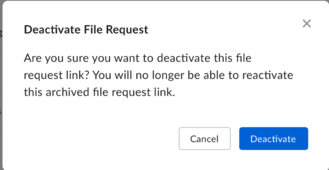
* You are prompted to confirm deactivation, as this action is permanent.
* **Deactivating** a file request.
* You are prompted to confirm deactivation, as this action is permanent.
 * **Deleting** a file request
* This option moves the selected request to the trash folder.
## **Filtering Requests**
As an admin, you can filter file requests to view specific sets of requests.
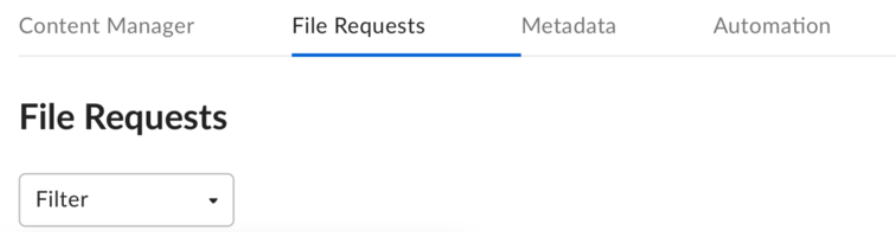
To filter file requests, click on the drop down menu under the **File Requests** title.
* **Deleting** a file request
* This option moves the selected request to the trash folder.
## **Filtering Requests**
As an admin, you can filter file requests to view specific sets of requests.
To filter file requests, click on the drop down menu under the **File Requests** title.
 From the drop down menu, you can filter:
**Status**
* Active
* Inactive
**Access**
* Public
* Private
**Date Created**
* Today
* Last 7 days
* Last 30 days
* Date Range
**Last Modified**
* Today
* Last 7 days
* Last 30 days
* Date Range
**To complete these options in bulk:**
1. Press the **Shift** on your keyboard and click on the requests.
2. In the right corner, click on either button below based on your intent:
From the drop down menu, you can filter:
**Status**
* Active
* Inactive
**Access**
* Public
* Private
**Date Created**
* Today
* Last 7 days
* Last 30 days
* Date Range
**Last Modified**
* Today
* Last 7 days
* Last 30 days
* Date Range
**To complete these options in bulk:**
1. Press the **Shift** on your keyboard and click on the requests.
2. In the right corner, click on either button below based on your intent:
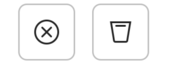 * Left button to deactivate the request.
* Right button to send request to the trash folder.
* Left button to deactivate the request.
* Right button to send request to the trash folder.