> ## Documentation Index
> Fetch the complete documentation index at: https://docs.box.com/llms.txt
> Use this file to discover all available pages before exploring further.
# Restoring a Trashed File or Folder
export const InlineImage = ({src, alt = "", height = "1em"}) => {
return  ;
};
Content Manager enables Admins to restore certain files or folders from Trash. Before restoring the item, the Admin needs to decide whether to restore it to original location (Default) or to a new location. When an item is returned to its original location but that location is no longer available, the Admin must choose a different location.
**To restore a trashed file or folder:**
1. Go to **Admin Console > Content**.
2. Select the **Content Manager** tab.
3. Select the Expand control () next to a user's name.
4. Select **Trash** ().
5. Hover on a file or folder and select **Restore** (), or select a file or folder on the list and select **Restore** on the top action bar. You can also select multiple files or folders before selecting **Restore**, to restore trashed items in bulk.
* If a file cannot be restored from Trash, this function will not be available.
6. Restore the file to its original location by selecting **Restore**. (If the original location does not exist, you will be prompted to select a restore location.)\
\- or -\
Restore the file to a different location by selecting **Select Location**, search for a folder and select it, then select **Restore**.
## Preserved files and folders
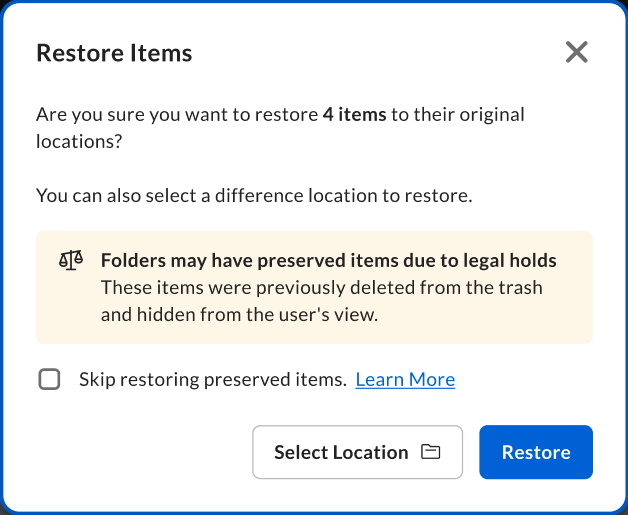
Some files and folders may be preserved by your organization's legal holds or retention policies.\
When you try to restore a preserved file, Box displays a message indicating that the file was hidden from the user's view. You can still restore the file.
;
};
Content Manager enables Admins to restore certain files or folders from Trash. Before restoring the item, the Admin needs to decide whether to restore it to original location (Default) or to a new location. When an item is returned to its original location but that location is no longer available, the Admin must choose a different location.
**To restore a trashed file or folder:**
1. Go to **Admin Console > Content**.
2. Select the **Content Manager** tab.
3. Select the Expand control () next to a user's name.
4. Select **Trash** ().
5. Hover on a file or folder and select **Restore** (), or select a file or folder on the list and select **Restore** on the top action bar. You can also select multiple files or folders before selecting **Restore**, to restore trashed items in bulk.
* If a file cannot be restored from Trash, this function will not be available.
6. Restore the file to its original location by selecting **Restore**. (If the original location does not exist, you will be prompted to select a restore location.)\
\- or -\
Restore the file to a different location by selecting **Select Location**, search for a folder and select it, then select **Restore**.
## Preserved files and folders
Some files and folders may be preserved by your organization's legal holds or retention policies.\
When you try to restore a preserved file, Box displays a message indicating that the file was hidden from the user's view. You can still restore the file.
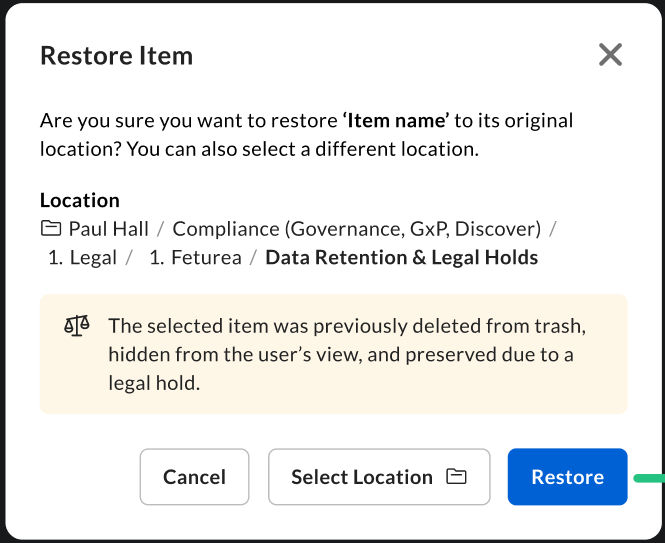 When you try to restore a preserved folder, Box displays a message indicating that the folder may contain files that were hidden from the end user's view. You can either restore preserved content or skip it.