> ## Documentation Index
> Fetch the complete documentation index at: https://docs.box.com/llms.txt
> Use this file to discover all available pages before exploring further.
# Restricting External Collaboration in Your Organization
Administrators can restrict users in your organization from sharing folders externally, or outside of your organization. This control gives IT and admins powerful, granular control over what content is shared externally or kept within the company, providing additional security.
When enabled for a user, the restriction is placed on all content owned by that user. However, it does not prohibit the user from inviting external collaborators to non-restricted folders owned by other users.
As an admin, you can:
* Restrict external collaboration for an individual managed user
* Restrict external collaboration for multiple managed users
* Restrict external collaboration for all newly created managed users
**To restrict external collaboration for an individual managed user:**
1. Edit a managed user, as in [Configuring and Editing Users](/en/box-admin-tools/managing-box-users-and-admins/managed-users/configuring-and-editing-users).
2. In the Role and Access Permissions section, enable the **Restrict External Collaboration** setting.
3. Click **Save**.
**To restrict external collaboration for multiple managed users:**
1. Edit multiple managed users, as in [Configuring and Editing Users](/en/box-admin-tools/managing-box-users-and-admins/managed-users/configuring-and-editing-users).
2. In the downloaded file, enter the value `enabled` in the row of each user for which you want external collaboration restricted.
You can also enter `yes` to enable external collaboration restrictions (`disabled` and `no` disable external collaboration restrictions), the value is case-insensitive, but the field must not be left blank.
**To restrict external collaboration for all newly created managed users:**
1. Edit new user default settings, as in [Editing New User Default Settings](/en/box-admin-tools/managing-box-users-and-admins/understanding-user-management/editing-new-user-default-settings).
2. In the New User Defaults Settings section, enable the **Restrict external collaboration** setting.
3. Click **Save**.
## What does the user see when an admin enables this setting?
* When the restriction is enabled for a user, the folder properties for any folders they own have the **Restrict collaboration to within *\*** check box enabled, with no way for them to disable it.
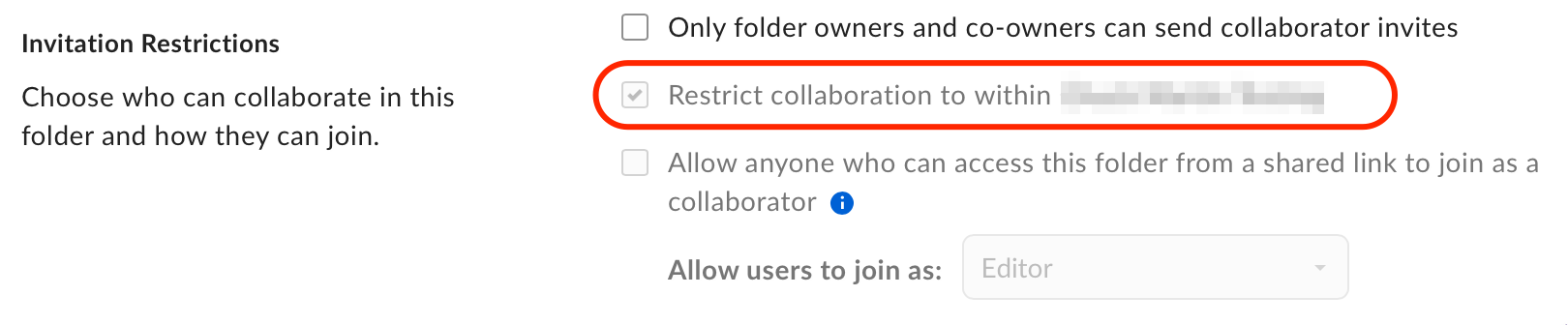 * If the user tries to add an external collaborator to a folder they own, an error message appears after they click Send with details about the external collaborator(s) that are restricted from being invited.
 ## External Collaboration Restriction Exceptions
* Box Shield Smart Access policies allow administrators to define business justifications for exceptions to Smart Access policy collaboration restrictions. See [About Smart Access](/en/box-shield/shield-smart-access-policies/about-smart-access) for details.
* When external collaboration restrictions are added to users, existing collaborations are not removed automatically. To remove existing external collaborators from restricted folders, go to **Admin Console > Enterprise Settings > Users & Groups > External Users**, and then edit the Folder Collaborations. See [Managing External Users](/en/box-admin-tools/managing-box-users-and-admins/external-users/best-practice-managing-external-users) for details.
* While when external collaboration restrictions are enabled on users they can't use **Send Shared Link** to send these links to external users, a user with the restriction enabled will still be able to share content externally with open shared links.
## External Collaboration Restriction Exceptions
* Box Shield Smart Access policies allow administrators to define business justifications for exceptions to Smart Access policy collaboration restrictions. See [About Smart Access](/en/box-shield/shield-smart-access-policies/about-smart-access) for details.
* When external collaboration restrictions are added to users, existing collaborations are not removed automatically. To remove existing external collaborators from restricted folders, go to **Admin Console > Enterprise Settings > Users & Groups > External Users**, and then edit the Folder Collaborations. See [Managing External Users](/en/box-admin-tools/managing-box-users-and-admins/external-users/best-practice-managing-external-users) for details.
* While when external collaboration restrictions are enabled on users they can't use **Send Shared Link** to send these links to external users, a user with the restriction enabled will still be able to share content externally with open shared links.