> ## Documentation Index
> Fetch the complete documentation index at: https://docs.box.com/llms.txt
> Use this file to discover all available pages before exploring further.
# Using Self Service SSO Certificate Management
If you're a Box admin or co-admin, the SSO certificate settings in the Box Admin Console enable you to manage up to two signing certificates for your Box Enterprise's SSO connection.
The ability to upload a secondary certificate provides seamless rotation between a current expiring certificate and the new secondary certificate, as Box will use both to validate user login. After the connection migrates to the new certificate on the IDP side, you'll need to use the certificate settings in the admin console to remove the matching certificate. This ensures you're ready for your next certificate rotation.
## Adding a certificate
**To upload the certificate from your computer:**
1. In your admin console's left sidebar, click **Enterprise Settings**.
2. At the top of the window, click **User Settings**.
3. Scroll to the **Configure Single Sign On (SSO) for All Users** section.
4. Click **Select File**.
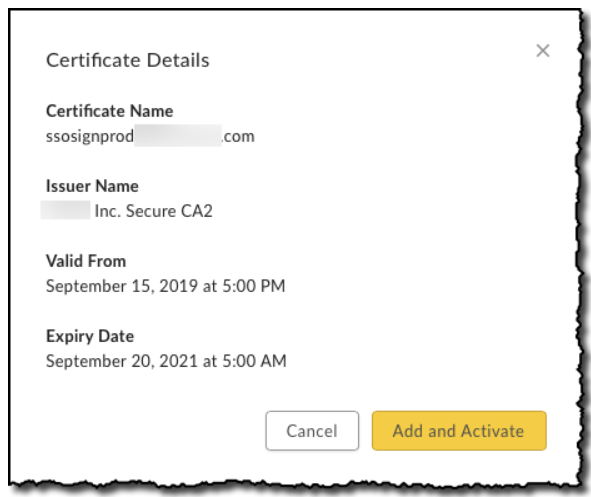
* If the certificate is valid, you'll see the certificate details in a prompt option to **Cancel** or **Add and Activate** the certificate.
* If the certificate is invalid, Box displays an error and does not add the certificate for the connection.
5. If the certificate is valid, click **Add and Activate**.
 **Note:**
* Accepted certificate file types are .pem, .cer, .crt, or .der.
* You can configure a maximum of two certificates per SSO connection per Box Enterprise.
## Removing a certificate
**To remove a certificate:**
1. In your admin console's left sidebar, click **Enterprise Settings**.
2. At the top of the window, click **User Settings**.
3. Scroll to the **Configure Single Sign On (SSO) for All Users** section.
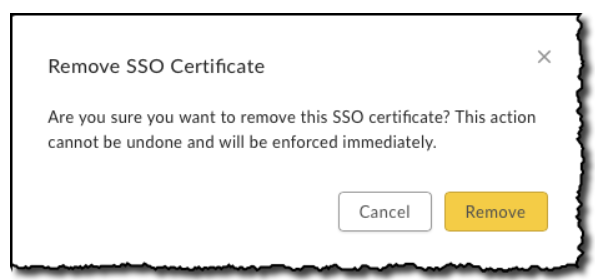
4. On the certificate you want to remove, click **Remove**. Box displays the **Remove SSO Certificate** prompt.
5. In the **Remove SSO Certificate** prompt, click **Remove**.
**Note:**
* Accepted certificate file types are .pem, .cer, .crt, or .der.
* You can configure a maximum of two certificates per SSO connection per Box Enterprise.
## Removing a certificate
**To remove a certificate:**
1. In your admin console's left sidebar, click **Enterprise Settings**.
2. At the top of the window, click **User Settings**.
3. Scroll to the **Configure Single Sign On (SSO) for All Users** section.
4. On the certificate you want to remove, click **Remove**. Box displays the **Remove SSO Certificate** prompt.
5. In the **Remove SSO Certificate** prompt, click **Remove**.
 **IMPORTANT:**\
You must have at least one SSO certificate configured. Any attempt to remove a certificate without a second configured certificate causes an error.
**IMPORTANT:**\
You must have at least one SSO certificate configured. Any attempt to remove a certificate without a second configured certificate causes an error.
 ## Expired certificates
Certificate settings indicate when a certificate is expired. You'll need to remove expired certificates from the console as soon as possible.
## Enterprise locked out due to expired certificate
If your SSO signing certificate expired before being updated and SSO is enabled, but not required, for your Box Enterprise, the Box admin or co-admin can log into the admin console through the domain account.box.com instead of \.box.com.
* This login bypasses the SSO login flow for your enterprise and allows you to login using box.com credentials.
* This requires the admin to login with Box credentials instead of going through the configured SSO provider.
* After login, update the IdP certificate in **Admin Console** > **Enterprise Settings** (admins and co-admins with the 'Edit settings and apps' permission can do this).
* Use the reset password button if you do not know your box.com password.
If the enterprise is locked out of Box due to an expired signing certificate and SSO is required for login, please contact [Box Support](https://support.box.com/hc/en-us/requests/new) to assist with updating your certificate.
## Limitations
* If multiple Identity Providers (IdP) are connected to a single Box Enterprise, you cannot use the certificate settings. In this case, contact [Box Product Support](https://support.box.com/hc/en-us/requests/new) for help updating your certificate.
* This limitation does not apply when a single IdP is connected to multiple Box Enterprise accounts. In this configuration, you can update the certificate by following the steps above. The SSO settings are shared between enterprises so updating the certificate in one account automatically updates it in the other.
* If your IdP isn’t supported by Self-Service SSO, an error will appear in the **Configure Single Sign-On (SSO) for All Users** section. If you need to update your SSO configuration in this case, please contact [Box Product Support](https://support.box.com/hc/en-us/requests/new?\&referrerPageUrl=).
## Expired certificates
Certificate settings indicate when a certificate is expired. You'll need to remove expired certificates from the console as soon as possible.
## Enterprise locked out due to expired certificate
If your SSO signing certificate expired before being updated and SSO is enabled, but not required, for your Box Enterprise, the Box admin or co-admin can log into the admin console through the domain account.box.com instead of \.box.com.
* This login bypasses the SSO login flow for your enterprise and allows you to login using box.com credentials.
* This requires the admin to login with Box credentials instead of going through the configured SSO provider.
* After login, update the IdP certificate in **Admin Console** > **Enterprise Settings** (admins and co-admins with the 'Edit settings and apps' permission can do this).
* Use the reset password button if you do not know your box.com password.
If the enterprise is locked out of Box due to an expired signing certificate and SSO is required for login, please contact [Box Support](https://support.box.com/hc/en-us/requests/new) to assist with updating your certificate.
## Limitations
* If multiple Identity Providers (IdP) are connected to a single Box Enterprise, you cannot use the certificate settings. In this case, contact [Box Product Support](https://support.box.com/hc/en-us/requests/new) for help updating your certificate.
* This limitation does not apply when a single IdP is connected to multiple Box Enterprise accounts. In this configuration, you can update the certificate by following the steps above. The SSO settings are shared between enterprises so updating the certificate in one account automatically updates it in the other.
* If your IdP isn’t supported by Self-Service SSO, an error will appear in the **Configure Single Sign-On (SSO) for All Users** section. If you need to update your SSO configuration in this case, please contact [Box Product Support](https://support.box.com/hc/en-us/requests/new?\&referrerPageUrl=).