> ## Documentation Index
> Fetch the complete documentation index at: https://docs.box.com/llms.txt
> Use this file to discover all available pages before exploring further.
# Searching the Admin Console
If you're a Box admin, the admin console enables you to quickly and easily search for keywords in the following categories:
* **Managed Users** section of the admin console, including searching for Name, Email, and User ID
* **External Users** section of the admin console, including searching for Name, Email, and User ID
* **Groups** section of the admin console
* **Enterprise Settings** section of the admin console
* **Help topics** publicly available at [https://support.box.com/hc/en-us](https://support.box.com/hc/en-us)
You can search all categories, or select a single category to search.
Box returns results that conform to the searcher’s administrative permissions.
Searches do not access or return results from within a user's file’s contents.
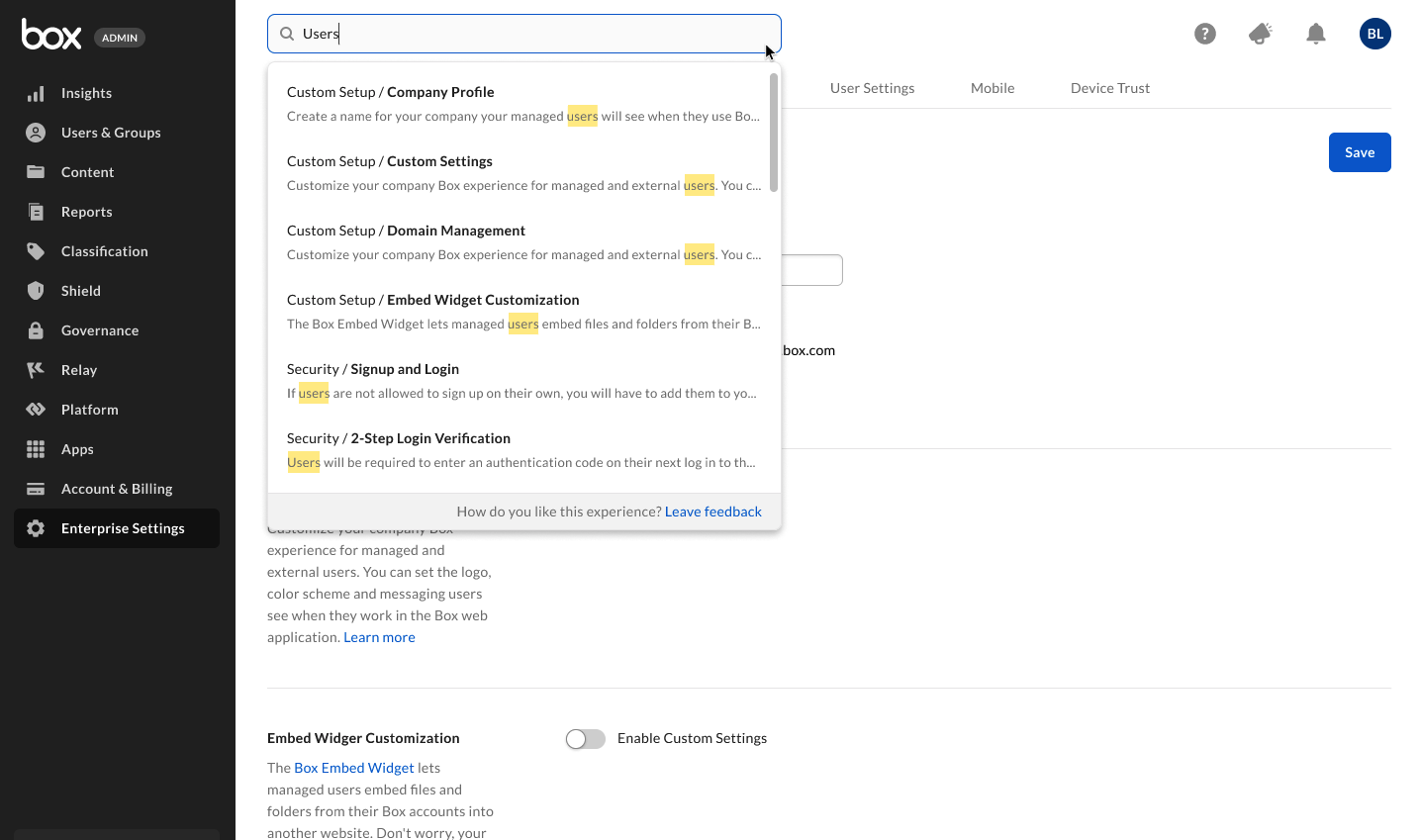 **To search for keywords in all categories:**
1. In the top of the admin console’s window, click in the search field. Box displays the search drop-down window.
2. In the search field, type the keyword you want to find. For English, type at least three characters; for Japanese, type at least two. As you type, Box displays highlighted results, sorted by category.
3. To display a specific result, click the result.
**To search for keywords in a single category:**
1. In the top of the admin console’s window, click in the search field. Box displays the search drop-down window.
2. In the search drop-down window, under **SEARCH IN**, click the category whose contents you want to search. When you select a category to search, Box displays its label in the search field. To remove a category from your search, in the category's label click **X**.
3. In the search field, type the keyword you want to find. For English, type at least three characters; for Japanese, type at least two. As you type, Box displays highlighted results.
4. To display a specific result, click the result.
**To repeat a recent search:**
1. In the top of the admin console's window, click in the search field. Box displays the search drop-down window.
2. In the search drop-down window, under **RECENT SEARCHES**, click a keyword or string.
**To search for keywords in all categories:**
1. In the top of the admin console’s window, click in the search field. Box displays the search drop-down window.
2. In the search field, type the keyword you want to find. For English, type at least three characters; for Japanese, type at least two. As you type, Box displays highlighted results, sorted by category.
3. To display a specific result, click the result.
**To search for keywords in a single category:**
1. In the top of the admin console’s window, click in the search field. Box displays the search drop-down window.
2. In the search drop-down window, under **SEARCH IN**, click the category whose contents you want to search. When you select a category to search, Box displays its label in the search field. To remove a category from your search, in the category's label click **X**.
3. In the search field, type the keyword you want to find. For English, type at least three characters; for Japanese, type at least two. As you type, Box displays highlighted results.
4. To display a specific result, click the result.
**To repeat a recent search:**
1. In the top of the admin console's window, click in the search field. Box displays the search drop-down window.
2. In the search drop-down window, under **RECENT SEARCHES**, click a keyword or string.