> ## Documentation Index
> Fetch the complete documentation index at: https://docs.box.com/llms.txt
> Use this file to discover all available pages before exploring further.

# Limit collaboration to allowlisted domains

<div className="article_labels_list" style={{display: 'none'}} dangerouslySetInnerHTML={{__html: "Collaboration , Admin , Article , New , Instruction , Rollout"}} />

<Note>
  External collaboration allowlisting is only available as part of the Governance package and must be enabled by request. Please contact your Box Representative or [Billing Support](https://support.box.com/hc/en-us/articles/360043695234) to enable these features.
</Note>

In the **Enterprise Settings** > **Content & Sharing** > **Collaborating on Content** > **External Collaboration** setting, you can allow external collaboration with any external user or limit collaboration to only external users in email domains you define. This topic explains how to limit collaboration to allowlisted email domains.

1. Go to **Enterprise Settings** > **Content & Sharing**
2. In the Collaborating on Content section, go to the *External Collaboration* setting and select **Limit collaboration to allowlisted domains**
3. Click **Manage** **Allowlist**
4. In the Collaboration Allowlist dialog box, enter one or more email domains and press Enter after entering each one. See [Domain Allowlist Configuration](#domain-allowlist-configuration) for additional details on how to configure allowlisted email domains
5. Click **Add**

Your users can collaborate **only** with people from one of the email domains you specify.

<Note>
  **Note**

  The limit on collaboration to allowlisted email domains goes both directions: Your user cannot invite someone who is not from one of the specified email domains, and someone not on the specific email domain cannot invite your user to collaborate.
</Note>

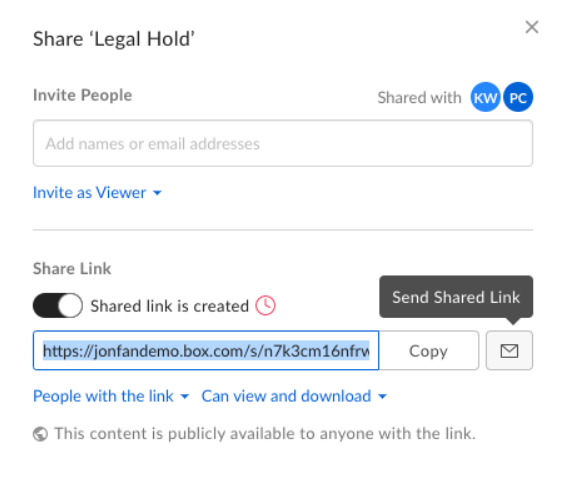
Your user can invite someone to collaborate by opening the "Share" window on a folder or a file. In the "Share" window, your user can choose (a) Invite People or (b) Send Shared Link.

<Frame>
  <img src="https://mintcdn.com/product-docs/ilKI74y7wF4GX9CM/images/box-admin-tools/share-screen.png?fit=max&auto=format&n=ilKI74y7wF4GX9CM&q=85&s=756ddd8f8a54c09eaf4974dba77d19e7" alt="share-screen-png" width="582" height="484" data-path="images/box-admin-tools/share-screen.png" />
</Frame>

If your user invites someone who is not from one of the specified email domains, the system will display an error message:

<Frame>
  <img src="https://mintcdn.com/product-docs/ilKI74y7wF4GX9CM/images/box-admin-tools/send-email-error.png?fit=max&auto=format&n=ilKI74y7wF4GX9CM&q=85&s=9b117f655607516d15a54710836caafe" alt="send-email-error-png" width="769" height="145" data-path="images/box-admin-tools/send-email-error.png" />
</Frame>

**Important**

<Warning>
  If a folder is accessible to a set of collaborators outside your enterprise, clicking **Limit collaboration to users within Enterprise for** does not block that folder to those external collaborators, though the folder is blocked to new external collaborators.

  If you are an admin of a folder and want to add an external collaborator whose domain is not on the allowlist, you need to add their domain to the allowlist to send them an invitation to the folder.
</Warning>

<h2 id="domain-allowlist-configuration">
  Domain allowlist configuration
</h2>

When you create your allowlist, you can exert finer control and limit collaboration to one direction, inbound or outbound, as defined from the perspective of someone inside your enterprise.

* **Inbound collaboration** – Your people are INVITING SOMEONE FROM OUTSIDE IN TO your enterprise to collaborate on content that resides inside your organization

- To allow only inbound collaboration, prepend each email domain with a plus sign (**+**)

* **Outbound collaboration** – People from outside your enterprise are INVITING SOMEONE FROM INSIDE your enterprise OUT to collaborate on content that resides outside your organization

- To allow only outbound collaboration, prepend each email domain with a minus sign (**-**)

* To enable collaboration with any email domain, use an asterisk (**\***)

- Typically you'll use an asterisk to enable unidirectional collaboration -- for example to allow only your users to be invited to other content and not allow any external users to be invited to your content

Here are some examples:

<table>
  <thead>
    <tr>
      <td width="213">
        <p><strong>Domains Allowlisted</strong></p>
      </td>

      <td width="536">
        <p><strong>Expected Behavior</strong></p>
      </td>
    </tr>
  </thead>

  <tbody>
    <tr>
      <td width="213">
        <p>abc.com</p>
      </td>

      <td width="536">
        <p>Box users within your company can invite people <strong>only</strong> from Company ABC and can <strong>only</strong> be invited to folders from Company ABC.</p>
        <p><strong>Note</strong> The allowlist is literal, and only works on single email domains. In this example, "x.abc.com" is not allowlisted. You would need to add it separately. Do not use spaces.</p>
      </td>
    </tr>

    <tr>
      <td width="213">
        <p>+abc.com</p>
      </td>

      <td width="536">
        <p>Your company's users can invite <strong>only</strong> people from Company ABC to their folders. Do not use spaces.</p>
      </td>
    </tr>

    <tr>
      <td width="213">
        <p>-abc.com</p>
      </td>

      <td width="536">
        <p>Only people in Company ABC can invite Box users from your company to join their folders as well. No one else can invite your company's users to their folders. Do not use spaces.</p>
      </td>
    </tr>

    <tr>
      <td width="213">
        <p>+\*</p>
      </td>

      <td width="536">
        <p>Your company’s users can invite anyone from any email domain to collaborate on content within your enterprise, but no one outside of your company can invite your company’s users to collaborate externally. Do not use spaces.</p>
      </td>
    </tr>

    <tr>
      <td width="213">
        <p>-\*</p>
        <p>+abc.com</p>
      </td>

      <td width="536">
        <p>Anyone from any email domain can invite your people to collaborate on content externally, but your people can invite only users from company abc.com to collaborate on content that resides within your enterprise. Do not use spaces.</p>
      </td>
    </tr>
  </tbody>
</table>

Other points:

* **Users not subject to allowlist:** You can allow certain users special privileges to collaborate with email domains outside of the allowlisted email domains. To grant this privilege, below **Users not subject to allowlist**, enter the names or email addresses of your tenant's managed users in the box.
* **External Collaborator Invitations:** Enables you to restrict external collaborators from inviting other external collaborators into content owned by your enterprise and to prevent them from increasing other external collaborators' permission levels.

Collaboration allowlist limits

### Domains

Box supports up to 200,000 collaboration domains without degrading the collaboration or admin experience.  Exceeding this soft limit may degrade performance.

### Exempted users

Box supports a maximum of 1,000 exempted users, with a noticeable slowing in the Settings save action. Exceeding this hard limit degrades performance.

## Setting collaboration restrictions

You can set collaboration restrictions at the enterprise, user, and folder level. Box uses the most restrictive setting at any given time. For example, if an enterprise allows collaboration with 100 email domains and a user within the enterprise further restricts collaborators for a particular folder, that folder will be governed by the user's more restrictive settings.
