> ## Documentation Index
> Fetch the complete documentation index at: https://docs.box.com/llms.txt
> Use this file to discover all available pages before exploring further.
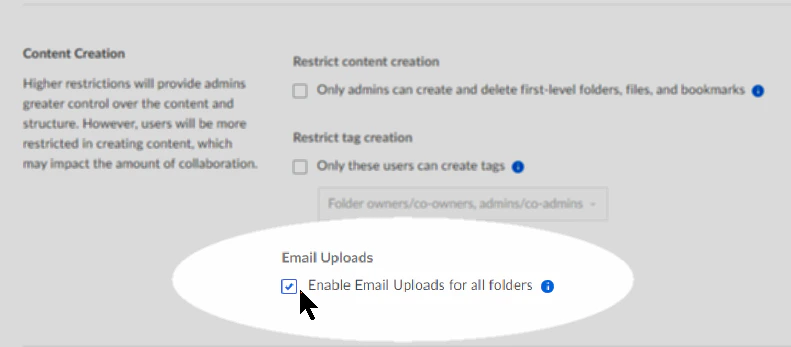
# Enabling email uploads for your enterprise
Box enables you to allow or disallow your account holders to use email to upload content to Box folders. When you enable this functionality for your Box deployment, your account holders can easily upload files to a specific Box folder through email.
**To enable email uploads for your enterprise:**
1. From the Admin Console, click **Enterprise Settings**.
2. Click the **Content and Sharing** tab. Scroll down to the **Content Creation** section.
3. Under **Email Uploads**, check **Enable Email Uploads for all folders**.
4. In the top-right corner of the window, click **Save**.