> ## Documentation Index
> Fetch the complete documentation index at: https://docs.box.com/llms.txt
> Use this file to discover all available pages before exploring further.
# Best Practice - Terminating Employees
This guide will show you the steps to take in the event you need to terminate an employee who has access to your Box account. Read on to learn how to protect the security of your organization’s content in Box.
# For Business Admins
## **Set the User's Status to Inactive**
This will freeze the user’s account, preventing them from making changes to any files. Their content will be frozen for all collaborators too, and Box Sync will also be disabled for the user. An inactive managed user's Box account continues to be a paid seat license.
To apply the **Inactive** status:
1. Log in to Box
2. Click **Admin Console**.
3. In the lefthand navigation, click **Users and Groups**. The **Managed Users** tab displays.
4. Select the person who’s leaving your company.
5. In the **Edit User Account Details** section, in the **Status** box, click the drop-down menu and select **Inactive**.
## **Remove the User from Shared Folders**
1. In the **Edit User Access Permissions** section, scroll down to the **Select folders this user can access** table.
2. In the Access level column next to each of the folders from which you want to remove this user, click the down arrow and select **None**.
3. Scroll back up to the **Edit User Account Details** section.
4. Click **Delete this User**. (This link is located between the **Status** and **Language** boxes.) You’ll then have the option to transfer any content the user owns to another user – or to delete it entirely. (If your organization uses Box Relay, you also have the option to transfer any Relay workflows the user owns, along with their content.)
**Tip**
You may want to transfer everything to yourself and then apportion the content out to other users.
# For Enterprise Admins
The steps you’ll take to cut off a former employee’s access to Box are the same as above. But, as an Enterprise admin, you’ve got two additional tools you can use to protect your account:
## **Log in to a User’s Account**
If you need to check for or monitor activity in the user’s account, you can log right in to it from the Admin Console. To do this:
1. From the Admin Console, in the lefthand navigation, click **Users and Groups**. The **Managed Users** tab displays.
2. Select the person who you want to monitor.
3. In the **Edit User Account Details** section, click **Log in to this account**.
**Note**
If you have already made a user inactive, you will see the same view as the user, which will indicate that the account is inactive. To access the user's content, use the Content Manager.
## **Limit the Devices Using Box Sync**
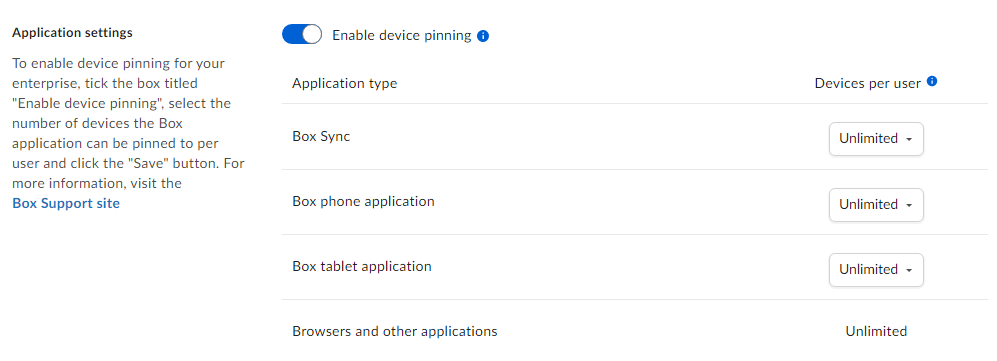
Finally – for added security – consider limiting the number of computers on which your users can install and run Box Sync. To do this:
1. From the Admin Console, in the lefthand navigation, click **Enterprise Settings**.
2. Toward the top of the page, click **Device trust**.
3. In the **Application settings** section, you can limit the number of computers/devices as you see fit.