> ## Documentation Index
> Fetch the complete documentation index at: https://docs.box.com/llms.txt
> Use this file to discover all available pages before exploring further.
# Setting Up Device Trust Security Requirements
Device Trust helps you enforce your enterprise's compliance or security policies by defining a minimum set of requirements for devices used to access Box. Device Trust verification is enforced at login, for your managed users, and access is prevented unless you have enabled Audit-Only mode. (See [Monitoring Device Access](#monitoring-device-access) for details about Audit-Only mode).
**Notes:**
* Admins and Co-Admins who can edit enterprise settings are exempt from Device Trust checks. This keeps them from accidentally locking themselves out of the admin console.
* Users who log in via FTP or SFTP are also exempted from Device Trust checks.
* For computers, you must have Box Tools installed for the Web App to perform the necessary Device Trust security checks.
Your organization starts with a default policy named Enterprise-wide default policy. The policy is enabled, but no ownership or security requirements are enabled. Only the Platform Restrictions setting is enabled, which blocks access from devices running on unsupported operating systems, which is a baseline from which you can craft a more deliberate policy.
**Note:**
If enabled for your organization, you can add multiple security policies. If you enable multiple security policies, device access is granted only if it passes all policy checks.
## Device Policy in Use
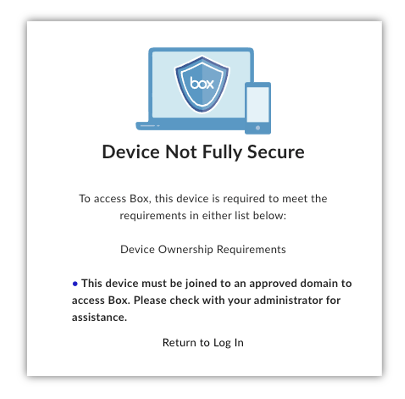
When Device Trust is enabled and restrictions are set, users that don't meet these requirements will see a screen like the one below and won't be allowed to access Box.
 ## Creating a Device Trust Policy
1. Go to **Admin Console** -> **Enterprise Settings**.
2. Select the **Device Protection** tab.
3. In the Box Device Trust section, select **Create policy**.
4. Enter a Name and an optional Description.
5. Configure the policy. See [Enterprise Settings: Device Protection Tab](/en/box-admin-tools/box-admin-reference/enterprise-settings-device-protection-tab) for details about Device Trust policy settings.
6. Select **Next**.
7. Select **Save**.
## Editing a Device Trust Policy
1. Go to **Admin Console** -> **Enterprise Settings**.
2. Select the **Device Protection** tab.
3. In the Box Device Trust section, select the name of the policy.
4. Click **Edit**.
5. Make any desired changes. See [Enterprise Settings: Device Protection Tab](/en/box-admin-tools/box-admin-reference/enterprise-settings-device-protection-tab) for details about Device Trust policy settings.
6. Select **Next**.
7. Select **Save**.
## Deleting a Device Trust Policy
1. Go to **Admin Console** -> **Enterprise Settings**.
2. Click the **Device Protection** tab.
3. In the Box Device Trust section, select the name of the policy.
4. Select **Delete**.
5. In the Delete Policy dialog box, select **Delete**
## Creating a Device Trust Policy
1. Go to **Admin Console** -> **Enterprise Settings**.
2. Select the **Device Protection** tab.
3. In the Box Device Trust section, select **Create policy**.
4. Enter a Name and an optional Description.
5. Configure the policy. See [Enterprise Settings: Device Protection Tab](/en/box-admin-tools/box-admin-reference/enterprise-settings-device-protection-tab) for details about Device Trust policy settings.
6. Select **Next**.
7. Select **Save**.
## Editing a Device Trust Policy
1. Go to **Admin Console** -> **Enterprise Settings**.
2. Select the **Device Protection** tab.
3. In the Box Device Trust section, select the name of the policy.
4. Click **Edit**.
5. Make any desired changes. See [Enterprise Settings: Device Protection Tab](/en/box-admin-tools/box-admin-reference/enterprise-settings-device-protection-tab) for details about Device Trust policy settings.
6. Select **Next**.
7. Select **Save**.
## Deleting a Device Trust Policy
1. Go to **Admin Console** -> **Enterprise Settings**.
2. Click the **Device Protection** tab.
3. In the Box Device Trust section, select the name of the policy.
4. Select **Delete**.
5. In the Delete Policy dialog box, select **Delete**
Monitoring Device Access
* Reports can be generated in **Admin Console > Reports > User Activity**. Under **Login**, select **Failed Device Trust Check**.
* Logs are available in [Box Events Stream](https://developer.box.com/guides/events/)